Visual mode
Contents
- Blocks or Visual: what's the difference?
- How do you switch to Visual mode?
- Write directly on the page
- Arrange blocks with the toolbar
- Change an image and adjust a block
- Check how it looks on mobile and tablet
- Undo and save: how do you work without worry?
- What Visual mode doesn't do
- Key points
- Going further
- Frequently asked questions
The editor's Visual mode shows your page exactly as your visitors will see it, with your theme, and lets you edit it right there. You type into headings, change an image in one click, rearrange blocks and check how the page looks on a phone. This lesson shows you how to use it without breaking anything, on Atelier Nova's home page.
What you'll be able to do
Edit a page as it appears
Write, replace an image and rearrange blocks in the final layout.
Check the mobile view
Switch from 390 px to 768 px, then to full width, in one click.
Work without risk
Undo up to 50 steps and restore an earlier version if needed.
Blocks or Visual: what's the difference?
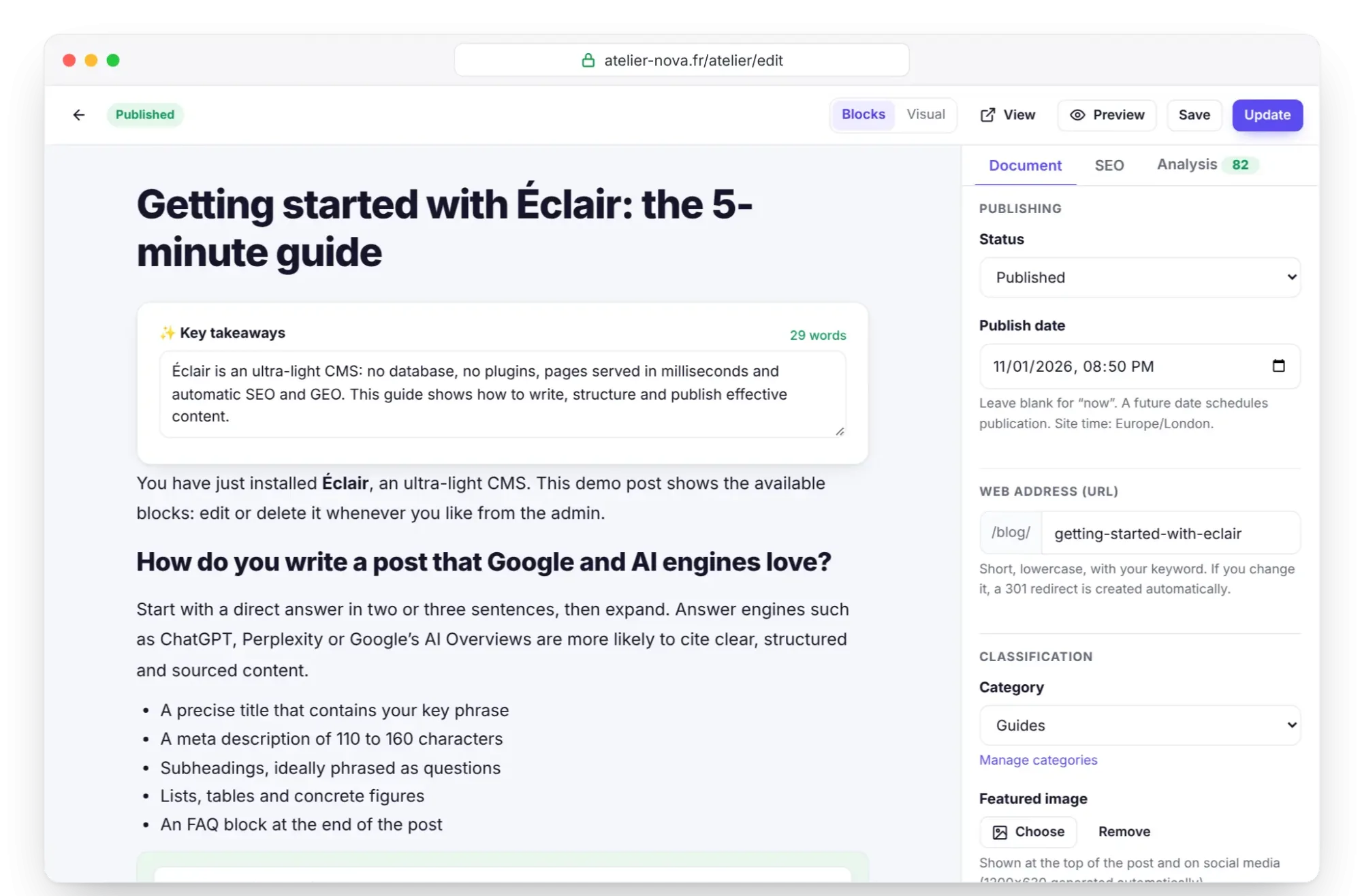
Éclair's editor offers two views of the same content. In Blocks mode, you see a column of stacked forms: a paragraph, a subheading, an image, a FAQ. In Visual mode, you see the final page, with the colors, fonts and layout of your theme or art direction. Switching from one to the other changes nothing in the content: it's simply displayed differently.
| Blocks mode | Visual mode | |
|---|---|---|
| What you see | The blocks as forms | The page with your theme |
| Best for | Writing a long text, structuring a post | Touching up a home page, a banner, features |
| Pasting | Smart paste from Word or Google Docs | Plain text |
| Width | Editing column | 390 px, 768 px or full width |
How do you switch to Visual mode?
- Open Content, then the page you want to touch up. For Atelier Nova, that's the home page.
- At the top of the editor, click Visual, next to Blocks. The page appears with your theme after a short load.
- The right-hand panel stays available: it shows the selected block's form, then the Document, SEO and Analysis tabs.
- To go back to the forms, click Blocks.
Your choice is remembered: the next time you open content in this browser, the editor starts in the mode you used last. Visual mode works for pages, posts and product pages.
Write directly on the page
Click a heading, a paragraph, a FAQ question or a button's text, then type. The usual shortcuts work: Ctrl+B for bold, Ctrl+I for italic and Ctrl+K for a link, which opens the editor's page search.
Enterconfirms a single-line field, such as a banner title.- In a paragraph,
Entercreates the next paragraph andShift+Enteradds a simple line break. Ctrl+Ssaves, even when the cursor is inside the page.- Pasted content comes in as plain text, without formatting.
Example: Atelier Nova's banner said “Welcome to our ceramics studio in the heart of Lyon”. One click on the title, and you replace it with “Pottery classes in Lyon”, shorter and clearer. The Design score also prefers a banner title of 8 words at most.
Arrange blocks with the toolbar
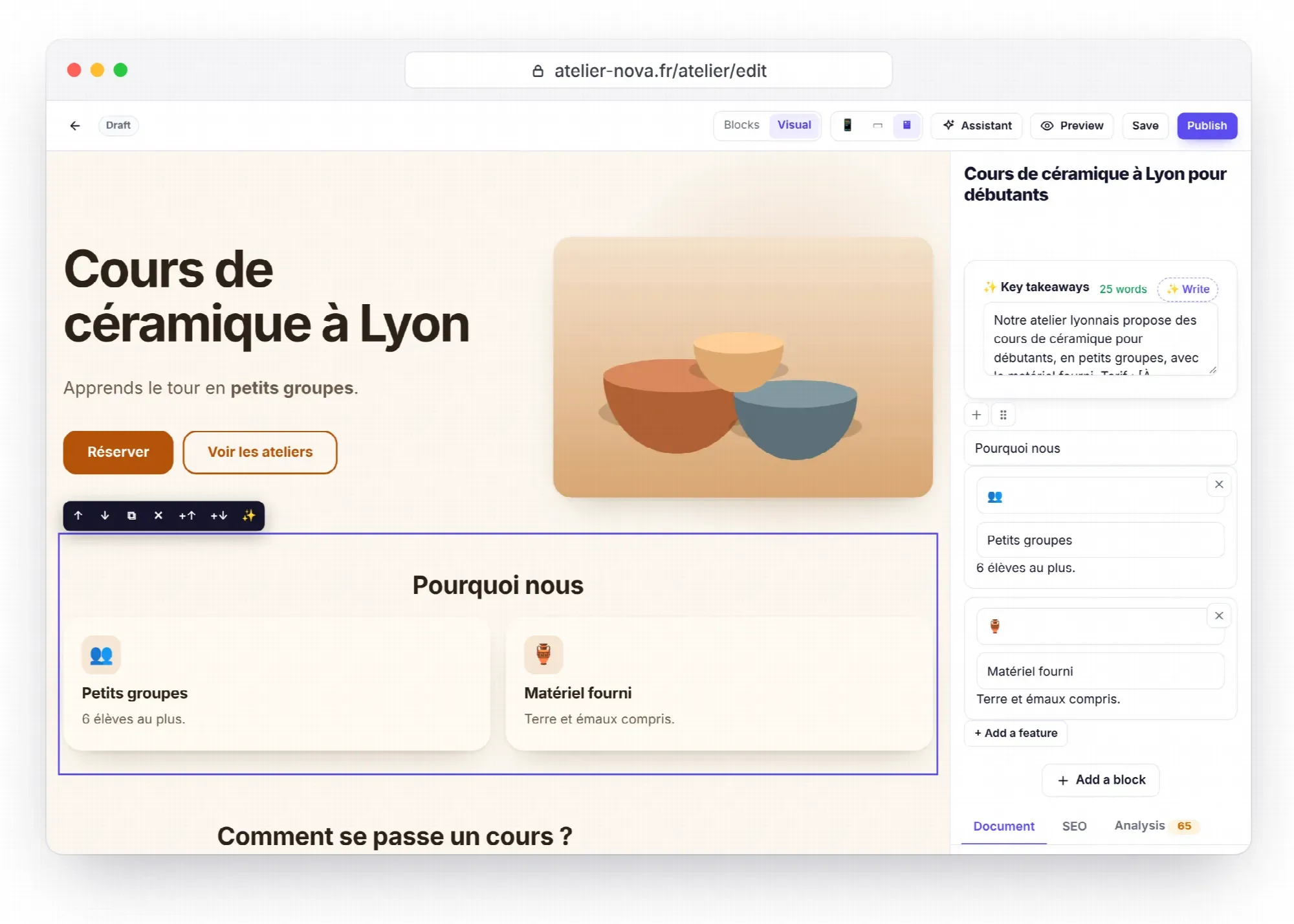
Clicking a block outlines it and shows its toolbar. Hover over each button to read its name.
| Button | Name | Effect |
|---|---|---|
| ↑ and ↓ | Move up, Move down | Moves the block one step |
| ⧉ | Duplicate | Creates a copy right below |
| ✕ | Delete | Removes the block from the page |
| +↑ and +↓ | Add a block above, Add a block below | Opens the list of blocks to insert |
| ✨ | Edit with AI | Improves, fixes, shortens, expands, simplifies, changes the tone or translates the text |
The toolbar also works with the keyboard: Tab to move from one button to the next, then Enter. The ✨ button only appears if the AI assistant is turned on, and each touch-up shows a message with a Cancel button.
Change an image and adjust a block
Click an image to choose another one from the media library. This works for the banner, the image block, the team block's portraits and a post's featured image. Remember the alt text: the SEO analysis flags every image that doesn't have one.
Whatever you can't type on the page is set in the right-hand panel, which shows the selected block's form: a button's URL, the number of posts in a “Latest posts” block, a new FAQ question. On Atelier Nova's page, the “Book a class” button is edited this way: its text on the page, its link in the panel.
A block that's invisible on the public site, such as an image not chosen yet or a Products block while the shop is closed, appears as a dotted frame. Select it and complete it from the panel.
Check how it looks on mobile and tablet
Three buttons at the top of the editor change the preview width: 📱 Mobile (390 px), ▭ Tablet (768 px) and 🖥 Desktop (full width). A large share of your visitors arrive on a phone: run this check before every publication. At 390 px, make sure that:
- the banner title stays readable, on three lines at most;
- the buttons don't overlap and are easy to tap with a finger;
- tables scroll horizontally without overflowing the page;
- important images stay visible and well framed.
Undo and save: how do you work without worry?
Ctrl+Z (Cmd+Z on a Mac) undoes your changes one step at a time, up to 50 steps. Everything else goes through the usual editor: saving with Ctrl+S, a local backup draft if your browser closes, live SEO and GEO analysis.
What Visual mode doesn't do
- The page's links, buttons and forms don't respond while you're editing: a click selects the block. To test a link, use Preview or View.
- The header, menu and footer are displayed, but you edit them elsewhere: in Menus and in Settings › Appearance.
- It only lives in the admin preview: you must be logged in with permission to write, and the page is never cached or indexed. Your public pages don't load any extra code.
Key points
- Visual mode shows your page with its theme; the content is the same as in Blocks mode.
- Clicking a block opens its toolbar: move, duplicate, delete, add, edit with AI.
- A block's links and options are set in the right-hand panel.
- Check every page at 390 px and at 768 px before publishing it.
Ctrl+Zundoes 50 steps, and the history keeps 20 saved versions.
Going further
- Create a page with AI: the draft composed by the assistant opens directly in Visual mode.
- Themes and appearance and art directions: what you see on screen depends on these settings.
- Reference for the 18 blocks: each block's fields, the ones you find in the right-hand panel.
- Official source: the Visual mode section of the Éclair guide, on GitHub.
Frequently asked questions
Does Visual mode change the code of my public pages?
No. It only exists in the admin preview, reserved for logged-in people who have permission to write. The public site stays identical and keeps all its speed.
Why doesn't my button open when I click it?
While you're editing, a click selects the block instead of following the link. Change the button's URL in the right-hand panel, then test it with Preview.
Can I use Visual mode on a post or a product page?
Yes, the editor is the same for pages, posts and products. On a post, clicking the featured image also lets you replace it.
How many steps can I undo?
Up to 50 with Ctrl+Z. Beyond that, or after closing the editor, open the version history in the Document tab: it keeps the last 20 saved versions.