Create a page with AI and polish its text
Contents
Creating a page with AI in Éclair takes a single description: the assistant composes a complete draft in sections, then opens it in Visual mode. You then touch up each passage in one click, from the “Key takeaways” summary to the SEO title. This lesson covers the Create with AI box, the editor's touch-ups and ten ready-to-copy prompts.
What you'll be able to do
Compose a complete page
Banner, features, FAQ and contact from a two-sentence description.
Touch up a passage
Improve, shorten, simplify or translate a selection, with undo.
Polish SEO and GEO
Have the AI write Key takeaways, the SEO title, the FAQ and alt text.
How do you create a page with AI?
In a new piece of content (page, post or product page), the ✨ Create with AI box appears above the title, if the assistant is turned on for your account. It composes a complete draft in a single call: structure, copy and SEO settings.
- Open Content, then click + Page (or Post, or + Product if your shop is open).
- In the box, choose the Type and the Content language. If both your keys are saved, the Choose the AI field lets you switch between Claude and ChatGPT.
- Describe your page in Description, in one or two sentences.
- If you like, add the Goal, the Audience, the Tone and the Sections (optional).
- Read the estimated cost next to the button, then click Create the draft.
- Wait 20 to 60 seconds: the draft opens in Visual mode.
The examples shown in the fields give the right level of detail:
| Field | Example | What the AI does with it |
|---|---|---|
| Description | present our pottery studio and its beginner classes in Lyon | the page's topic and angle |
| Goal | get sign-ups | the calls to action and buttons |
| Audience | adult beginners | the vocabulary and examples |
| Tone | warm and reassuring | the voice, on top of the editorial profile |
| Sections | banner, benefits, pricing, FAQ, contact | the order of the blocks |
The cost is shown before you start: about $0.08 with Claude Sonnet 5.5 and $0.16 with Claude Opus 5.5, according to the prices taken on October 29, 2026 by the official guide. It's taken from the assistant's budget.
What does the AI-generated draft contain?
The draft arrives complete: title, URL, SEO title and meta description, “Key takeaways”, focus keyphrase and a layout in sections. Depending on your request, it combines a banner, features, subheadings, lists, callouts, a FAQ, buttons, a team section, a contact form, latest posts or products, with a single H1: the banner's title.
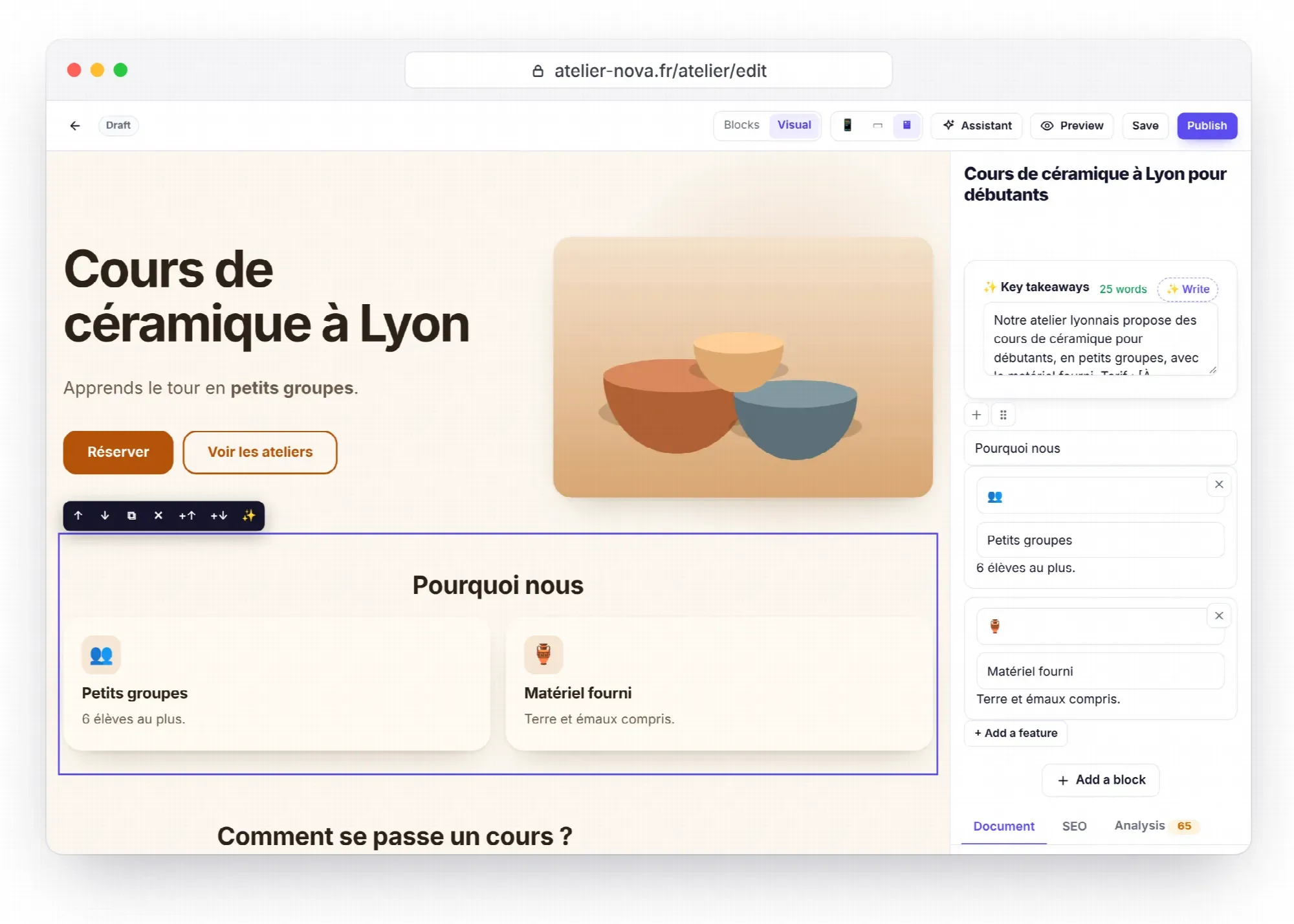
To write, the AI relies on three sources:
- your editorial profile, for the tone and the rules
- the list of your published pages and posts, so that internal links point to pages that exist
- your 30 latest images, to illustrate the page without making anything up
It makes up no facts. Missing prices, figures, names or opening hours stay in the form [To complete: …], counted by the Analysis tab until you fill them in. The draft is never published: review it, complete it, then publish it.
Touch up a passage in one click
Select a passage in the editor, then click ✨ (Edit with AI) in the formatting toolbar. A menu offers eight touch-ups:
| Touch-up | Effect |
|---|---|
| Improve | Clearer and better paced, same meaning, same voice |
| Fix mistakes | Spelling, grammar, punctuation and typography, nothing else |
| Shorten | About 40% shorter, key information kept |
| Expand | About 50% longer, with useful details and no made-up facts |
| Simplify | Shorter sentences, everyday words |
| Warmer | Closer to the reader |
| More professional | More formal |
| Translate… | Into one of the site's 6 languages, like a native writer |
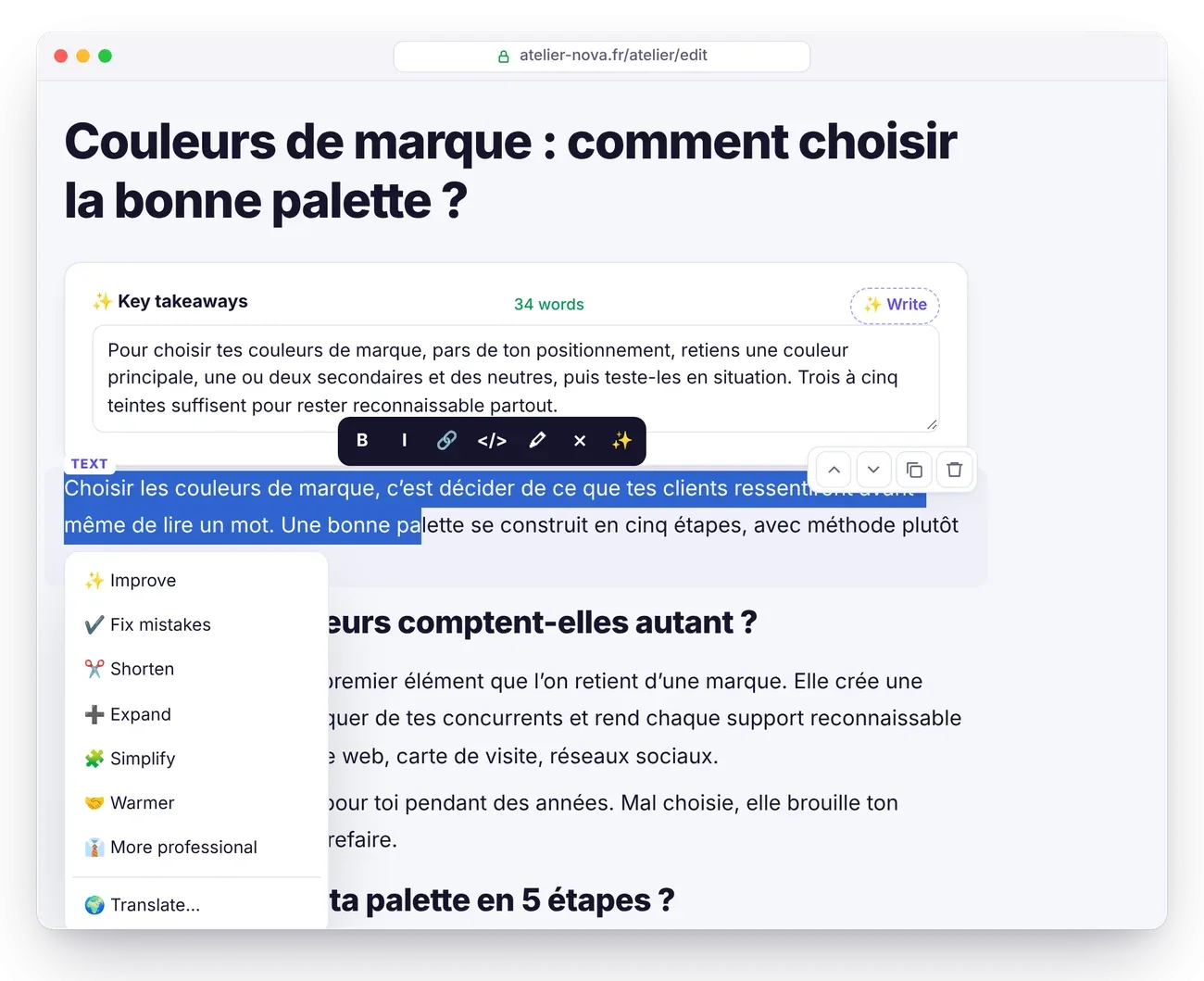
During the touch-up, the message “The AI is reworking the passage…” appears, then “Passage rewritten.” with a Cancel button that restores the original text. In Visual mode, the same touch-up starts from the ✨ button on the block's toolbar. Each touch-up counts as one request in the budget and the daily quota.
Write Key takeaways, SEO fields and the FAQ
Other buttons in the editor handle the settings that weigh on search rankings and on citations by AI:
| Where | Button | Result |
|---|---|---|
| Key takeaways | Write (or Write “Key takeaways” with AI if it's empty) | A 2- or 3-sentence summary, ready to be quoted |
| SEO tab | SEO title and description | Both fields filled in at once |
| SEO tab | Focus keyphrase | The main search query to target |
| SEO tab | Title ideas | Several titles: one click applies one |
| Analysis tab | Add a FAQ | Questions added to the existing FAQ, or a new block |
| Analysis tab | Alt texts | The missing alt texts for the content's images |
| Analysis tab | Improve with the assistant | The assistant opens and works on the weak SEO and GEO points |
| Featured image | Create with AI | An image generated in 10 to 60 seconds (image generator required) |
| Media library | Describe with AI | An image's alt text, written by looking at it |
Ten ready-to-copy prompts
Paste them into the assistant (Ctrl+J) and replace what's in square brackets. The first five start from scratch; the next five work with content open in the editor or with an existing page.
Create an “Our services” page presenting our three packages: [package 1], [package 2], [package 3]. Sections: banner, features, FAQ, contact. Warm tone.Create an “About” page: our story since [year], our values ([value 1], [value 2]) and the team: [First Last, job title], [First Last, job title].Write an article for [audience] based on my notes: [paste your notes here]. Focus keyphrase: “[keyphrase]”. Add a featured image.Give me 5 article ideas to attract new customers, without repeating anything already on the site.Create a landing page for [offer]. Goal: get quote requests. Sections: banner, features, a 3-step process, FAQ, contact.Add a FAQ with 4 questions our customers really ask about this topic.Make the introduction punchier: under 70 words, with the focus keyphrase in the first sentence.Optimize this content for Google and AI: title, Key takeaways and meta description.Add to the team page: Léa Martin, art director, with the attached photo.Create a draft of the French version of the “Our services” page, adapted for a French-speaking audience.For the last one, then link the two versions in the editor, in the Translation of… field (Author and language section): the hreflang tags are then added automatically (see Build a multilingual site). To attach a photo, use the Attach an image paperclip, drag and drop it, or paste it.
What limits should you know about?
The assistant is deliberately bounded, so you stay in control of both your content and your budget:
- at most 4 drafts, 3 images and 8 changes per request
- at most 8 steps and about 7 minutes per request: beyond that, it stops and keeps what's already done
- at most 4 attached images per message
- no publishing, deleting or settings changes, ever: you're the one who publishes
The assistant reminds you of this at the bottom of its panel: “AI can make mistakes: review before publishing.”
Key points
- To create a page with AI, the Create with AI box in a new piece of content composes a complete draft for about $0.08 with Claude Sonnet 5.5.
- Goal, audience, tone and sections strongly shape the result: fill them in.
- The draft opens in Visual mode, with [To complete: …] placeholders instead of missing facts.
- The ✨ menu touches up a selection in eight ways, and Cancel restores the text.
- Key takeaways, SEO title, FAQ and alt texts are written in one click, then reviewed.
Going further
- Turn on the built-in AI assistant: key, model, budget and editorial profile.
- Visual mode: touch up the page as it actually looks.
- SEO with Éclair: what the analysis measures and how to aim for 100.
- 40 MCP use cases, with prompts: the same ideas from Claude or ChatGPT.
- Official source: Éclair CMS guide, AI assistant section.
Frequently asked questions
Why doesn't the Create with AI box appear?
It only shows in a new piece of content, and only if the assistant is turned on for your account. Check that a key is saved in Settings › AI assistant and, for an editor, that “Editors can use the assistant” is checked.
How much does a page with AI cost?
About $0.08 with Claude Sonnet 5.5 and $0.16 with Claude Opus 5.5 (prices checked on October 29, 2026). The exact amount is shown before you start, and it's taken from the assistant's budget.
Can the AI make up my prices or opening hours?
No. When information is missing, it writes a [To complete: …] placeholder that the Analysis tab counts until you fill it in. Still, check every fact before publishing.
Is a touch-up final?
No. The “Passage rewritten.” message offers Cancel to restore the text, and the Version history keeps the content's last 20 saved versions.