Everyday security
Contents
Éclair is designed for a hostile environment, but everyday security also depends on you: a good password, two-factor authentication, accounts suited to each person and regular visits to the Security page. This lesson guides you step by step, then suggests a 30-minute monthly routine, the one followed by Atelier Nova and its two instructors.
What you'll be able to do
Lock down your account
A strong password and two-factor authentication with backup codes.
Give the right permissions
Administrators, editors, temporary passwords and sessions.
Keep an eye on your site
Integrity check, protection test, log and backup.
A strong password
Éclair hashes passwords with Argon2id, an algorithm designed to make brute-force attacks expensive, and refuses passwords that are too weak:
- fewer than 10 characters;
- a common password, such as “password123”;
- fewer than 5 different characters;
- a password that contains your name, your email or the site's name.
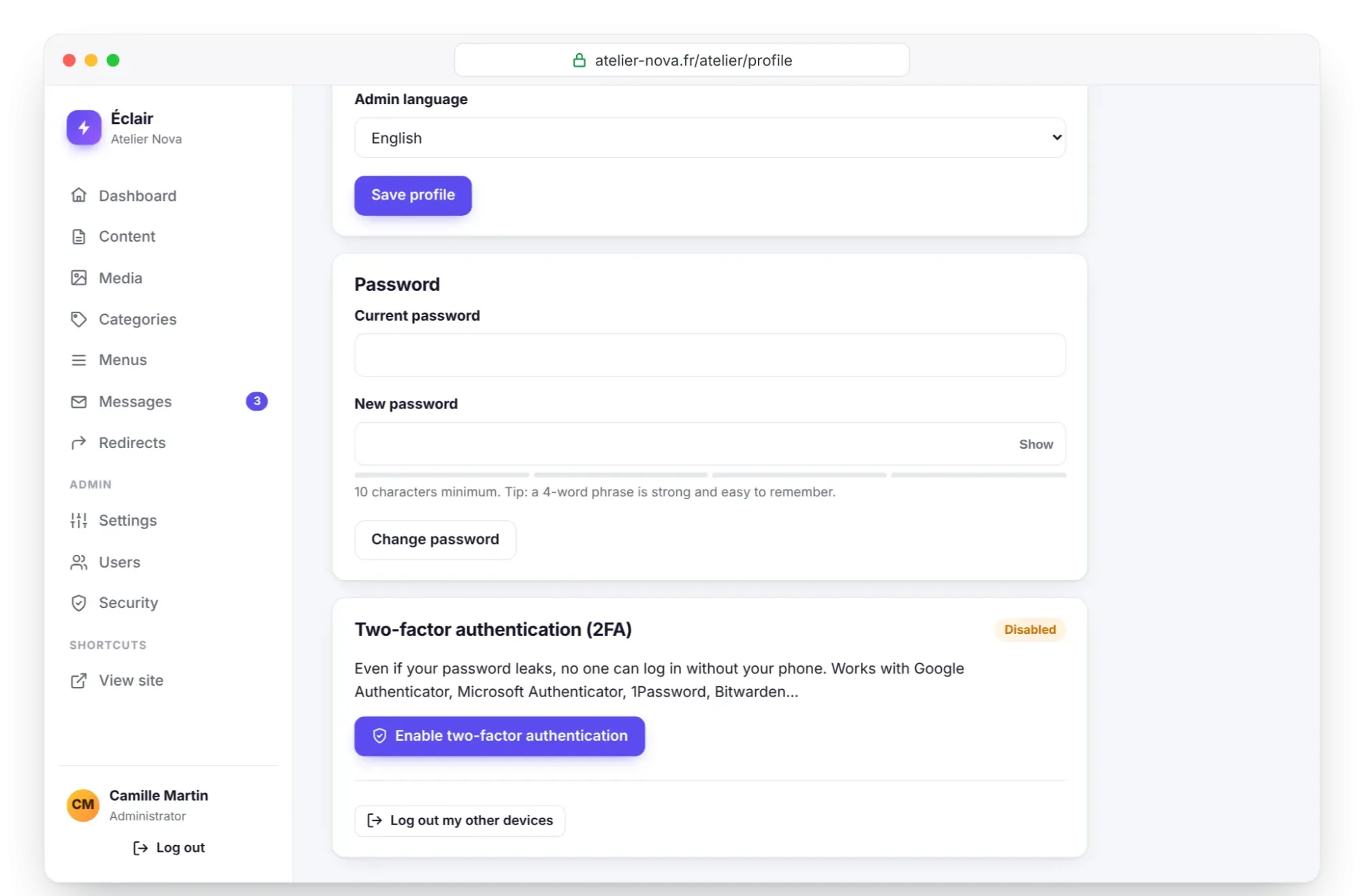
The tip shown below the field is the right one: “a 4-word phrase is strong and easy to remember”, with words that have nothing to do with each other. Better still, use a password manager. To change your password, open My profile, Password section, enter the Current password then the New password, and click Change password: your other devices are logged out.
Against bots, each network gets 10 attempts every 15 minutes, and each account 30 per hour. Your usual device has its own counter: an attacker who fails on purpose can't lock you out.
How do you turn on two-factor authentication?
- Open My profile, Two-factor authentication (2FA) section, and click Enable two-factor authentication.
- Open your authenticator app (Google Authenticator, Microsoft Authenticator, 1Password, Bitwarden…) and scan the QR code, or type in the key shown.
- Enter the 6-digit code shown by the app, then click Confirm and enable.
- Write down the 8 backup codes: they're shown only once. Click Copy codes and store them in your password manager, or print them.
From then on, at every login, Éclair asks for this 6-digit code, which changes every 30 seconds. If the code is refused during activation, check your phone's clock: a time drift is enough to make the code wrong.
Lost your phone? Enter one of your backup codes, in the format abcde-12345, instead of the code: each one works only once. My profile shows how many backup codes you have left, and the New backup codes button generates a new set. After 10 wrong codes, the account's two-factor authentication is locked for 15 minutes and its owner is notified by email.
Administrators and editors: to each their own permissions
| Role | What it can do |
|---|---|
| Administrator | Everything: settings, users, the Security page, and everything an editor does |
| Editor | Write and publish in Content, manage Media, Categories, Menus, Messages and Redirects; use the AI assistant if “Editors can use the assistant” is checked |
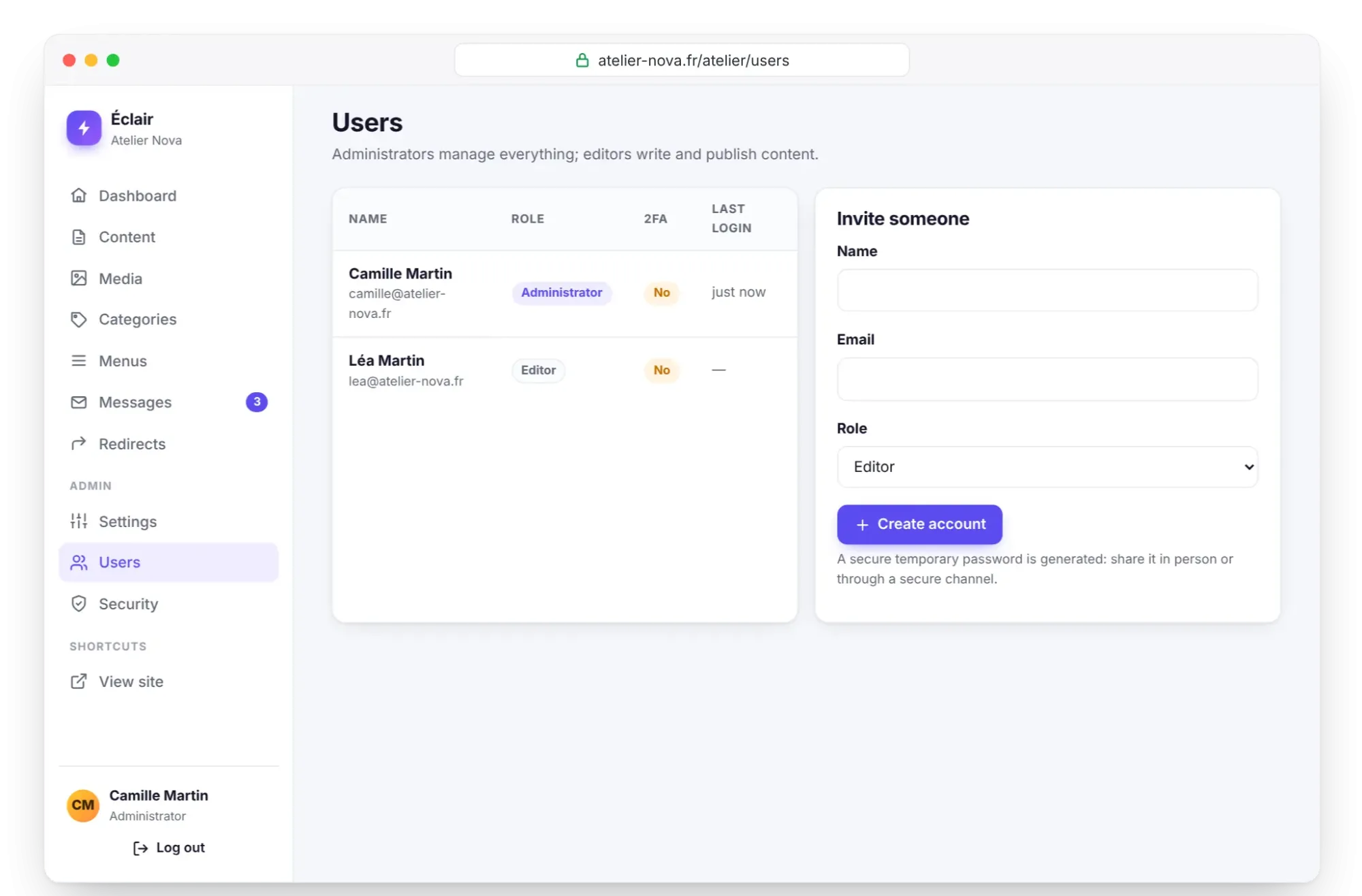
To invite one of Atelier Nova's instructors:
- Open Users, then the Invite someone form.
- Enter her Name and Email, keep the Role “Editor”, then click Create account.
- Éclair generates a secure temporary password, in four groups of 4 characters: share it in person or through a secure channel.
- At her first login, she must replace it with her own password before she can access the rest of the admin.
The Users list shows, for each account, its role, the status of its two-factor authentication (Enabled or No) and its Last login. An account's page lets you Reset password, Disable 2FA if the person has lost their phone, or Delete account: their content stays online.
Sessions and sensitive actions
- A session closes after a period of inactivity, 240 minutes by default, adjustable from 15 to 1,440 minutes in Settings › Advanced. It never lasts more than 48 hours and stays bound to your browser.
- Log out my other devices, in My profile, closes your sessions elsewhere. Log everyone out, in Security › Sessions and blocks, closes all the site's sessions except yours.
- For sensitive actions (backup, account management, advanced settings, email change), the Confirm with your password field appears if you logged in more than 15 minutes ago.
The Security page, block by block
| Block | What it does | Your action |
|---|---|---|
| Protection level | Score based on 7 checks: HTTPS enforced, verified address, 2FA for all administrators, custom admin URL, PHP 8.2 or later, Argon2id, HSTS | Aim for 100% |
| Folder protection test | Your browser tries to open internal files, such as data/site.php | Everything must stay inaccessible |
| File integrity | Compares each file with its original fingerprint and looks for suspicious files | Scan now, then read the modified, missing, unknown or suspicious files |
| Backup | ZIP archive of data/ and media/ | Download a backup and store it off the server |
| Sessions and blocks | Addresses blocked after too many failures | Unblock an address, Log everyone out |
| Security log | Logins, failures, 2FA, accounts, backups | Spot anything out of the ordinary |
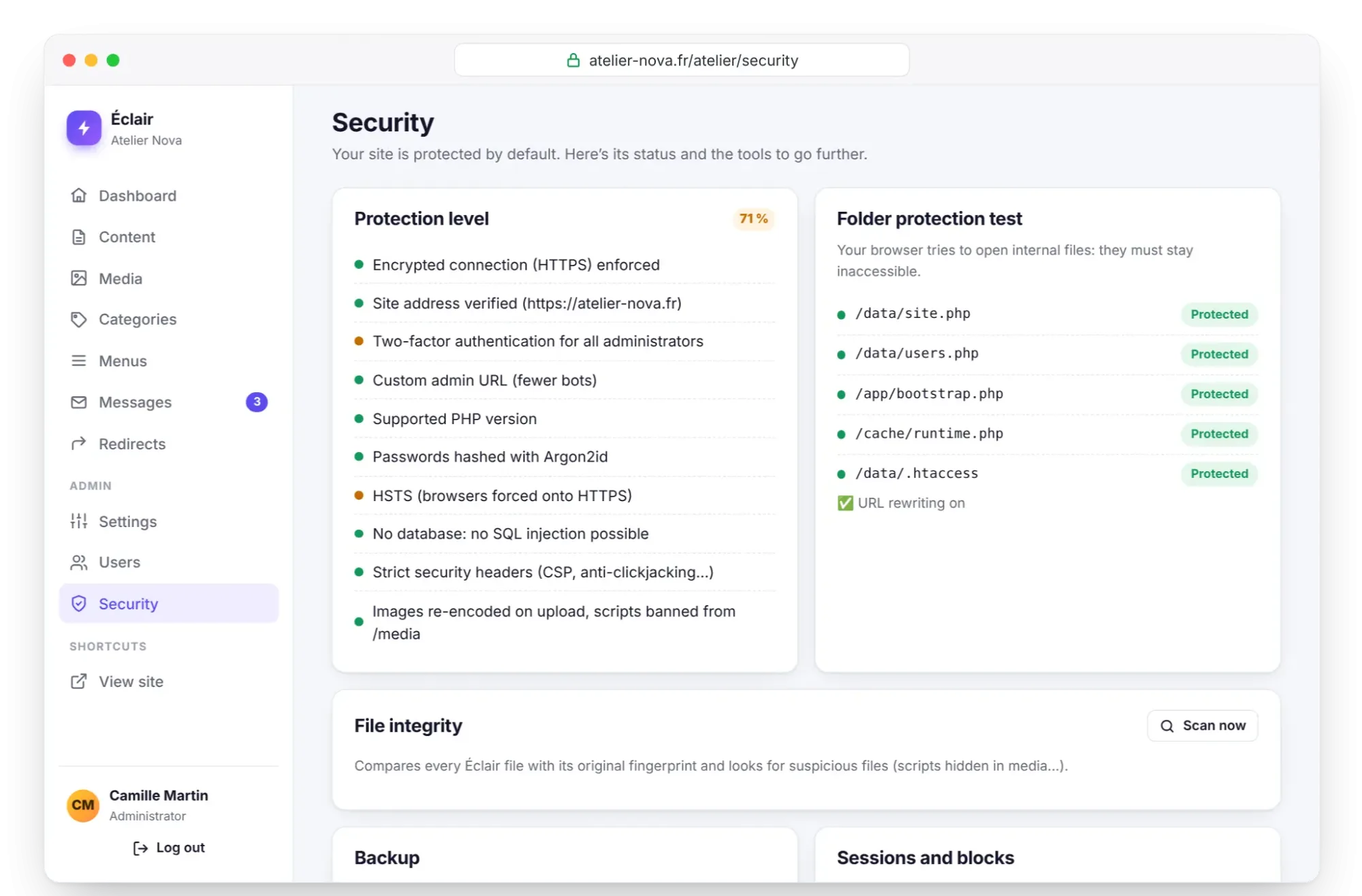
Until the site address is verified, a Verify the site address button is shown, and Éclair doesn't redirect anyone to that address. If verification fails, your server can't reach itself (host firewall, domain not propagated yet): the site works, so try again later.
Two ways of reading the integrity check are worth knowing: templates you've customized appear as modified, which is normal; old files left behind after an update appear as unknown, hence the instruction to delete app/ and assets/ before uploading a new version. As for the backup, it excludes the assistant's API keys, the conversation history and the sessions: after a restore, enter your keys again.
Everyday security in 30 minutes a month
| Step | Where | Time |
|---|---|---|
| Download a backup and store it off the server | Security › Backup | 5 min |
| Run the integrity check | Security › File integrity | 5 min |
| Read the security log | Security › Security log | 5 min |
| Check the accounts: 2FA, last login, departures | Users | 5 min |
| Revoke the MCP access you no longer use | Settings › AI assistant | 2 min |
| Check the protection level and new releases | Security, and Éclair's GitHub repository | 8 min |
Atelier Nova has put this everyday security routine in its calendar, on the first Monday of each month. And on the day an instructor leaves the studio, her account is deleted that same day, without waiting for the next routine.
Key points
- A password of at least 10 characters, ideally a 4-word phrase, and 2FA turned on.
- Store your 8 backup codes somewhere other than on your phone.
- Give the Editor role to people who write, and the Administrator role only to people who manage the site.
- Delete the account of anyone who leaves, and log out your lost devices.
- Your everyday security fits into a monthly routine: backup, integrity, log and accounts.
Going further
- Advanced security and maintenance: updates, off-site backups, HSTS, recovery.
- Understanding the MCP connector: revoke an app's access and protect your account.
- Troubleshooting: regain access with the data/reset.php file.
- Sources: the RFC 6238 standard for one-time codes and the RFC 9106 standard that describes Argon2.
Frequently asked questions
I've lost my phone, how do I log in again?
Enter one of your backup codes instead of the 6-digit code. Another administrator can also disable your 2FA from Users. With no code and no other administrator, the data/reset.php file procedure, described in the troubleshooting page, restores your access.
Can an editor change the site's settings?
No. Editors can access content, media, categories, menus, messages and redirects, but not the settings, the users or the Security page.
What is the site address verification for?
Éclair only redirects visitors to the official address, with or without www, after checking that it really leads to your site. That way, a wrong or tampered address can't hijack anyone.
Should I turn on HSTS?
Yes, once HTTPS is fully in place: the HSTS option in Settings › Advanced tells browsers to use only HTTPS for a year. Only turn it on when your whole site responds properly over HTTPS, because browsers remember this choice.