Themes and appearance
Contents
- Classic theme or art direction?
- The 6 built-in themes
- How do you choose a theme with the live preview?
- Main color, with guaranteed contrast
- System fonts, zero downloads
- Header, lists, logo and footer
- Dark mode: automatic or always light
- Why does a theme weigh only 1.5 to 3 KB?
- Key points
- Going further
- Frequently asked questions
You can choose a theme in Éclair in a few minutes without breaking anything: your content, SEO and speed stay the same, and only the look changes. This lesson reviews the 6 built-in themes, the live preview and every setting in Settings › Appearance: color, fonts, logo, header, dark mode. Running example: Atelier Nova, a ceramics studio in Lyon.
What you'll be able to do
Pick the right theme
Compare the 6 themes on your own site before saving.
Express your identity
Main color, fonts, logo and icon, without losing readability.
Keep your site fast
Understand why a theme weighs only 1.5 to 3 KB.
Classic theme or art direction?
At the top of Settings › Appearance, the Site style section offers two paths. Art direction applies a complete visual world: palette, downloaded heading typeface, layouts; that's the subject of the lesson on art directions. Classic theme stays “sober and versatile, system fonts: nothing to download”. This lesson covers the classic theme. If you try a direction, your classic theme settings stay saved: you'll find them untouched when you come back.
The 6 built-in themes
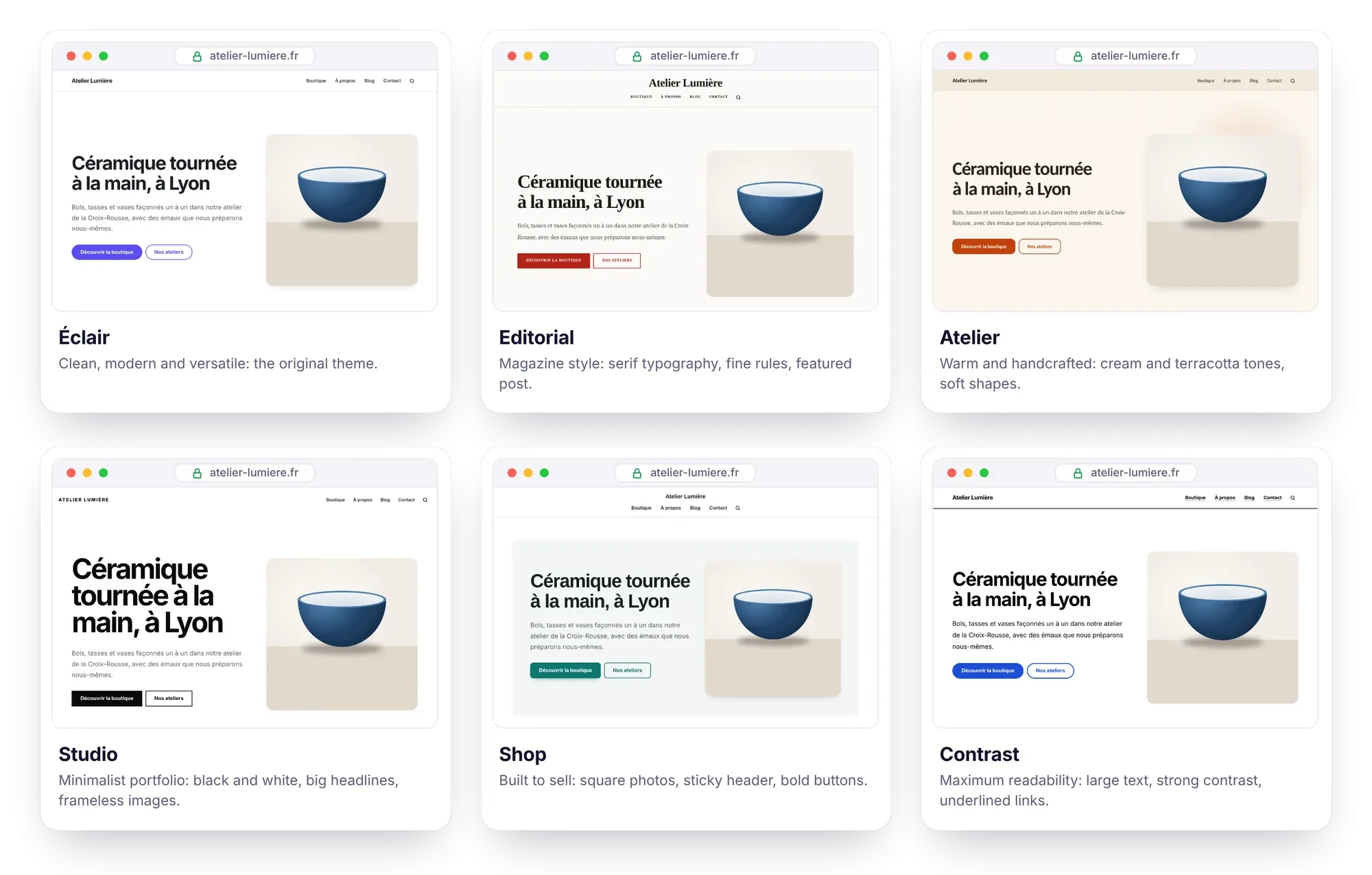
| Theme | Look and feel | Best for | Settings applied |
|---|---|---|---|
| Éclair | Clean, modern and versatile: the original theme | Any kind of site | Violet, System font, header on the left |
| Editorial | Magazine style: serif type, fine rules, drop cap, featured post | Blogs, media outlets, authors | Red, Elegant serif headings, Modern serif body, centered header |
| Atelier | Warm and handcrafted: cream and terracotta tones, soft shapes | Craftspeople, restaurants, wellness | Terracotta, Humanist font |
| Studio | Minimalist portfolio: black and white, big headlines, frameless images | Photographers, designers, agencies | Black, Neo-grotesque font |
| Shop | Built to sell: square photos, sticky header, bold buttons | Shops, makers | Teal, Geometric headings, centered header |
| Contrast | Maximum readability: large text, strong contrast, underlined links | Public services, nonprofits, seniors | Blue, System font, posts as a list |
When you choose a theme, it applies its recommended color, fonts and layout: you can change all of them afterwards. For Atelier Nova, the Atelier theme is almost a given: cream tones, rounded corners, soft shadows, ideal for photos of clay pieces. Studio would be the alternative if the photos are very polished: it puts them forward in a black-and-white frame.
How do you choose a theme with the live preview?
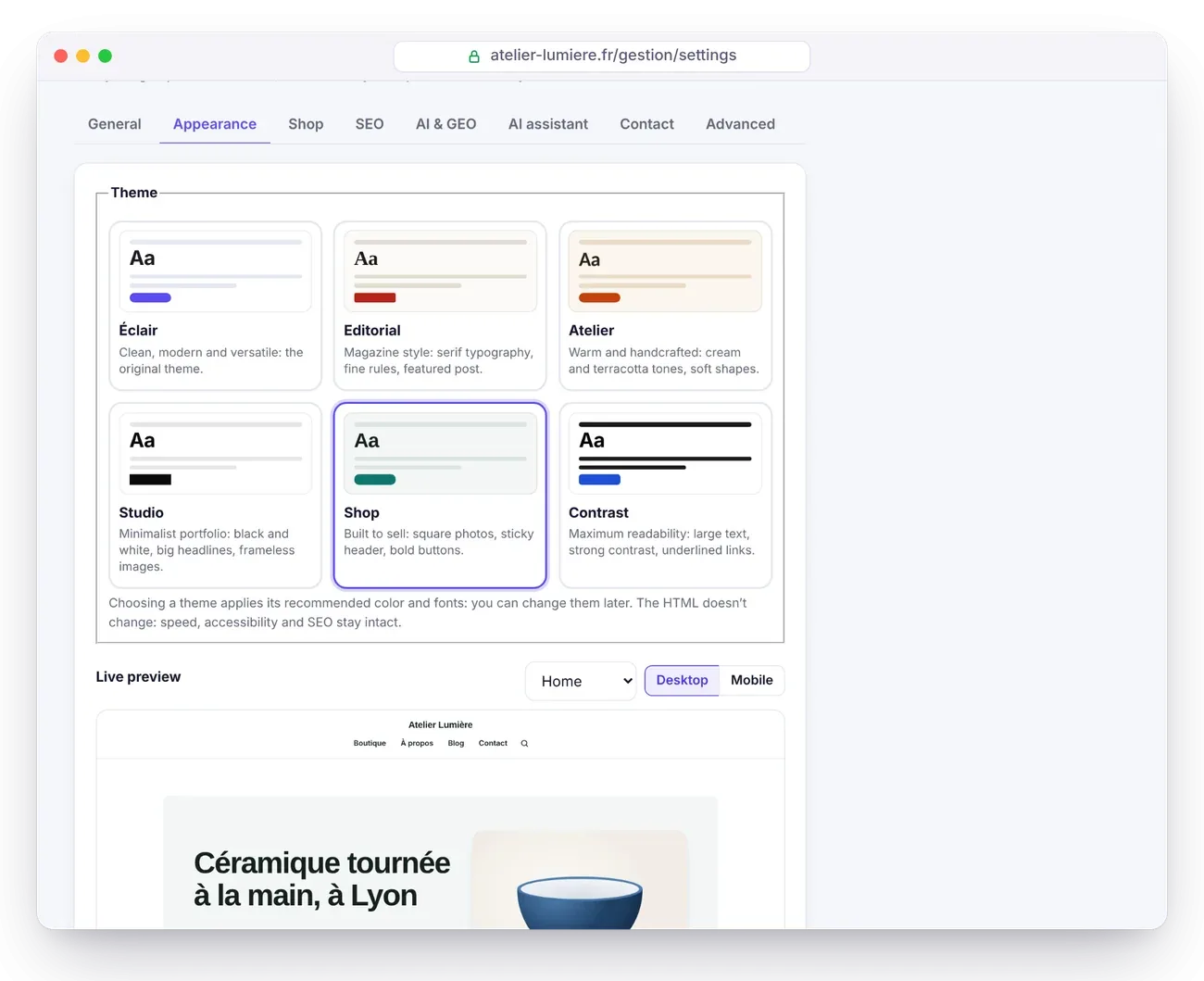
- Open Settings › Appearance and, under Site style, choose Classic theme.
- Click a theme card: the Live preview updates below the cards.
- With the drop-down list above the preview, switch from the home page to the blog, a post, the shop or a product. You can also click inside the preview: its links stay in the preview.
- Switch between Desktop and Mobile to judge both formats.
- Compare two or three themes on the same page, then click Save.
Nothing is published until you save: your visitors don't see any of your trials.
Main color, with guaranteed contrast
The Main color colors the buttons, links, list bullets, highlighting and the outline that marks the element selected with the keyboard. Pick it with the color picker or one of the 8 suggested swatches.
Éclair looks after readability: button text switches to white or near-black depending on your color, and the link color is darkened, or lightened in dark mode, just enough to reach a 4.5:1 contrast, the WCAG threshold for body text. So you can pick a sunny yellow or a powder pink without making your links unreadable. For Atelier Nova, the Atelier theme's terracotta (#c2410c) echoes the color of clay.
System fonts, zero downloads
Heading font and Body font each offer 8 styles. These are fonts already installed on the visitor's device: the browser takes the first one available from a list, so nothing is downloaded and the text displays instantly. The rendering varies slightly between a Mac, a PC and an Android phone, but the character stays the same.
| Style | Character | Fonts used, in order of preference |
|---|---|---|
| System (modern) | Sans serif, the device's own | system-ui, Segoe UI, Roboto |
| Neo-grotesque | Neutral sans serif | Inter, Roboto, Helvetica Neue, Arial |
| Humanist | Warm sans serif | Seravek, Gill Sans Nova, Ubuntu, Calibri |
| Geometric | Round, regular shapes | Avenir, Montserrat, Corbel |
| Rounded | Softened terminals | ui-rounded, Quicksand, Comfortaa |
| Modern serif | Crisp serifs, very readable | Charter, Sitka Text, Cambria |
| Elegant serif | Classic serifs | Iowan Old Style, Palatino Linotype |
| Typewriter | Monospaced | Cascadia Code, Menlo, Consolas |
A simple rule: one family for the whole site, or serif headings with sans-serif body text. Atelier Nova keeps Humanist everywhere, as the Atelier theme suggests.
Header, lists, logo and footer
- Header: “Logo on the left, menu on the right” or “Centered: logo above the menu”.
- Post and product lists: “Card grid” or “List: image on the left”, more understated for a blog.
- Logo: PNG or WebP on a transparent background, about 400 px wide. It's displayed about 38 px high: prefer a horizontal version.
- Site icon (favicon): a square image of at least 512 px. Without an icon, Éclair generates a lightning bolt in your color.
- Footer text: one or two useful lines, such as the studio's address and opening hours.
- Show “Powered by ⚡ Éclair”: turn it off if you prefer, since the MIT license doesn't require it.
Dark mode: automatic or always light
The Dark mode setting offers two choices. Automatic (based on the visitor's device) is the default: each theme has its own dark palette, applied when the visitor's phone or computer is in dark mode, with links recalculated to stay readable. Always light shows the site in light mode for everyone.
Choose “Always light” if your identity relies on a light background, or if your logo is dark on a transparent background: on a dark background, it would become almost invisible. To check, switch your own device to dark mode and reload your site.
Why does a theme weigh only 1.5 to 3 KB?
An Éclair theme is just a 1.5 to 3 KB stylesheet, added to the base stylesheet. The HTML doesn't change from one theme to another: speed, accessibility, structured data and SEO stay exactly the same. Only the active theme is inlined in the page, along with the base CSS, for 17 to 23 KB in total, or 5 to 6 KB once compressed.
Since the fonts come from the system, no request blocks rendering and the layout doesn't jump while loading. To go beyond a theme without losing this lightness, you have two tools: an art direction or a few lines of custom CSS.
Key points
- The theme only affects the look: content, URLs and scores stay the same.
- Before you choose a theme, try it in the live preview, on a real page and on mobile.
- Any main color works: Éclair adjusts buttons and links to keep a 4.5:1 contrast.
- Check your logo in dark mode, or choose “Always light”.
- To go further than the 6 themes: an art direction or custom CSS.
Going further
- Art directions and Design score: 12 complete visual worlds, with typefaces and layouts.
- Custom CSS: touch up a detail of the theme without touching its files.
- Customize the theme templates: for developers who want to change the HTML structure.
- Official source: Understanding minimum contrast, on the W3C website (WCAG 2.2).
Frequently asked questions
Does changing themes make me lose my content or SEO?
No. The HTML is the same from one theme to another: only the colors, fonts and a few layouts change. Your URLs, structured data and scores stay the same.
Can I use a Google Fonts typeface with a classic theme?
No, the classic theme only uses system fonts. For a typeface, go through an art direction: 18 heading typefaces are available, downloaded once by your server and then served by your site.
Why don't my links have exactly my main color?
If your color is too light for text, Éclair darkens it, or lightens it in dark mode, just enough to reach a 4.5:1 contrast. Buttons keep your exact color.
How do I get an always-dark site?
The classic theme only offers “Automatic” or “Always light”. For a permanently dark background, choose a dark art direction such as Nocturne or Neon.