Build a multilingual site
Contents
A multilingual site with Éclair is built one piece of content at a time: each page has its own language, and you link its translations together. Éclair handles the hreflang tags, the sitemap and the “Read in” links. This lesson shows the right way to organize URLs and, honestly, what the standard theme doesn't do, so that Atelier Nova can also welcome English-speaking students.
What you'll be able to do
Publish in several languages
Set the language of each piece of content and link its translations.
Organize your URLs
File each language under its own prefix, with subpages.
Know the limits
Menus, blog and search: what stays shared and how to deal with it.
How Éclair handles languages
The public site speaks 6 languages: French, Spanish, English, German, Italian and Portuguese. Two settings work together:
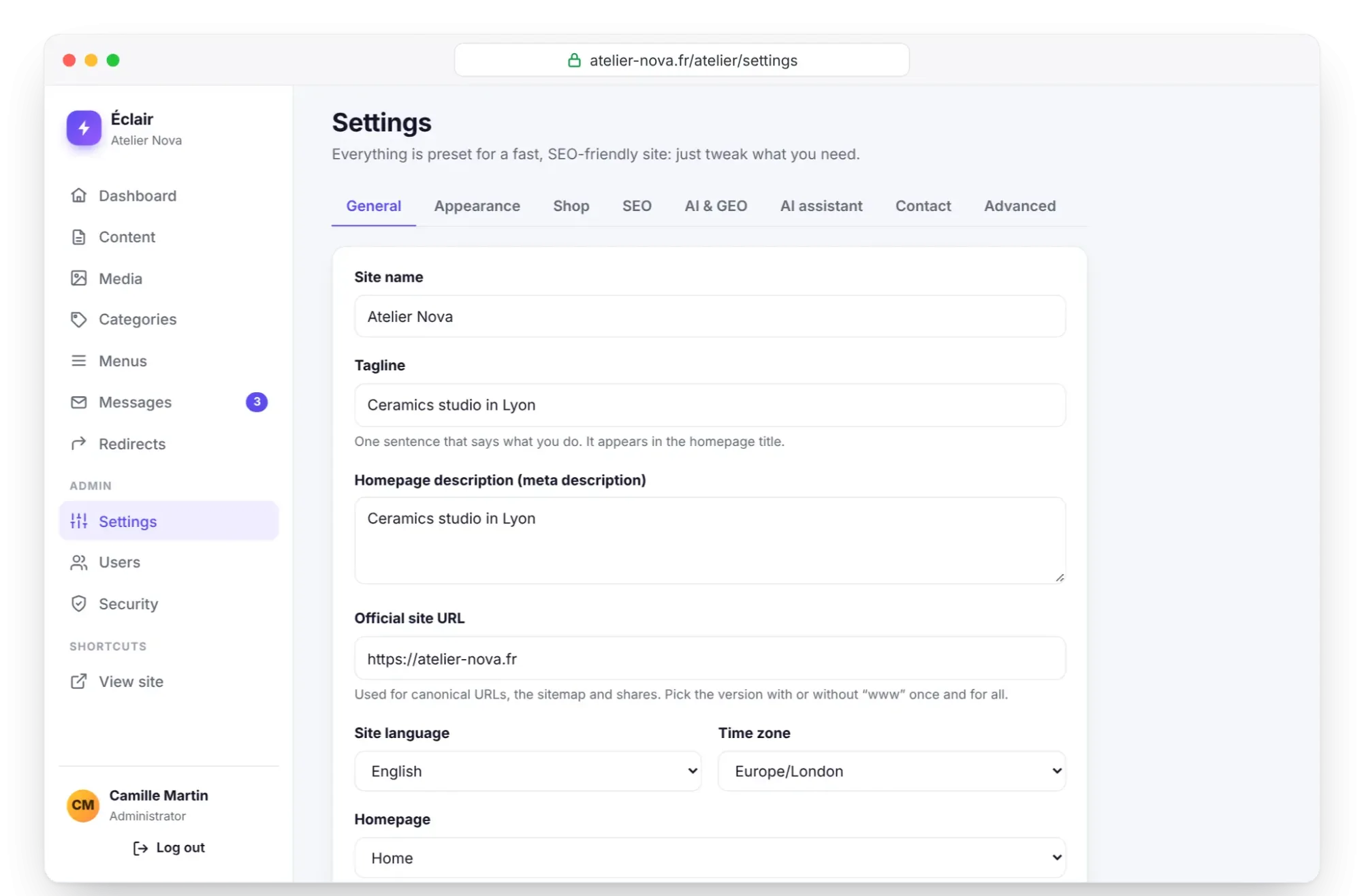
- Site language, in Settings › General: the main language. It's used for the shared pages (blog, search, error page) and for the reserved words in URLs.
- Content language, in the editor (Document tab, Author and language section): the language of each page, post or product. By default, it's the site's language.
The content language sets the page's lang attribute, the theme's texts (“Contents”, “Key takeaways”, “Frequently asked questions”, “Published”…), the date format, the language announced to social networks and French typography, which is applied only to pages in French. In Content, an item in a language other than the site's shows its code, such as EN or ES, next to its URL.
The admin exists in 7 languages, Simplified Chinese included: each person picks their own in My profile › Admin language, with no effect on the site.
Link translations in the editor
Let's take Atelier Nova's “Nos cours” page (“Our classes”), at /cours, and create its English version:
- Open the French page, then click Duplicate in the Document tab: a draft copy opens, with the same layout.
- Translate the copy's title and texts, for example “Our classes”.
- In Web address (URL), replace the URL with
en/classes. - In Author and language, set Content language to English.
- In Translation of…, choose “Nos cours (FR)”, then save. The next time you open it, the field's help text says “Linked to: Nos cours (FR)”.
- Fill in the SEO tab in the new language, then publish.
As soon as both versions are published, Éclair adds the hreflang tags of all the versions to each one, plus an x-default tag that points to the version in the site's language. The sitemap lists the versions of each URL, and a “Read in” link to each other version appears below the title, in the page's language.
Organize the URLs of a multilingual site
The right organization: the main language at the root, and each other language under a prefix, with subpages. First create one home page per language (URL en, then es), then its subpages:
/                      Accueil (French, the site language)
/cours                 Nos cours
/stages                Stages d'été
/en                    Home (English)
/en/classes            Our classes
/en/summer-workshops   Summer workshops
/es                    Inicio (Spanish)
/es/cursos             Nuestros cursos
This structure is clear for your visitors and for Google, which recommends a distinct URL for each language. The breadcrumbs follow: /en/classes shows “Atelier Nova › Home › Our classes”. A page URL has 4 levels at most: with the language prefix, you have 3 left. Only the main home page is chosen in Settings › General; /en and /es are ordinary pages, which you link as translations of the home page.
This academy is built exactly this way: French at the root, English under /en/ and Spanish under /es/, with each lesson linked to its translations.
What stays shared across all languages
The standard theme handles translated pages very well, but in a multilingual site some elements apply to every language. Better to know this before you build:
| Element | Standard theme behavior | What you can do |
|---|---|---|
| Menus | One header menu and one footer menu for the whole site, shown on every page | See the next section |
| URL words | The reserved words for search, page, author and shop stay in the site's language: /recherche, /auteur… on a French site | Nothing: these are technical URLs |
| Blog | All posts live under /blog, and the lists mix languages | Keep the blog in the main language, or filter by category |
| Search | A single results page, /recherche on a French-language site | Redirect /search to /recherche |
| Site texts | Shared name, tagline and footer text | Short wording, understood in all your languages |
Two details. The lists that mix languages are the blog page, the “Latest posts” block and the “Read next” posts. To separate them, create one category per language and filter the “Latest posts” block on it, at the cost of giving up a topic category. For search, the magnifying glass on an English page points to /search, a URL that doesn't exist on a site set to French: in Redirects, add a redirect from /search to /recherche, and from /buscar for Spanish.
How do you organize the menus of a multilingual site?
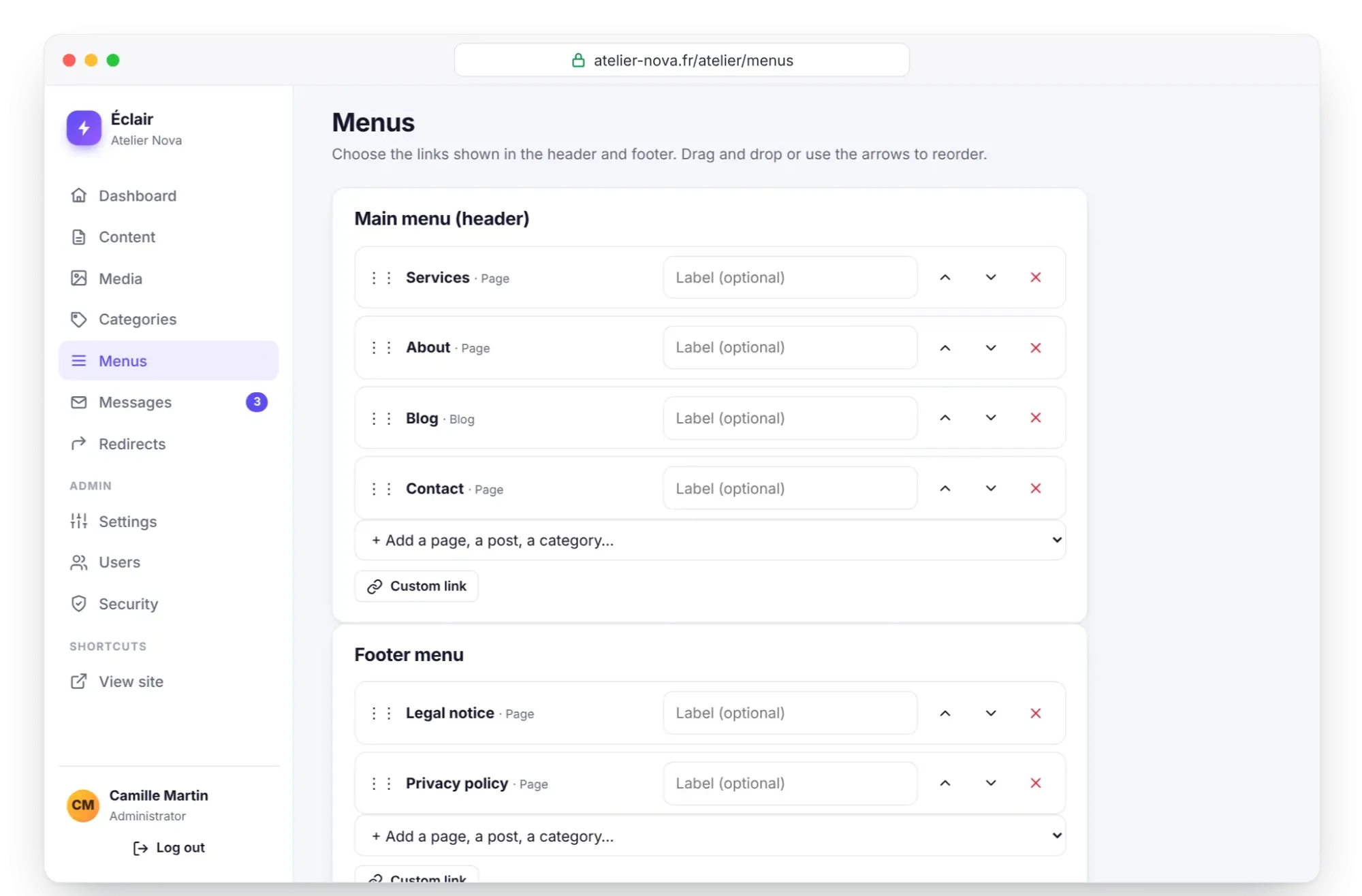
With the standard theme, the same header menu appears on every page. Three solutions, from the simplest to the most complete:
- A short menu and a language link: in Menus, keep 3 or 4 items and add a Custom link “English” to /en. That's Atelier Nova's choice.
- Languages in the footer: put “Français”, “English” and “Español” in the Footer menu, and let the “Read in” links do the rest.
- Custom templates: a developer can filter the menus by language in the theme files. That's what this academy does, with a language switcher (customize the theme templates).
Translate quickly with AI, without losing control
The AI assistant translates a selected passage, and Create with AI composes a draft in the chosen language (create a page with AI). Claude or ChatGPT, connected through the MCP connector, can also create a draft in another language. In every case, linking translations stays manual: you're the one who chooses Translation of…. Have each version proofread by someone who speaks the language, and adapt the keyphrase: people looking for a pottery class don't use the same words in French, English or Spanish.
Key points
- Each piece of content has its language; the site language is the reference for x-default and URL words.
- Link each translation with Translation of…: hreflang, the sitemap and the “Read in” links follow.
- For a clear multilingual site, file each language under a prefix (/en/, /es/) with subpages.
- Menus, blog and search are shared in the standard theme: plan for it from the start.
- A translation is proofread and optimized in its own language, keyphrase included.
Going further
- Pages, menus and home page: create subpages and set up the menus.
- SEO with Éclair: the SEO tab to fill in for each version.
- Customize the theme templates: filter menus by language, like this academy does.
- Source: Google Search Central's page on localized versions of your pages.
Frequently asked questions
How many languages can I publish in?
Six public languages, freely mixed from one piece of content to the next: French, Spanish, English, German, Italian and Portuguese. The admin interface offers 7 languages, including Simplified Chinese.
Do I need a subdomain for each language?
No. With Éclair, the simplest method is one prefix per language (/en/, /es/) with subpages, on the same installation and the same dashboard.
What is the x-default tag for?
It points to the version written in the site's language, the one Google offers when no version matches the user's language. Éclair adds it automatically as soon as two published versions are linked.
Can I translate my blog posts?
Yes, and link them like pages: hreflang and “Read in” links work. But all posts share the blog's URL and the same lists, so keep the blog in your main language if this mix bothers you.