Reference for the 18 blocks
Contents
- How do you insert and arrange a block?
- The 18 Éclair CMS blocks at a glance
- Text blocks
- Text
- Subheading
- List
- Quote
- Callout
- Code
- Separator
- Media blocks
- Image
- Video
- Banner
- Layout blocks
- FAQ
- Table
- Button
- Features
- Team
- Automatic blocks
- Latest posts
- Products
- Contact form
- Editor keyboard shortcuts
- In Blocks mode
- In Visual mode
- How does smart paste work?
- Frequently asked questions about blocks
Every page is built with the 18 Éclair CMS blocks, from a simple paragraph to the contact form. This reference goes through them one by one, with the exact labels from the editor: what each block is for, which fields it offers, how to use it well and which pitfall to avoid. At the end of the page: all the keyboard shortcuts and how smart paste works.
How do you insert and arrange a block?
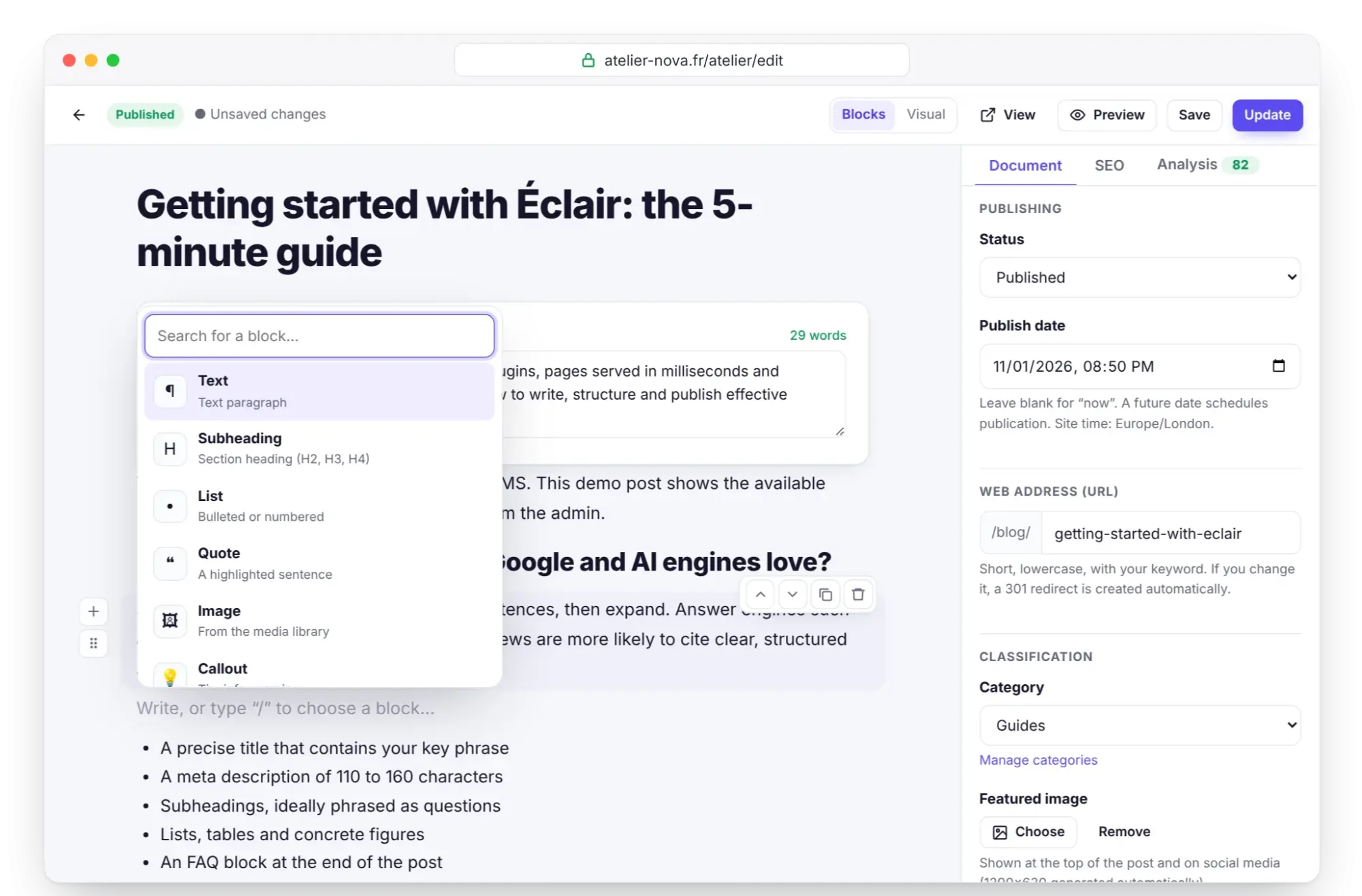
- On an empty line, type
/: the menu of the 18 blocks opens (17 while the shop is closed), with a Search for a block… field. The up and down arrows choose,Enterinserts,Esccloses. - The + button to the left of a block (Add a block) opens the same menu; the button at the bottom of the content adds a block at the end.
- Each block has its own toolbar: Move up, Move down, Duplicate, Delete. After a deletion, the Block deleted. message offers Cancel.
- Drag and drop the Move handle to reorder blocks.
- An incomplete block isn't saved: an empty paragraph, an image that was never chosen, a button with no text or no URL, an unrecognized video, a banner with no title.
The 18 Éclair CMS blocks at a glance
The “Used for” column repeats the description shown in the block menu.
| Block | Used for | Main fields |
|---|---|---|
| Text | Text paragraph | rich text |
| Subheading | Section heading (H2, H3, H4) | text, level |
| List | Bulleted or numbered | items, style |
| Quote | A highlighted sentence | text, author |
| Image | From the media library | image, alt text, caption, link, size |
| Callout | Tip, info, warning | type, title, text |
| FAQ | Questions & answers (FAQPage) | title, questions, answers |
| Table | Data in rows and columns | cells, headers, caption |
| Button | Call to action | text, URL, style, alignment |
| Video | YouTube or Vimeo, cookie-free | link, caption |
| Code | Source code snippet | code, language |
| Separator | Dividing line | none |
| Banner | Big welcome headline with buttons | headline, tagline, two buttons, image |
| Features | Grid of services or benefits | title, features |
| Team | Portraits, job titles and short bios | title, people |
| Latest posts | Automatic list of posts | title, number, category |
| Products | Automatic shop showcase | title, number, category |
| Contact form | Built-in anti-spam form | title, button text |
Text blocks
Text
- Used for: writing a paragraph.
- Field: the text. When you select a passage, a toolbar appears: bold, italic, link, code, highlight and remove link, plus ✨ for AI touch-ups if the assistant is turned on.
- Good practice: one idea per paragraph, 120 words at most. That's the limit the GEO analysis checks.
- Pitfall: more than 350 words of paragraphs in a row, with no subheading, image or list, lowers the Design score.
Subheading
- Used for: structuring the page into sections.
- Fields: the text and the level, in the Size menu: H2, H3 or H4. The anchor used by the table of contents is created automatically from the text.
- Good practice: H2 for the main sections, H3 below them; 12 words at most, no emoji. A subheading phrased as a question (“How do I…?”) counts toward the GEO score.
- Pitfall: don't create an H1, since the page title already is one. A skipped level (H2, then H4) is flagged by the Design score. The table of contents shows the H2 and H3 subheadings.
List
- Fields: the items (
Enteradds one) and the style: • List (bullets) or 1. List (numbered). - Good practice: numbered for steps, bulleted for items in no particular order. Lists and tables are among the easy-to-extract content that the GEO analysis rewards.
- Pitfall: nested lists don't exist.
Enteron the last, empty item exits the list;Backspaceon the only item, when it's empty, turns the list into a paragraph.
Quote
- Fields: the quote (rich text) and Quote author.
- Good practice: a short testimonial or a sentence from an expert, always with its author.
- Pitfall: without an author, the quote loses its value as evidence. To make a piece of advice stand out, a callout works better.
Callout
- Fields: the type (💡 Tip, ℹ️ Good to know, ⚠️ Warning, ✅ Remember, 📝 Note), Callout title (optional) and the text.
- Good practice: information your readers mustn't miss. Without a title, Éclair shows the type's name in the page's language.
- Pitfall: the default type is Tip. Remember to change it for a warning, or your message will be shown with a light bulb.
Code
- Fields: the code (the
Tabkey inserts two spaces) and Language (optional), added as a class (lang-php…). - Good practice: a command, or an excerpt of
.htaccessor Nginx configuration. On mobile, the block scrolls horizontally. - Pitfall: Éclair doesn't add syntax highlighting. Code isn't counted in the analysis word count either.
Separator
- Fields: none. The block displays a horizontal line.
- Good practice: marking a pause between two parts that don't need a heading.
- Pitfall: it doesn't replace a subheading. Neither the table of contents nor the analysis sees it.
Media blocks
Image
- Fields: the image (Add an image, or drag a file onto the block), Alt text (describe the image), Caption (optional), Link (optional) and Size: Normal, Wide or Small. The Change image button opens the media library.
- Good practice: alt text that describes what you can see. Left empty, it uses the one from the media library. Placed in the first two blocks of content that has no featured image, the image loads with priority; elsewhere, it's lazy-loaded.
- Pitfall: an Image block with no image isn't saved, and an image pasted from Word or a web page isn't imported. Upload it to the media library.
Video
- Fields: YouTube or Vimeo link and Caption (optional).
- Good practice: the player only loads on click, from
youtube-nocookie.comor from Vimeo withdnt=1. No cookie is set before that click, and the page stays light. - Recognized URLs:
youtube.com/watch?v=…,youtu.be/…,youtube.com/shorts/…,/embed/…and/live/…,vimeo.com/123456…andplayer.vimeo.com/video/…. - Pitfall: any other service shows Video link not recognized, and the block isn't saved.
Banner
- Fields: Headline, Catchy subtitle, Main button and Button link, Secondary button and Secondary button link, then the image (Add an image, Change image, Remove image).
- Good practice: at the top of a home page or a sales page. The Design score expects a title of 8 words at most (6 in capitals) and a call-to-action button. The banner image loads with priority.
- Page title: if the banner is the first block and the Hide title (the first banner’s title becomes the H1) option is checked, its title becomes the H1; otherwise, it's an H2.
- Pitfall: a button only appears if both its text and its link are filled in. With an art direction whose banner layout is Full-bleed image or Editorial: portrait image, the banner needs an image.
Layout blocks
FAQ
- Fields: Section title (optional), “Frequently asked questions” by default, then Question and Answer pairs; + Add a question.
- Good practice: 3 to 6 real questions from your customers, with answers of 2 to 4 sentences. Éclair generates the FAQPage structured data and adds the FAQ to the table of contents.
- Good to know: Google stopped showing FAQ rich results on May 7, 2026, according to Google Search Central's documentation updates. Éclair's GEO analysis still rewards the block, because AI engines reuse questions and answers a lot.
- Pitfall: the FAQ title is already an H2, so don't add a “FAQ” subheading right above it. A question with no answer is removed when you save.
Table
- Fields: the cells (rich text), + Add a row, + Add a column, Delete last row, Delete last column, the First row = headers checkbox and Caption (optional).
- Good practice: comparing, quantifying, summarizing. The block accepts 12 columns and 200 rows; on mobile, it scrolls horizontally.
- Pitfall: the more columns you add, the more a reader on a phone has to scroll the table. Keep the headers box checked, unless your table really has no headers.
Button
- Fields: Button text (80 characters at most), Web address (URL) with suggestions from your pages, the Primary or Secondary style, and the Left or Centered alignment.
- Good practice: an action verb (“Request a quote”) and, ideally, a link to one of your pages.
- Pitfall: beyond 3 buttons on a page, the Design score drops. Without text or a URL, the button isn't saved.
Features
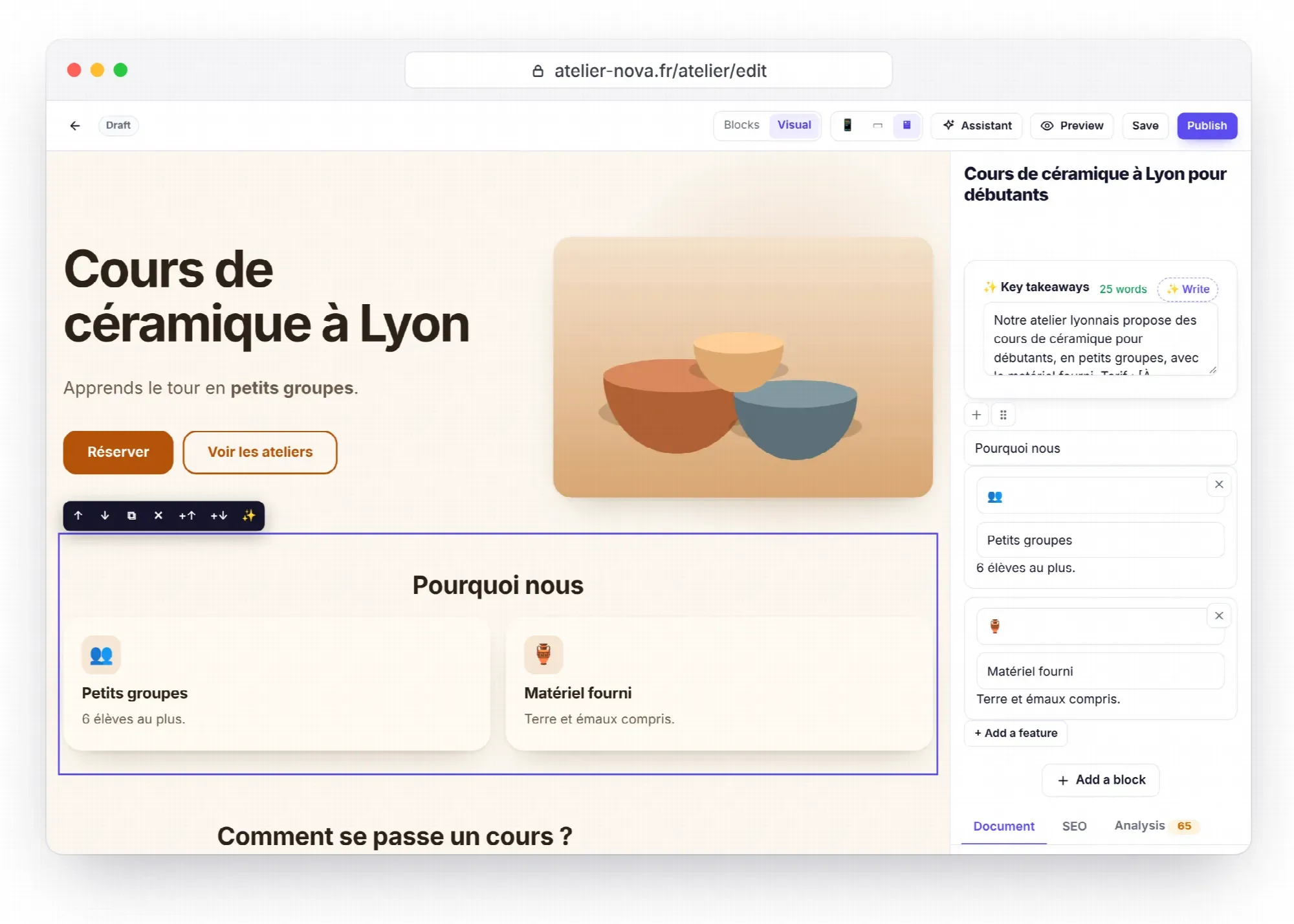
- Fields: Section title (optional), then for each feature an Icon (an emoji), a Title and a text; + Add a feature, 12 at most.
- Good practice: 3 to 6 features, each described in one concrete sentence. With an art direction, emoji become line-drawn icons or disappear, depending on the Feature icons setting.
- Pitfall: an emoji with no line-drawn equivalent isn't shown in line-icon mode. The analysis then suggests ✓ 🚀 ⏱ 🛡 ⭐ ❤ 💡 📞 📍 🚚.
Team
- Fields: Section title (optional), “Our team” by default, then for each person: the photo (Choose the photo, Remove the photo), First and last name, Job title, A one- or two-sentence introduction and Profile link (LinkedIn…); + Add a person.
- Good practice: real photos and precise job titles build trust. Without a photo, the person's initials appear in a circle.
- With the AI assistant: “Add Léa Martin, art director, to the team page with the attached photo” prepares the change, which you preview before applying it.
- Pitfall: a person with no name is ignored when you save.
Automatic blocks
Three of the 18 Éclair CMS blocks fill themselves in from your content and settings: you only choose what they show.
Latest posts
- Fields: Section title (optional), “Latest posts” by default, the number of posts (1 to 12, 3 by default) and the Category (All categories or a single one).
- Good practice: on the home page of a business website, to show that the site is alive. A “See all posts” link follows the list.
- Pitfall: the block stays hidden if the blog is turned off or if no post is published.
Products
- Fields: Section title (optional), “Products” by default, the number of products (1 to 12, 4 by default) and the product Category.
- Good practice: featuring your products on the home page or on a topic page.
- Pitfall: as long as the shop is closed, the block doesn't appear in the “/” menu and stays hidden on the site (“The shop is closed: this block stays hidden.”).
Contact form
- Fields: Section title (optional) and Button text (optional), “Send” by default.
- What visitors see: the Name, Email and Message fields (5,000 characters at most), then a privacy notice.
- Protection: no captcha, but an invisible honeypot field, a token, 5 messages per network every 10 minutes and 100 per day for the whole site.
- Pitfall: the link to your privacy policy only appears if a published page has one of these URLs:
/confidentialite,/politique-de-confidentialite,/privacy,/privacy-policyor/politica-de-privacidad.
The settings for receiving messages (address, message retention) are described in Contact form and messages.
Editor keyboard shortcuts
On a Mac, use Cmd instead of Ctrl.
In Blocks mode
| Shortcut | Effect |
|---|---|
/ on an empty line | Open the block menu |
Ctrl+S | Save |
Ctrl+K | Create a link, with a search of your pages |
Ctrl+B and Ctrl+I | Bold and italic |
Enter | New paragraph (in a text, subheading or quote) |
Shift+Enter | Line break within the same block |
Backspace at the start of a block | Merge with the previous text block, or delete an empty block |
↑ at the start of a block, ↓ at the end of a block | Move to the previous or next block |
Enter in the title | Go to the first block |
Tab in a Code block | Insert two spaces |
Ctrl+J | Open or close the AI assistant, if it's turned on |
In the link field, Enter confirms the URL and Esc cancels.
In Visual mode
| Shortcut | Effect |
|---|---|
Ctrl+Z | Undo, one step at a time (up to 50 steps) |
Ctrl+S | Save |
Ctrl+B, Ctrl+I | Bold, italic (rich text fields) |
Ctrl+K | Link (rich text fields) |
Enter | Confirm a single-line field; in a paragraph, create the next one |
Shift+Enter | Line break in a paragraph |
Esc | Leave the field, then deselect the block |
Tab then Enter | Use the block toolbar with the keyboard |
In Visual mode, pasted content always comes in as plain text. The mode is covered in detail in Visual mode.
How does smart paste work?
Paste text copied from Word, Google Docs or a web page into a Text block: Éclair splits it into clean blocks. If the Text block was empty, it's replaced; anywhere else (a table cell, a FAQ answer), the text goes into the current field.
| What you paste | What you get |
|---|---|
| Level 1 to 6 headings | H2 to H4 subheadings (level 1 becomes H2, levels 5 and 6 become H4) |
| Paragraphs | Text blocks |
| Bulleted or numbered lists | List blocks |
| Quotes | Quote blocks |
| Tables | Table blocks, with the header row if the table has one |
| Preformatted text | Code block |
| Horizontal rule | Separator |
| Bold, italic, links, code, highlight, subscript, superscript, strikethrough | Kept |
| Plain text with blank lines | One Text block per paragraph; lines starting with - , * or • : a list; lines starting with #: a subheading |
| Images | Ignored: upload them to the media library |
Original colors, fonts and sizes are removed. Only links starting with https://, http://, mailto:, tel:, / or # are kept. For a complete migration, the method is in Migrating from WordPress or Wix.
Frequently asked questions about blocks
Can you create your own blocks?
No. Éclair CMS blocks are a fixed set of 18, defined and validated by Éclair, which guarantees clean, safe HTML on every page. To change how they look, use custom CSS; to go further, the theme templates.
Why did a block disappear after saving?
When you save, Éclair discards any block that's missing its essentials: empty text, an image that was never chosen, a button without a label or link, a video from an unknown service, a banner without a title. Fill in the missing field, or find the earlier version in the editor's Version history.
Why doesn't the Products block appear in the “/” menu?
It's only offered when the shop is open, in Settings › Shop with Shop open turned on. The steps are in Selling with the lightweight shop.