Write and publish your first blog post
Contents
- Create your first blog post
- How do you insert a block with the / key?
- Format text and create internal links
- Paste text from Word or Google Docs
- Save without losing anything
- Optimize your first blog post in the SEO tab
- Featured image and category
- Publish or schedule
- Shortcuts to know
- Key points
- Going further
- Frequently asked questions
Your first blog post is the best way to learn Éclair's block editor. Step by step, you'll write it, format it, link it to your other pages, optimize it for Google and AI, then publish or schedule it. Every move you learn here will then serve for all your pages.
What you'll be able to do
Write fast
Insert a block with the “/” key and format text from the keyboard.
Optimize your post
Fill in the SEO title, the meta description and Key takeaways.
Publish or schedule
Go live right away or on the date of your choice.
Create your first blog post
- Click Dashboard › Write a post (or Content › Post). The editor opens.
- Click in Post title and type your title. Camille writes “Your first ceramics class: 5 tips to get started”.
- Press Enter: the cursor moves to the first block, ready for your introduction.
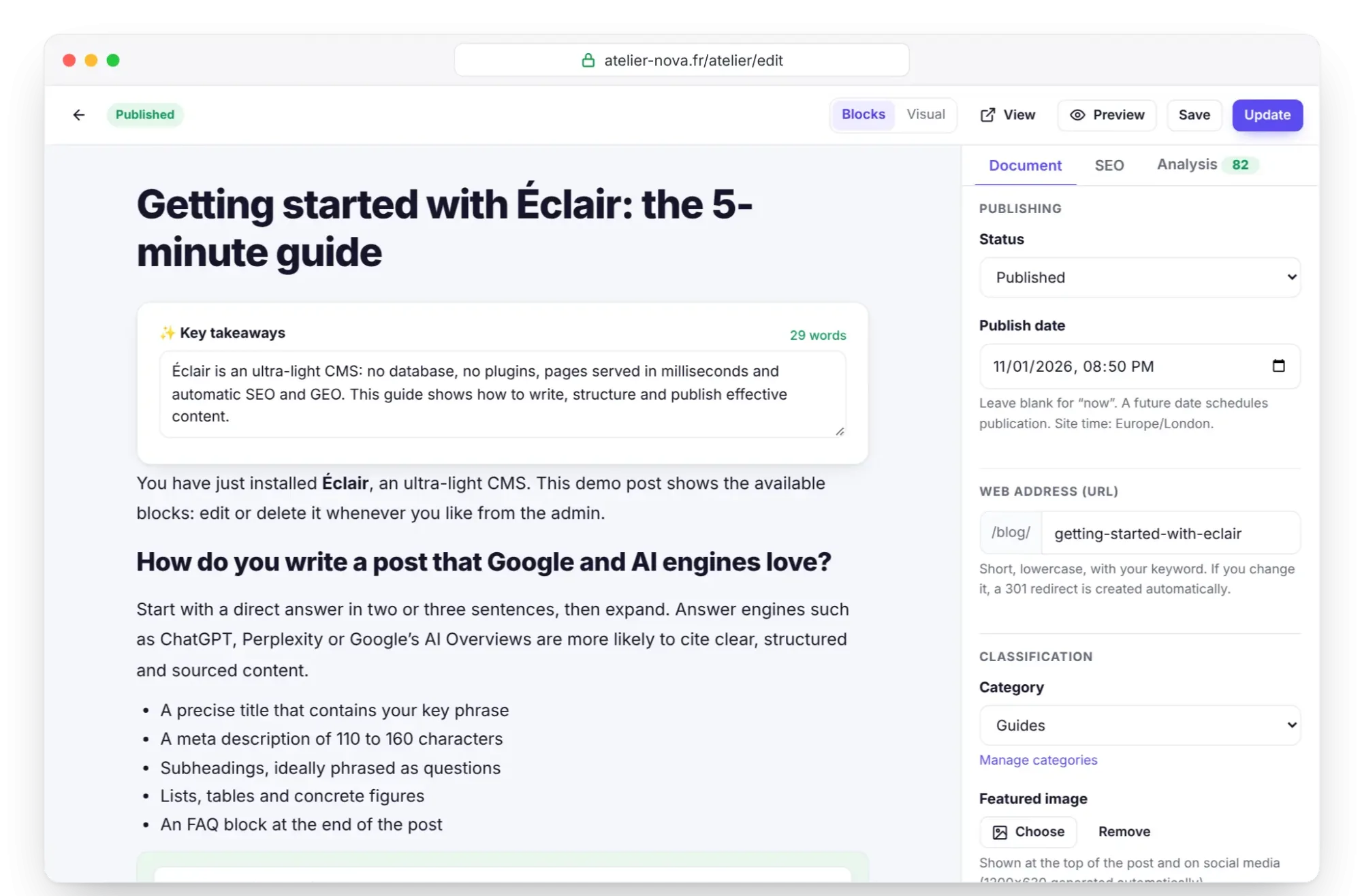
At the top, a badge shows the status (Draft for now), next to the Preview, Save and Publish buttons. On the right, the panel has three tabs: Document, SEO and Analysis.
How do you insert a block with the / key?
- On an empty line, type /: the list of blocks opens, with a Search for a block… field.
- Type a few letters (“tab” for Table), choose with the arrow keys and confirm with Enter. Esc closes the list.
- Another way: the Add a block button below your content, or the + next to each block.
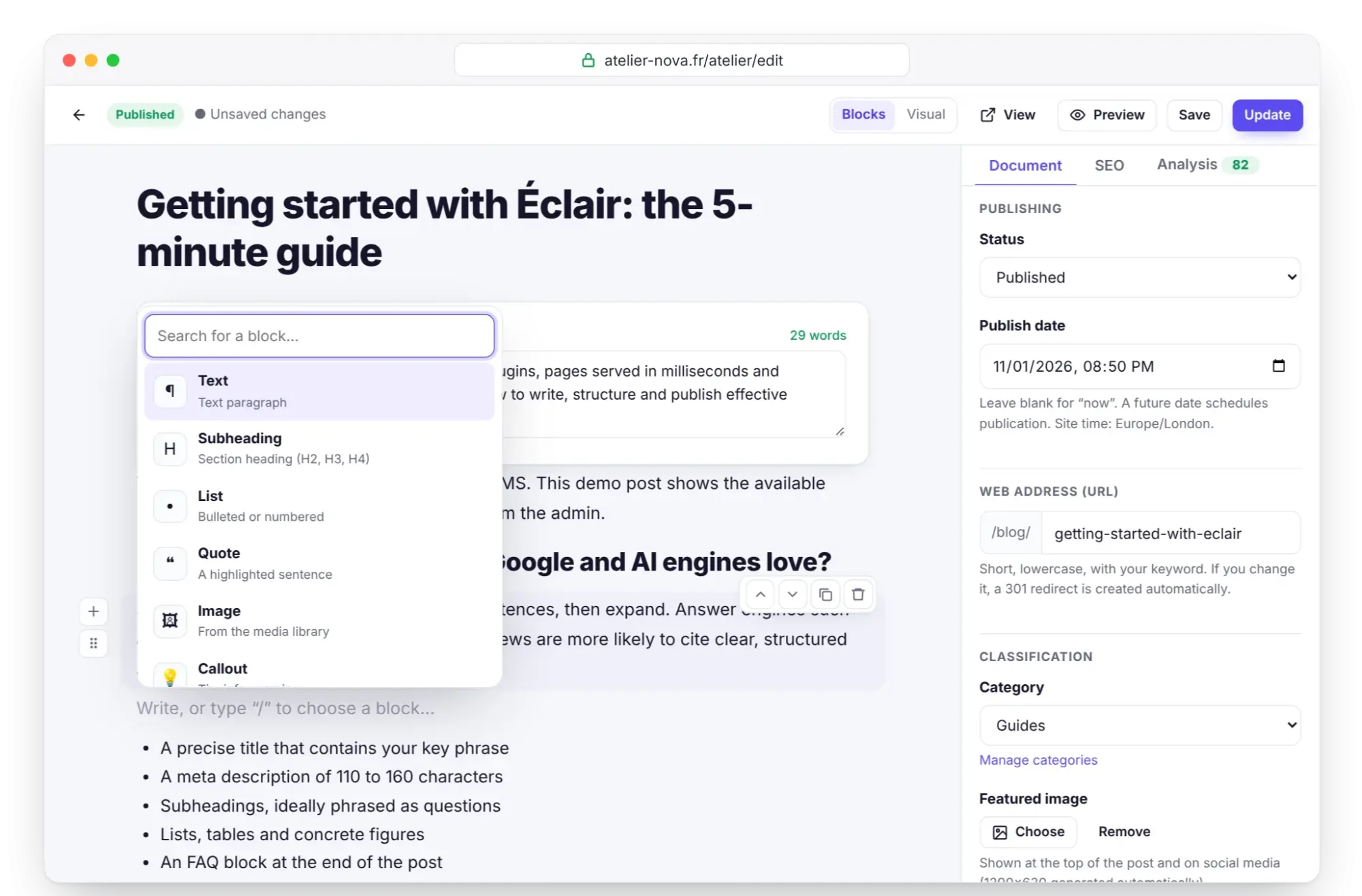
Each block has its own small toolbar: Move up, Move down, Duplicate and Delete, plus a handle to drag it. A subheading can be set to H2, H3 or H4, and a list to bulleted or numbered. Here are the 18 blocks:
| Block | What it's for |
|---|---|
| Text, Subheading, List | Paragraph, section heading, bulleted or numbered list |
| Quote, Callout | A highlighted sentence; tip, good to know, warning, remember or note |
| Image, Video | Image from the media library; YouTube or Vimeo, with no cookies until clicked |
| FAQ, Table | Questions and answers marked up for Google; data in rows and columns |
| Button, Code, Separator | Call to action; source code snippet; dividing line |
| Banner, Features, Team | Big headline with buttons; grid of benefits; portraits and job titles |
| Latest posts, Products | Automatic lists of your posts and, when the shop is open, your products |
| Contact form | Built-in anti-spam form |
Format text and create internal links
Select a few words: a toolbar appears with B (bold), I (italic), 🔗 (link), </> (code), 🖍 (highlight) and ⨯ (remove link). The Ctrl+B, Ctrl+I and Ctrl+K shortcuts do the same from the keyboard.
The assisted internal link is the most rewarding move for your SEO. Select “our beginner classes”, press Ctrl+K and type “classes”: Éclair suggests your matching published pages, posts and categories. Click the right one, and you're done. For an external site, just paste the full https:// address. The analysis expects at least 2 internal links per post.
Paste text from Word or Google Docs
Copy your text, place the cursor in an empty Text block, then paste. Headings, lists, tables, bold, italics and links become clean blocks. A level 1 heading becomes an H2, because the post title is the only H1.
Save without losing anything
Ctrl+Sor Save: the indicator changes to “Saved” with the time. As long as it shows “Unsaved changes”, remember to save.- Local backup draft: your browser keeps a copy at all times. After an interruption, Éclair offers “An unsaved version was found. Restore it?”: click Restore.
- Version history (Document tab): the last 20 versions, with their date and word count. Restore puts one of them back in the editor.
- Preview: opens the post with your theme in a new tab, without saving it.
Optimize your first blog post in the SEO tab
| Field | Where | Tip |
|---|---|---|
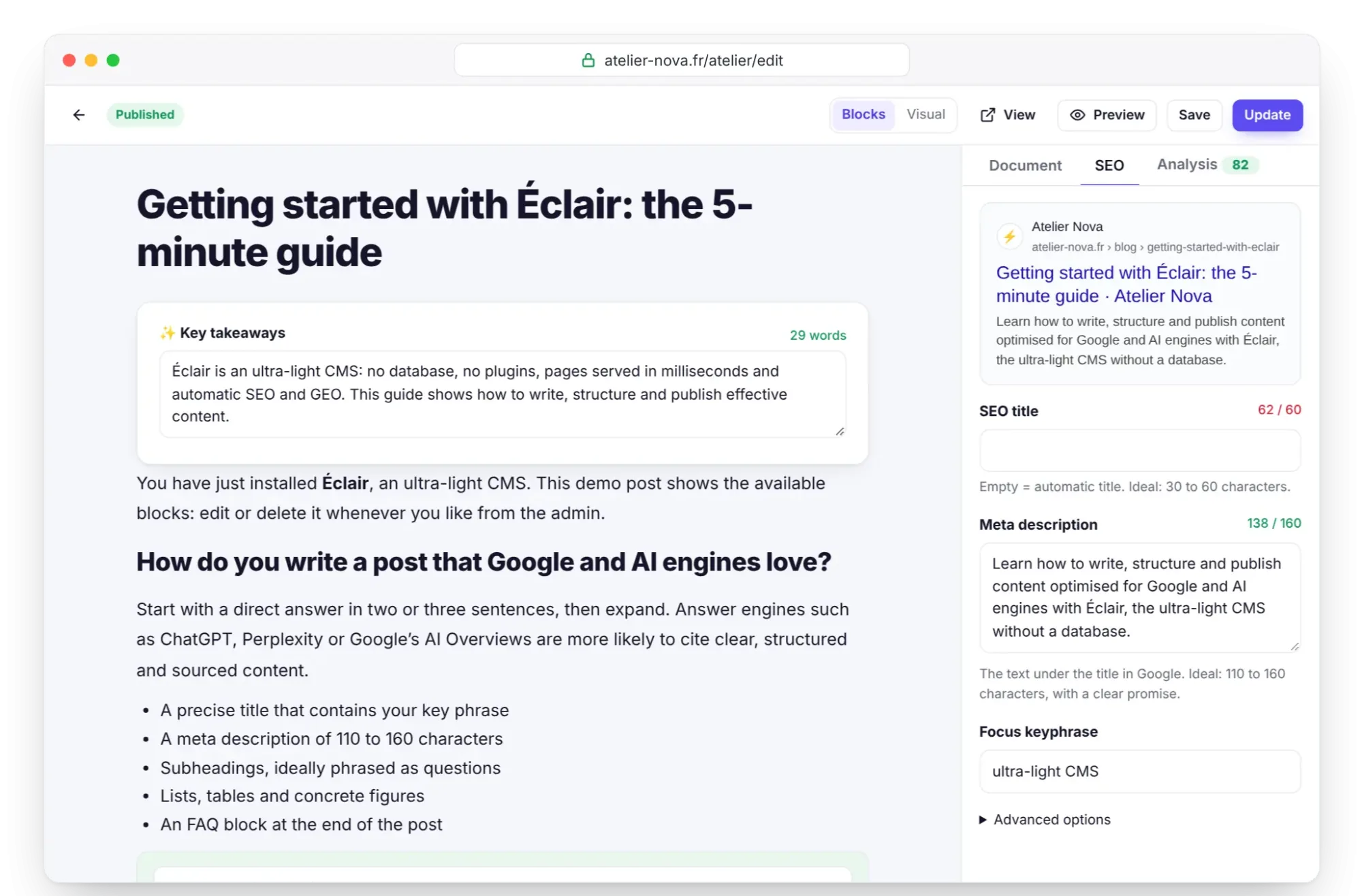
| SEO title | SEO tab | 30 to 60 characters; if empty, the title is automatic |
| Meta description | SEO tab | 110 to 160 characters, with a clear promise |
| Focus keyphrase | SEO tab | The words your readers type, for example “first ceramics class” |
| Web address (URL) | Document tab | Short, lowercase, with your keyword |
| Key takeaways | Above the blocks | 2 or 3 sentences, ideally 25 to 90 words |
The Google preview updates as you type. If you change the address later, Éclair creates a 301 redirect on its own. For Key takeaways, click Add “Key takeaways”: the summary Google and AI love to quote, above the blocks: this summary appears at the top of the post, and AI engines readily quote it.
Finally, open the Analysis tab: three rings score your post for SEO, GEO and design, with the list of points to fix. For a post, the analysis recommends 600 words or more. The complete method is in SEO with Éclair.
Featured image and category
In the Document tab, Classification section:
- Category: choose one, for example “Guides”, created during installation. The Manage categories link lets you add more.
- Featured image: Choose opens the media library. The image appears at the top of the post and on social media, where Éclair generates a 1200×630 version.
Publish or schedule
- Publish right away: click Publish. The badge changes to “Published”, the button becomes Update and the View link opens the post online.
- Schedule: in Document › Publishing, choose a future Publish date, then click Publish. The badge shows “Scheduled”, and the post goes live on its own at the set time, according to the site's time zone shown below the field.
- Unpublish: set the Status to Draft, then save.
Shortcuts to know
| Shortcut | Action |
|---|---|
/ on an empty line | Insert a block |
Ctrl+S | Save |
Ctrl+K | Create a link |
Ctrl+B / Ctrl+I | Bold / italic |
Enter / Shift+Enter | New paragraph / line break |
Ctrl+J | Open the AI assistant, if it's turned on |
On a Mac, Cmd replaces Ctrl to save, create a link and open the assistant.
Key points
- Type / on an empty line to choose from the 18 blocks.
Ctrl+Klinks your first blog post to your other pages in seconds.- Nothing gets lost:
Ctrl+Ssaving, a local backup draft and 20 versions of history. - Fill in the SEO title, meta description, focus keyphrase and Key takeaways before publishing.
- A future date in Publish date schedules the post.
Going further
- Reference for the 18 blocks: each block and its settings in detail.
- Visual mode: edit your post as it actually looks, right on the page.
- SEO with Éclair: every check in the analysis and the method to aim for 100.
- External source: Google's SEO starter guide, to understand what Google expects from a page.
Frequently asked questions
Does text pasted from Word keep its formatting?
Mostly, yes: headings, lists, tables, bold, italics and links become blocks. Images, however, must be added with the Image block.
I closed the tab without saving. Have I lost everything?
Probably not. Reopen the post in the same browser: Éclair offers to restore the unsaved version it kept locally.
Can I go back to an earlier version of my post?
Yes. In the Document tab, click Version history, then Restore next to the version you want. Éclair keeps the last 20.
Do I have to fill in the SEO title for every post?
It's not mandatory: if empty, it's generated from the title. Filling it in lets you aim for 30 to 60 characters with your keyphrase, which the analysis checks.