Prepare your installation
Contents
- What do you need to install Éclair?
- Choose compatible hosting
- Which server requirements should you check?
- Get your upload tools ready
- Download the official archive
- Where to install Éclair: root, subdomain or subfolder?
- Plan a 2-hour window
- The checklist to prepare your installation
- Key points
- Going further
- Frequently asked questions
Taking twenty minutes to prepare your installation makes everything that follows very simple. You'll gather a domain name, compatible hosting, FTP access and the official Éclair archive, then choose where to install your site. A final checklist lets you confirm that nothing is missing before you start.
What you'll be able to do
Choose domain and hosting
Know exactly what you need, and what you can do without.
Check the server
Verify PHP, extensions and HTTPS before uploading a single file.
Start fully prepared
Tick off a 9-point checklist before installing.
What do you need to install Éclair?
The list is short, on purpose:
- A domain name: your site's address, for example
atelier-nova.frfor Camille Martin's ceramics studio. - Web hosting with PHP, on Apache or LiteSpeed. A shared hosting plan is more than enough.
- A way to upload files: an FTP client or your host's file manager.
- The official Éclair archive, which weighs 480 KB.
Add an email address and a password of at least 10 characters for your future account. On the other hand, you don't need a database: that's one step fewer than with WordPress, and one less source of errors.
Choose compatible hosting
Almost all shared hosting runs on Apache or LiteSpeed, as at OVH, o2switch, Hostinger, IONOS or PlanetHoster: Éclair installs there as is. To compare plans, read Choosing your hosting, then your host's step-by-step guide, for example o2switch, Hostinger or OVHcloud.
No dedicated guide for your host? The universal method for cPanel, Plesk and DirectAdmin covers the most common control panels. Éclair also runs on an Nginx server, but without .htaccess: you need to reproduce its rules in the configuration, as explained in the Nginx, VPS, proxy and CDN lesson.
Which server requirements should you check?
| Item | Requirement | If it's missing |
|---|---|---|
| PHP | 8.1 or later, 8.3 recommended | Below 8.1, Éclair shows a message in French: “Éclair a besoin de PHP 8.1 ou plus récent.” (Éclair needs PHP 8.1 or later) |
| Required extensions | mbstring, json, dom, session, zlib | Red item in the wizard: the installation is blocked |
gd extension | Recommended | Images are neither resized nor converted to WebP |
zip extension | Recommended | No one-click backup: copy via FTP instead |
curl extension | Recommended | No IndexNow, no AI assistant and no art direction font |
| Write permissions | data, cache and media folders | Red item: give them 755 permissions via FTP |
| HTTPS | Active certificate (Let's Encrypt, free) | Warning, and no MCP connector |
The required extensions are enabled by default almost everywhere. You change the PHP version in your host's customer area, often in one click: choose 8.3 if it's offered. With PHP 8.1, Éclair works, but the wizard will advise you to switch to 8.3 or later.
You don't have to check everything by hand: the setup wizard checks each of these points on its first screen and explains what to fix.
Get your upload tools ready
There are two ways to upload files to your hosting:
- An FTP client, such as FileZilla, which is free. Your host gives you the FTP server address, your username and your password, usually in your customer area.
- Your host's file manager, which opens in the browser, with nothing to install.
Download the official archive
- Open the project page on GitHub, the only official source.
- Download eclair-cms-1.8.0.zip (480 KB).
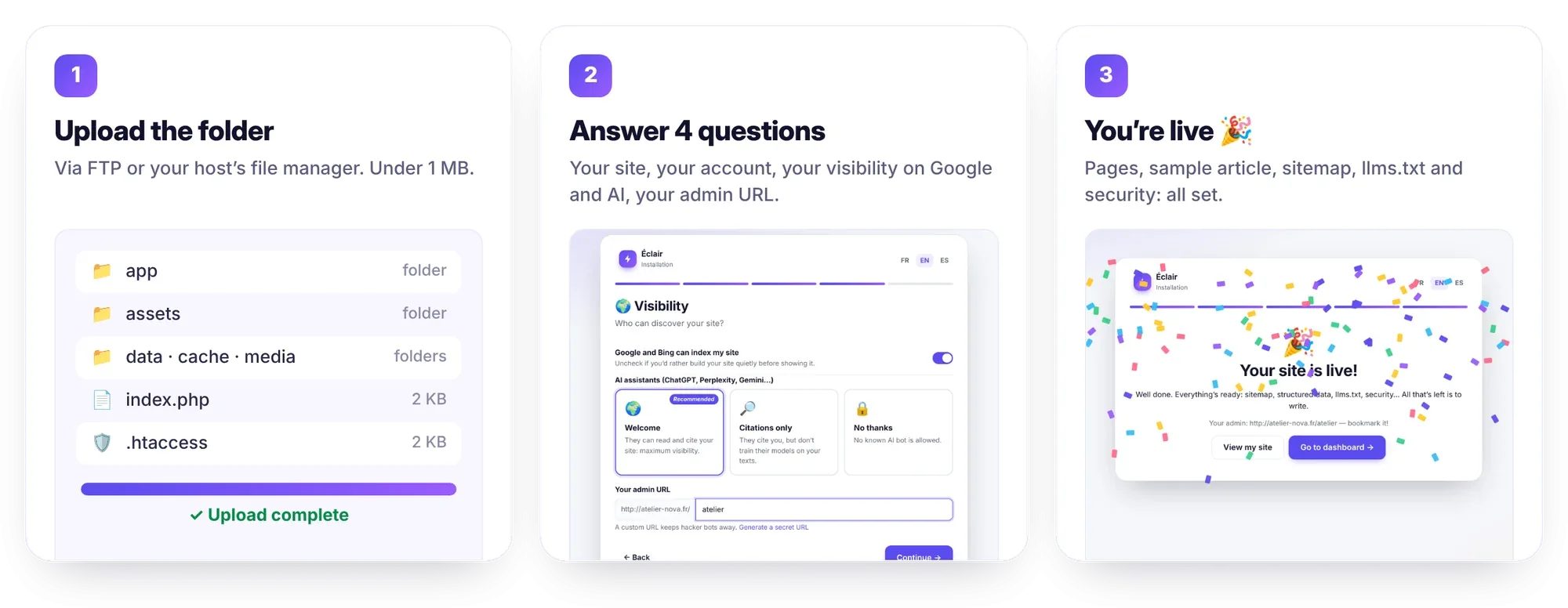
- Unzip the archive on your computer: you get an
eclairfolder and three text files, includingLISEZ-MOI.txt. - Open the
eclairfolder: you should seeindex.php,.htaccessand theapp,assets,cache,dataandmediafolders.
You'll upload the contents of this folder, not the folder itself. The three text files stay on your computer.
Where to install Éclair: root, subdomain or subfolder?
| Location | Example | Where to upload the files | Good to know |
|---|---|---|---|
| Domain root | atelier-nova.fr | The public folder (public_html, www…) | The recommended choice |
| Subdomain | classes.atelier-nova.fr | The subdomain's folder, created in your customer area | Also suits the MCP connector |
| Subfolder | atelier-nova.fr/site/ | A subfolder of the public folder | Detected automatically, but the MCP connector may fail |
Why the distinction? The MCP connector links Claude or ChatGPT to your site, and some apps look for authorization at the root of the domain. If you plan to use it one day (Understanding the MCP connector), install Éclair at the root of a domain or subdomain.

Plan a 2-hour window
For security, the installation must be completed within 2 hours of the site's first visit. Without this rule, anyone could take over a site that was uploaded and then forgotten. The right habit: upload the files, then run the wizard straight away.
If you miss this deadline, nothing is lost. Delete the data/install-window.php file via FTP and reload the page: the wizard starts again.
The checklist to prepare your installation
| No. | Check | Example for Atelier Nova |
|---|---|---|
| 1 | The domain name is registered and linked to the hosting | atelier-nova.fr |
| 2 | PHP 8.1 or later is active, preferably 8.3 | PHP 8.3 selected in the customer area |
| 3 | The HTTPS certificate is enabled | https://atelier-nova.fr opens with no warning |
| 4 | FTP access or the file manager is ready | Server, username and password written down |
| 5 | Hidden files are shown | .htaccess visible in the eclair folder |
| 6 | The 1.8.0 archive is downloaded and unzipped | eclair folder on the desktop |
| 7 | The account email is chosen | Camille's business address |
| 8 | A password of at least 10 characters is ready | A 4-word phrase, easy to remember |
| 9 | The admin URL is chosen | atelier-nova.fr/atelier |
All nine points ticked? When you prepare your installation this well, the next lesson takes just a few minutes.
Key points
- You need a domain, Apache or LiteSpeed hosting with PHP 8.1 or later (8.3 recommended), an HTTPS certificate and FTP access.
- No database is needed.
- Download the archive from the official GitHub repository, then upload the contents of the
eclairfolder, hidden files included. - For the MCP connector, install at the root of a domain or subdomain.
- The installation must be completed within 2 hours of the first visit.
Going further
- Install Éclair step by step: uploading the files and the 5 screens of the wizard.
- Choosing your hosting: a sourced comparison and recommendations by profile.
- Troubleshooting: 404 or 500 errors, installation locked, forgotten password.
- Official sources: the supported PHP versions on php.net, and Let's Encrypt, the authority that issues free HTTPS certificates.
Frequently asked questions
Do I need to create a MySQL database?
No. Éclair uses no database: everything is stored in protected files in the data/ folder. If your host offers to create one, you can skip that step.
My host offers PHP 8.1. Is that enough?
Yes, Éclair works from PHP 8.1 onwards. The setup wizard will simply show a tip to switch to PHP 8.3 or later if your host offers it.
Can I install Éclair without HTTPS?
Yes, but the wizard will point it out, and the MCP connector for Claude and ChatGPT requires an https:// address. First turn on your host's free Let's Encrypt certificate, then open your site over https://.
Can I test Éclair on my computer?
Yes, with PHP installed locally and its built-in server. The exact command and the tests are described in the Local development and testing lesson.