Get to know the Éclair admin
Contents
The Éclair admin is the private area where you manage your whole site: content, images, menus, messages and settings. This lesson takes you through each area, from the dashboard to the side menu, so you always know where to click and who can do what.
What you'll be able to do
Find your way
Reach every screen from the side menu, on desktop and mobile.
Read the dashboard
Understand the scores, site health and the Getting started checklist.
Assign roles
Know what an administrator and an editor can do.
Log in to the Éclair admin
- Type the address chosen during installation, for example
atelier-nova.fr/atelier. - On the “Welcome back” page, enter your Email and Password (the Show button helps you avoid typos), then click Log in.
- If two-factor authentication is on, enter the 6-digit code from your app, or one of your backup codes.
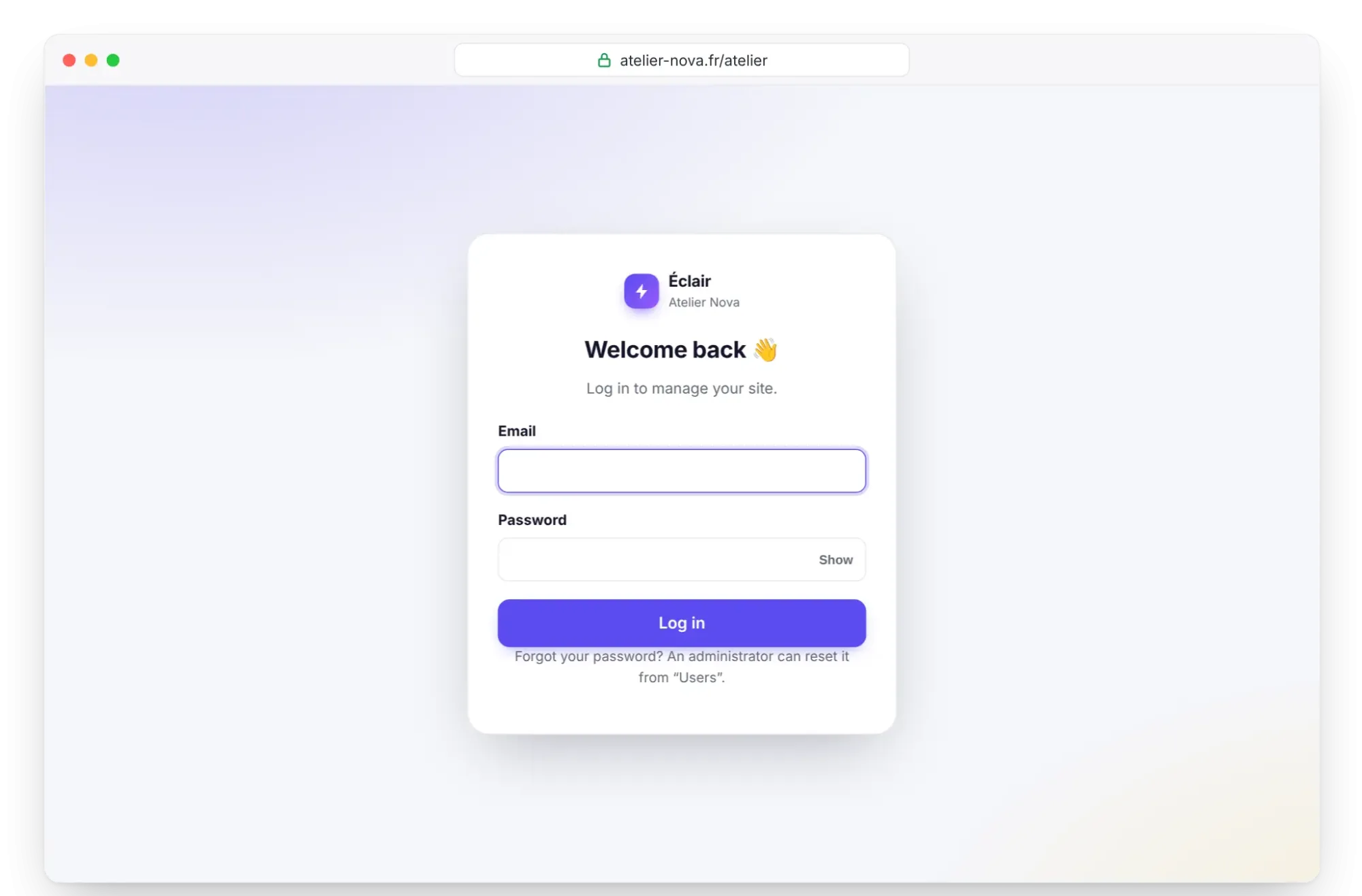
Two messages may stop you. “Wrong email or password”: check the address and capital letters. “Too many attempts”: wait a few minutes, it's the protection against bots. Forgot your password? Another administrator can reset it from Users; if you're on your own, the FTP method is in Troubleshooting.
The dashboard at a glance
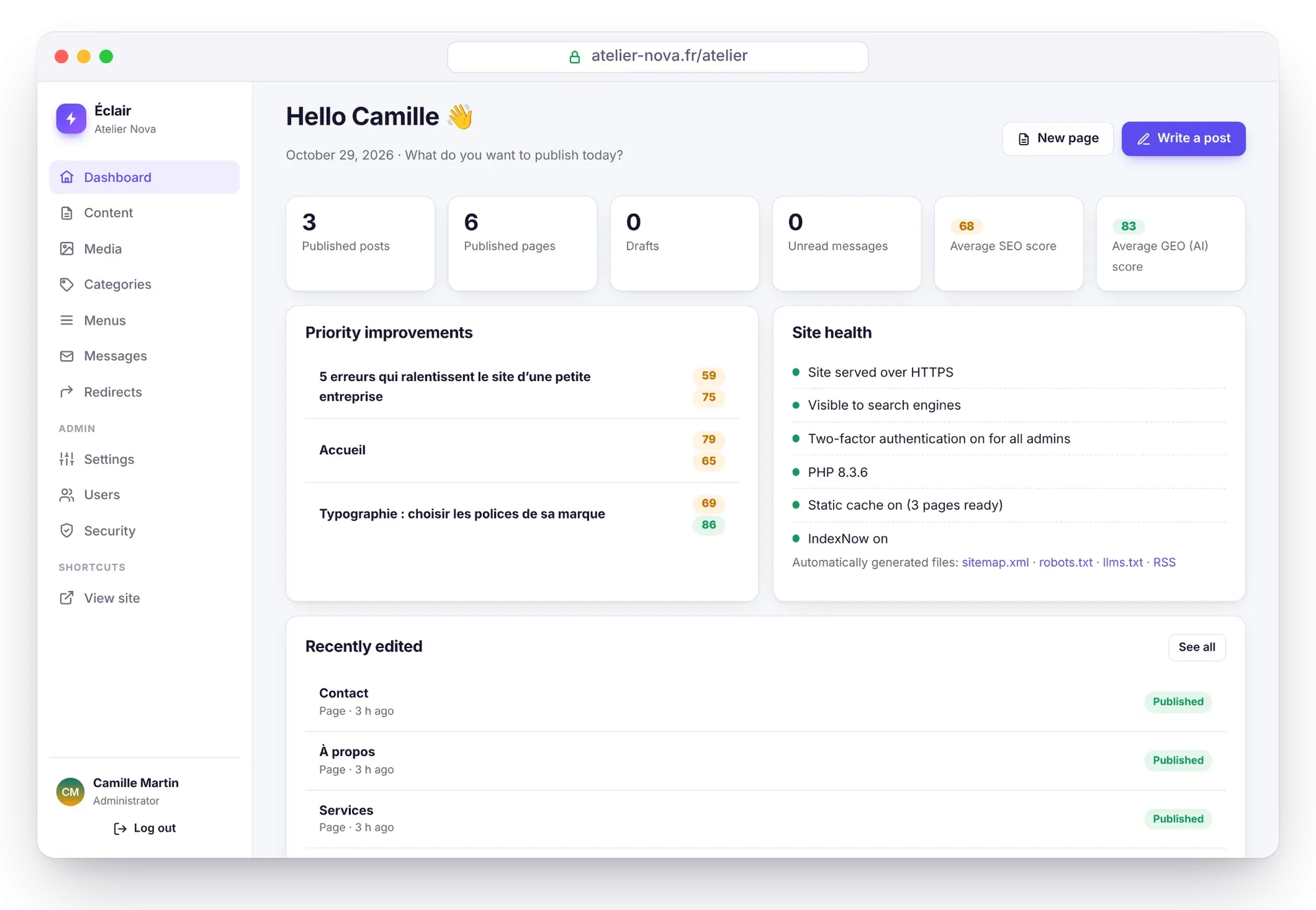
From top to bottom, you'll find:
- The creation buttons: New page and Write a post, plus New product when the shop is open.
- What do you want to create today?: the AI assistant field, if it's turned on (Turn on the built-in AI assistant). Otherwise, an administrator sees a Turn on the assistant link.
- Getting started: an 8-step checklist, from installation to Google Search Console, with a Let's go button for each step and Hide to remove it once you no longer need it.
- Six counters: published posts, published pages, drafts, unread messages, average SEO score and average GEO (AI) score.
- Priority improvements: up to 5 published pieces of content scoring below 80 in SEO or GEO. A score is green from 80, orange from 50 to 79, and red below that.
- Site health: HTTPS, visibility to search engines, two-factor authentication for administrators, PHP version, static cache and IndexNow, with links to
sitemap.xml,robots.txt,llms.txtand the RSS feed. - Recently edited: your 6 most recently modified pieces of content, and See all for the full list.
What's in the side menu?
| Entry | What it's for |
|---|---|
| Dashboard | Your site's summary |
| Content | All your pages and posts (and your products) |
| Media | The media library, with your optimized images |
| Categories | Blog categories, visible if the blog is enabled |
| Menus | The header and footer menus |
| Messages | Messages from the contact form, with the unread count |
| Redirects | Redirecting an old URL to a new one |
| Settings, Users, Security | Configuration, accounts and site protection (administrators) |
| AI assistant | The assistant, if it's turned on (shortcut Ctrl+J) |
| View site | Your public site, in a new tab |
At the bottom of the menu, your name and role lead to My profile, and Log out ends your session. On a phone or tablet, the menu hides behind the Menu button at the top of the screen.
The content list
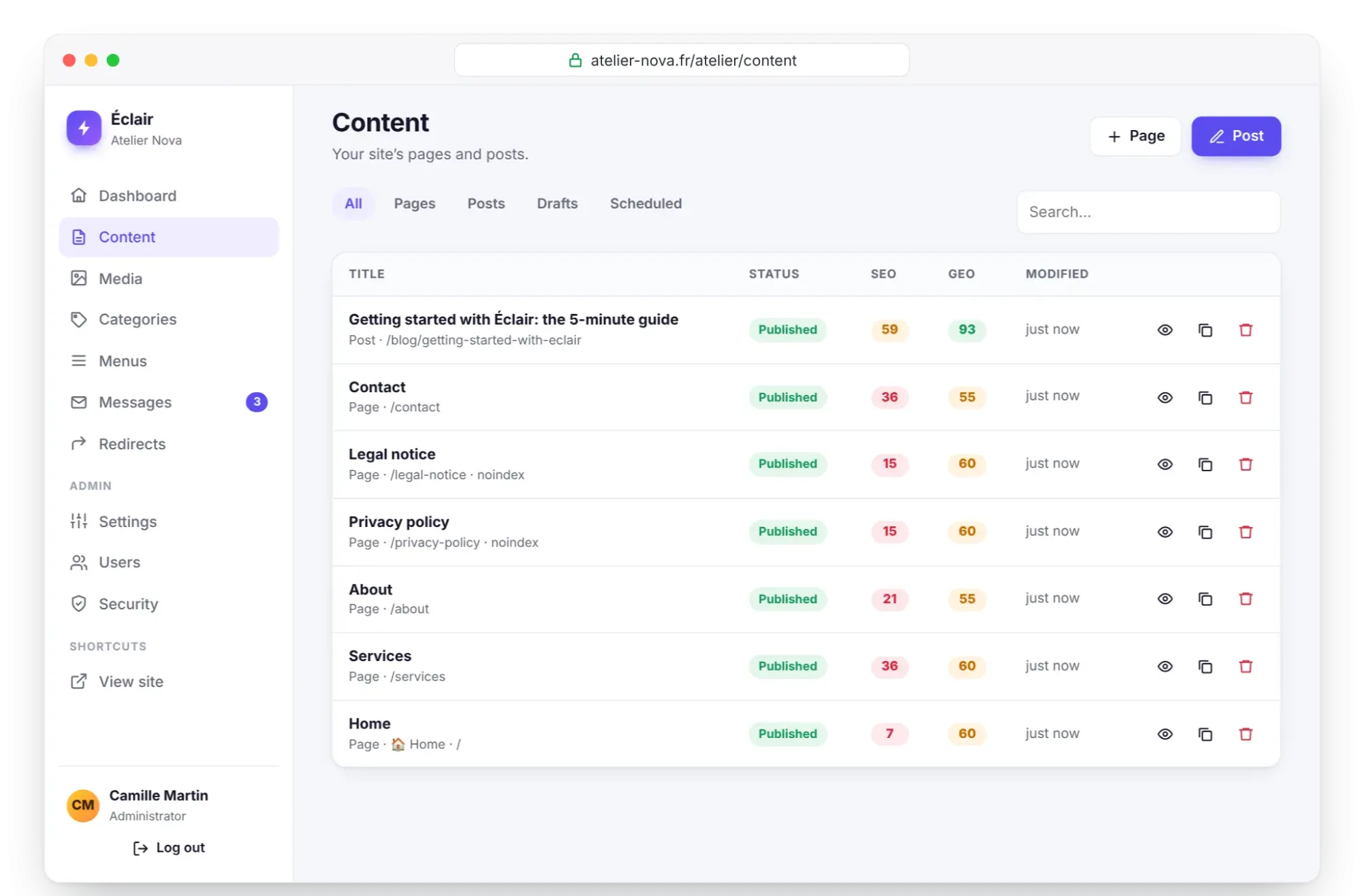
The Content screen gathers everything you publish. The All, Pages, Posts, Drafts and Scheduled filters sort the list, and the Search field finds a title. Each row shows the status, the SEO and GEO scores and the date modified; the home page is marked Home.
At the end of each row, icons let you View the content if it's online, Duplicate it or Delete it. If you delete published content, Éclair offers to redirect its old URL, so you don't leave a broken link. The Page and Post buttons at the top create new content.
Edit a page from the public site
When you're logged in, every page and post on your site shows an ✏️ Edit button. One click opens the content in the editor. Your visitors don't see this button, and its link doesn't reveal your admin URL.
Choose the admin language
The Éclair admin is available in 7 languages: French, English, Spanish, German, Italian, Portuguese and Chinese. Click your name at the bottom of the menu, choose an Admin language, then click Save profile. This choice is personal: it changes neither your site's language nor that of the other accounts.
Administrator or editor: who can do what?
| Area | Administrator | Editor |
|---|---|---|
| Dashboard, Content, Media | Yes | Yes |
| Categories, Menus, Messages, Redirects | Yes | Yes |
| Settings, Users, Security | Yes | No |
| AI assistant | Yes | If the “Editors can use the assistant” box is checked |
Camille wants Hugo, her studio assistant, to publish the workshop dates. In Users, she fills in the Invite someone box: Name, Email, Role (Editor), then Create account. Éclair generates a temporary password, to share in person or through a secure channel. Hugo will have to replace it the first time he logs in.
I want to… Where?
This table, taken from the official guide, is your cheat sheet:
| I want to… | Where |
|---|---|
| Write a post | Dashboard › Write a post |
| Edit a page as it actually looks | Editor › Visual |
| Edit a page from the site | ✏️ Edit button, visible when you're logged in |
| Change the theme, logo, color, fonts | Settings › Appearance |
| Choose the home page | Settings › General |
| Add a link to the menu | Menus |
| Redirect an old URL | Redirects |
| Connect Google Search Console | Settings › SEO |
| Allow or block AI | Settings › AI & GEO |
| Turn on the AI assistant | Settings › AI assistant |
| Turn on two-factor authentication | My profile › Two-factor authentication |
| Download a backup | Security › Backup |
Key points
- The Éclair admin opens at the custom address chosen during installation: bookmark it.
- The dashboard flags content to improve and the site's health; the Getting started checklist guides your first steps.
- Settings, Users and Security are reserved for administrators.
- The Edit button on your public site opens the content directly in the editor.
Going further
- Write and publish your first blog post: getting started with the block editor.
- Everyday security: passwords, two-factor authentication, roles and sessions.
- Settings reference: every Settings tab explained.
- Official source: the “Everyday use” table in the Éclair guide, on GitHub.
Frequently asked questions
Why can't I see Settings in my menu?
Your account has the Editor role. Settings, Users and Security are reserved for administrators: ask one of them to change your role in Users.
Why has the Categories entry disappeared?
It only appears if the blog is enabled. Check the Blog enabled box in Settings › General.
What do the colored SEO and GEO scores mean?
They're each piece of content's scores, out of 100: green from 80, orange from 50 to 79, red below that. The details of the checks are in the editor's Analysis tab.
How do I close my sessions on other devices?
In My profile, click Log out my other devices. An administrator can also close all sessions from Security › Log everyone out.