Install Éclair step by step
Contents
- Step 1: upload the contents of the eclair folder
- Step 2: open your site's URL
- The wizard's 5 screens
- Screen 1: Welcome to Éclair
- Screen 2: Your site
- Screen 3: Your account
- Screen 4: Visibility and admin URL
- Screen 5: Ready for takeoff?
- The confetti
- What the wizard creates for each site type
- The 2-hour security window
- How do you log in the first time?
- Install Éclair without errors: common cases
- Key points
- Going further
- Frequently asked questions
You install Éclair in two stages: you upload a folder to your hosting, then a wizard asks you 4 questions and creates your site. This lesson follows each screen, shows what gets created for each site type and gives the fix for the most common errors.
What you'll be able to do
Put your site online
Upload the right files and answer the wizard's questions.
Protect your admin
Choose a custom address and a strong password from the start.
Unblock an installation
Fix a 404 error, an outdated PHP version or a folder that isn't writable.
Step 1: upload the contents of the eclair folder
- Open your FTP client or your host's file manager, then the public folder (
public_html,www…). - Turn on the display of hidden files.
- On your computer, open the
eclairfolder and select all of its contents:index.php,.htaccess,eclair-config.exemple.phpand theapp,assets,cache,dataandmediafolders. - Upload this selection to the public folder and wait for the transfer to finish.
- Check that a
.htaccessfile is present at the root of the public folder.
A classic mistake: uploading the eclair folder itself. Your site would then end up at atelier-nova.fr/eclair/, because Éclair detects a subfolder on its own. If that happens, move its contents up one level before going any further.
Step 2: open your site's URL
Type your site's address into your browser, preferably with https://: the setup wizard starts on its own. It speaks 7 languages, which you choose at the top of the screen. This first visit also starts the 2-hour countdown explained below.
The wizard's 5 screens
The wizard has 5 screens: a check, three question screens (visibility and the admin URL share the same one) and a summary.
Screen 1: Welcome to Éclair
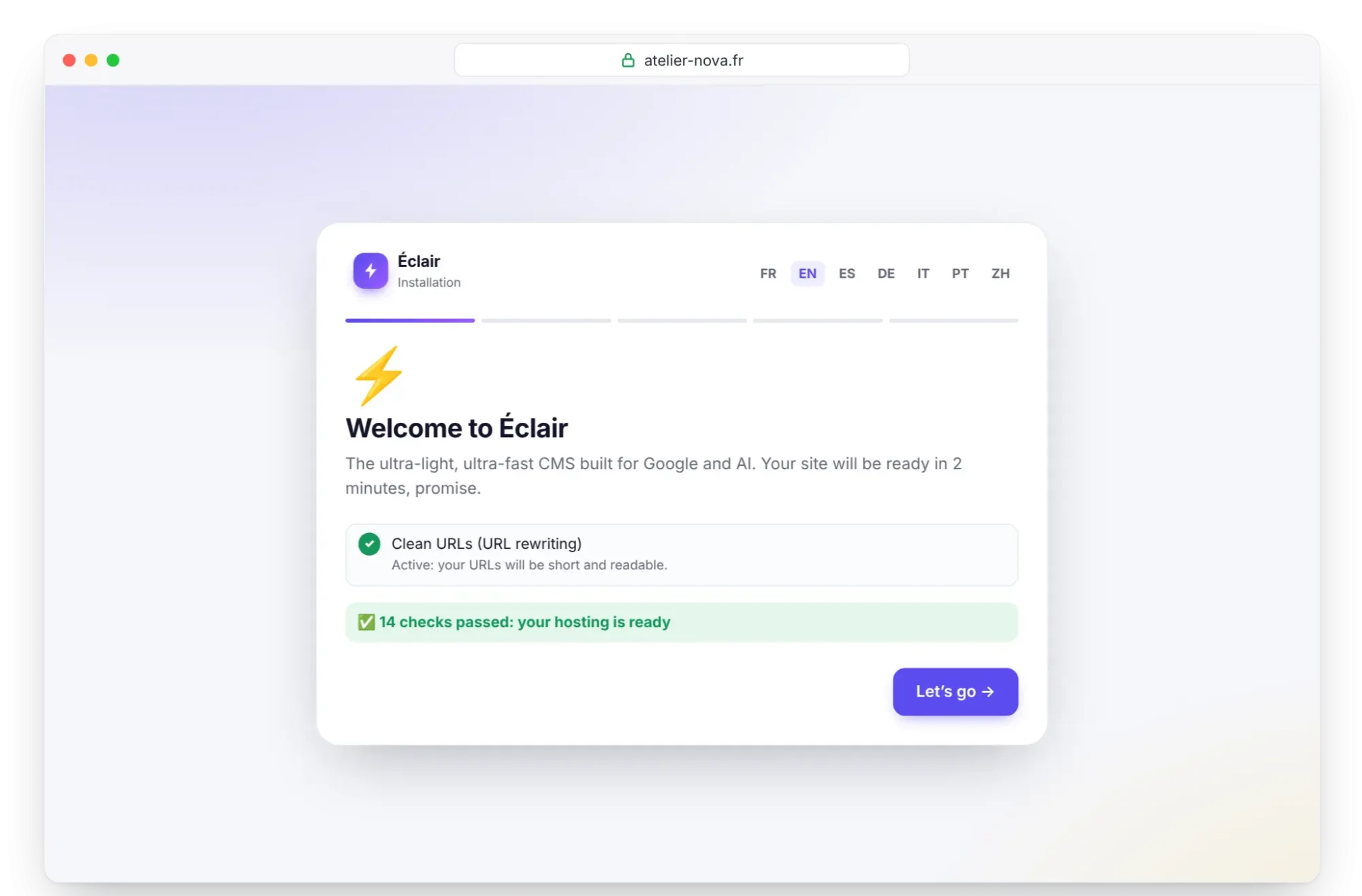
The wizard checks your hosting. Items to fix appear first; the others are grouped under a line such as “14 checks passed: your hosting is ready”. A red item blocks the installation (“Fix the items in red with your host, then reload this page”); an orange item is just a tip. When everything is fine, click Let's go.
Screen 2: Your site
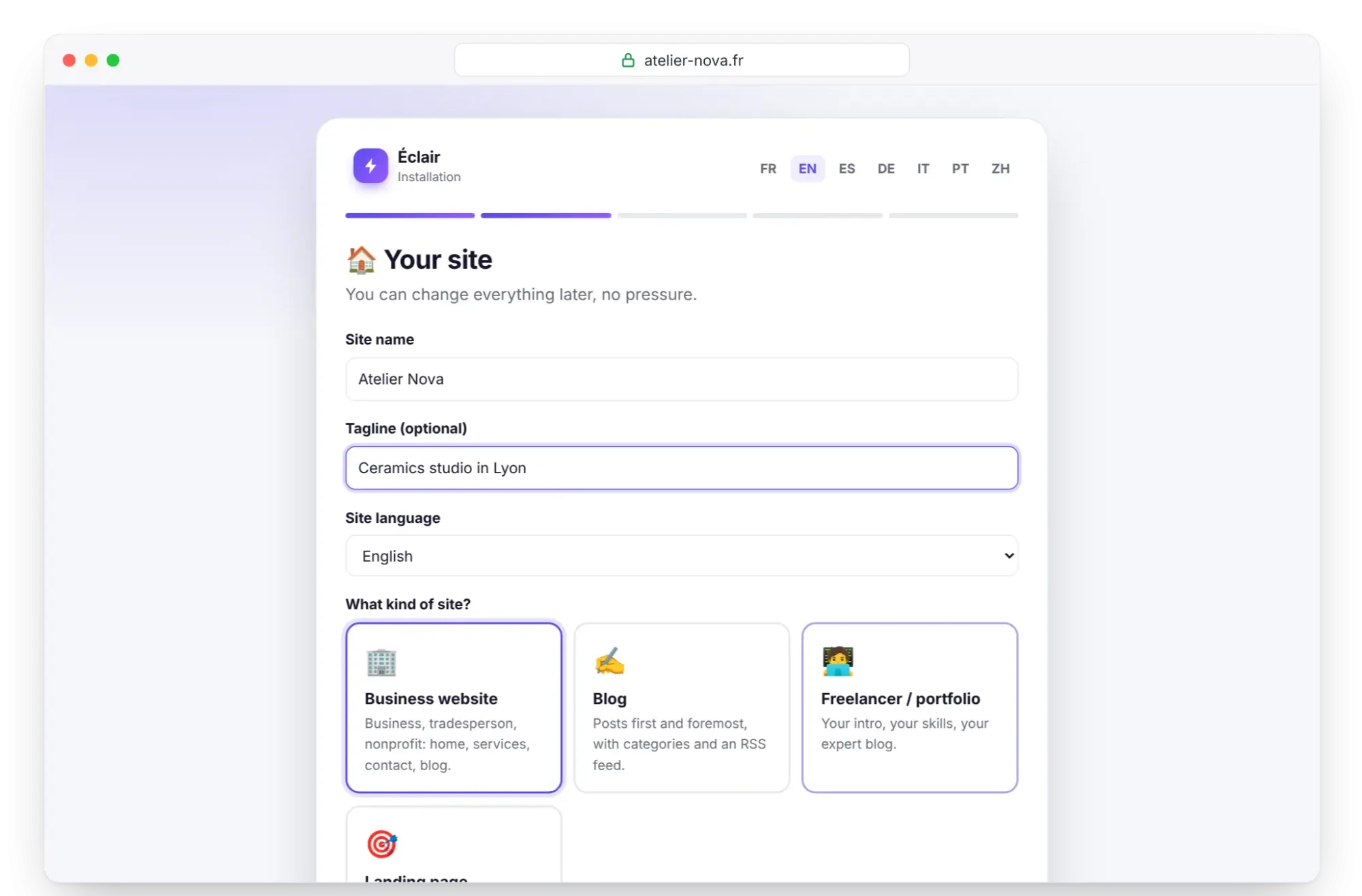
- Site name: “Atelier Nova”.
- Tagline (optional): “Ceramics studio in Lyon”.
- Site language: English. It also sets the starting time zone (Europe/London for English, Europe/Paris for French), which you can change later.
- What kind of site?: Business website, Blog, Freelancer / portfolio or Landing page. Camille chooses Business website.
As the screen reminds you, you can change everything later. Click Continue.
Screen 3: Your account
Fill in Your name (Camille Martin), Your email and a Password of at least 10 characters. The Show button reveals what you type, and a meter measures its strength. The wizard's tip: a 4-word phrase, strong and easy to remember.
A password is refused if it's too common, not varied enough, or if it contains your name, the start of your email address or the site name. With the address camille@…, a password containing “camille” is therefore rejected. This first account is an administrator.
Screen 4: Visibility and admin URL
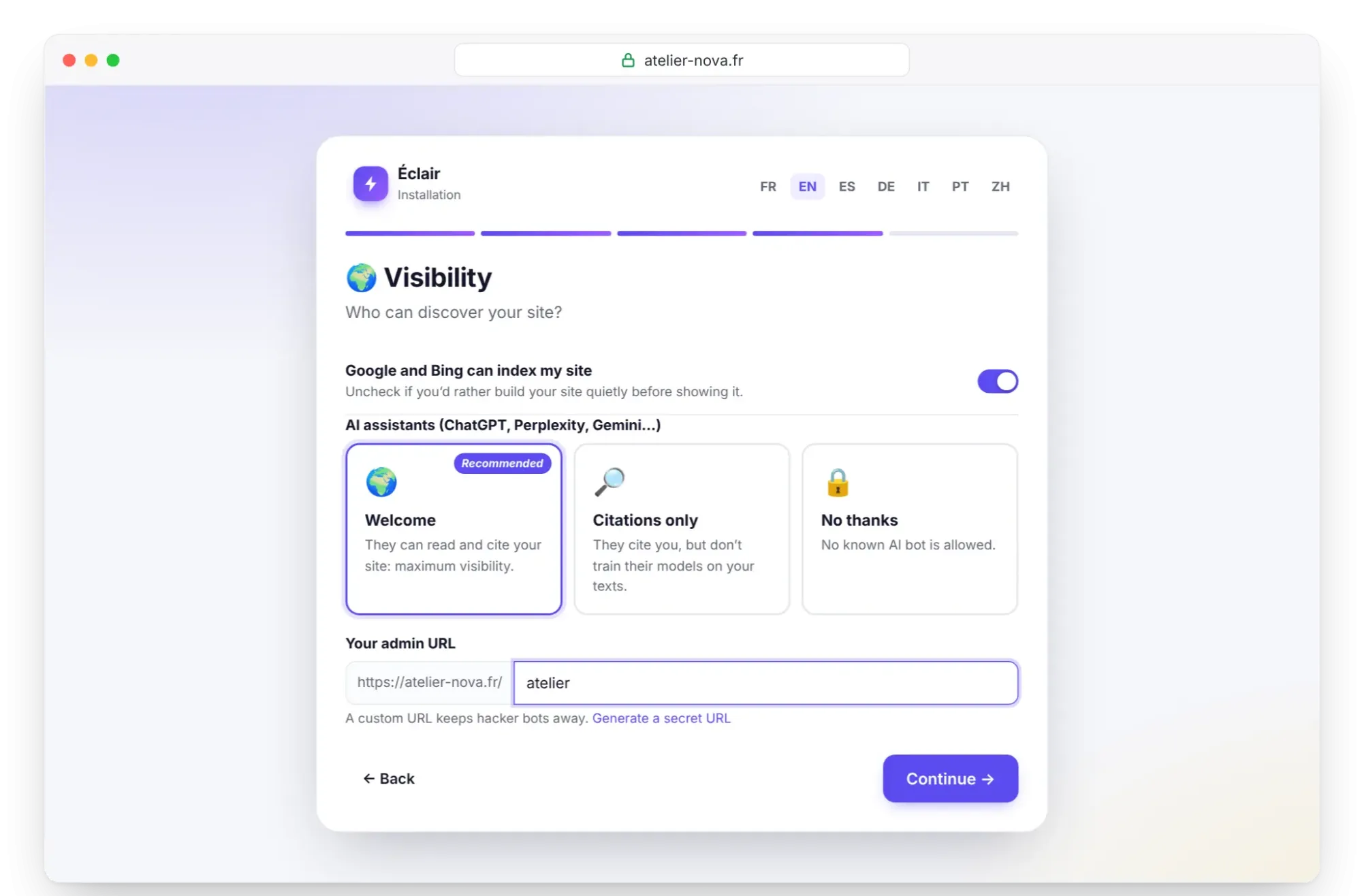
- Google and Bing can index my site: checked by default. Uncheck it to build your site quietly, and remember to turn it back on before launch (Essential settings before launch).
- AI assistants (ChatGPT, Perplexity, Gemini…): Welcome (recommended, they read and cite your site), Citations only (they cite you without training their models on your texts) or No thanks.
- Your admin URL:
adminby default. Replace it with a custom address, which keeps hacker bots away: 3 to 40 characters (lowercase letters, numbers, hyphens), or click Generate a secret URL. A few reserved words such asblogormediaare refused. Camille choosesatelier.
Write this address down right away, together with your password, somewhere safe.
Screen 5: Ready for takeoff?
The summary lists the site, its address, its type, your account, the visibility and the admin URL. A mistake? Back takes you back. Otherwise, click Create my site ⚡. If a field is refused, the wizard returns on its own to the screen concerned and shows the error below the field.
The confetti
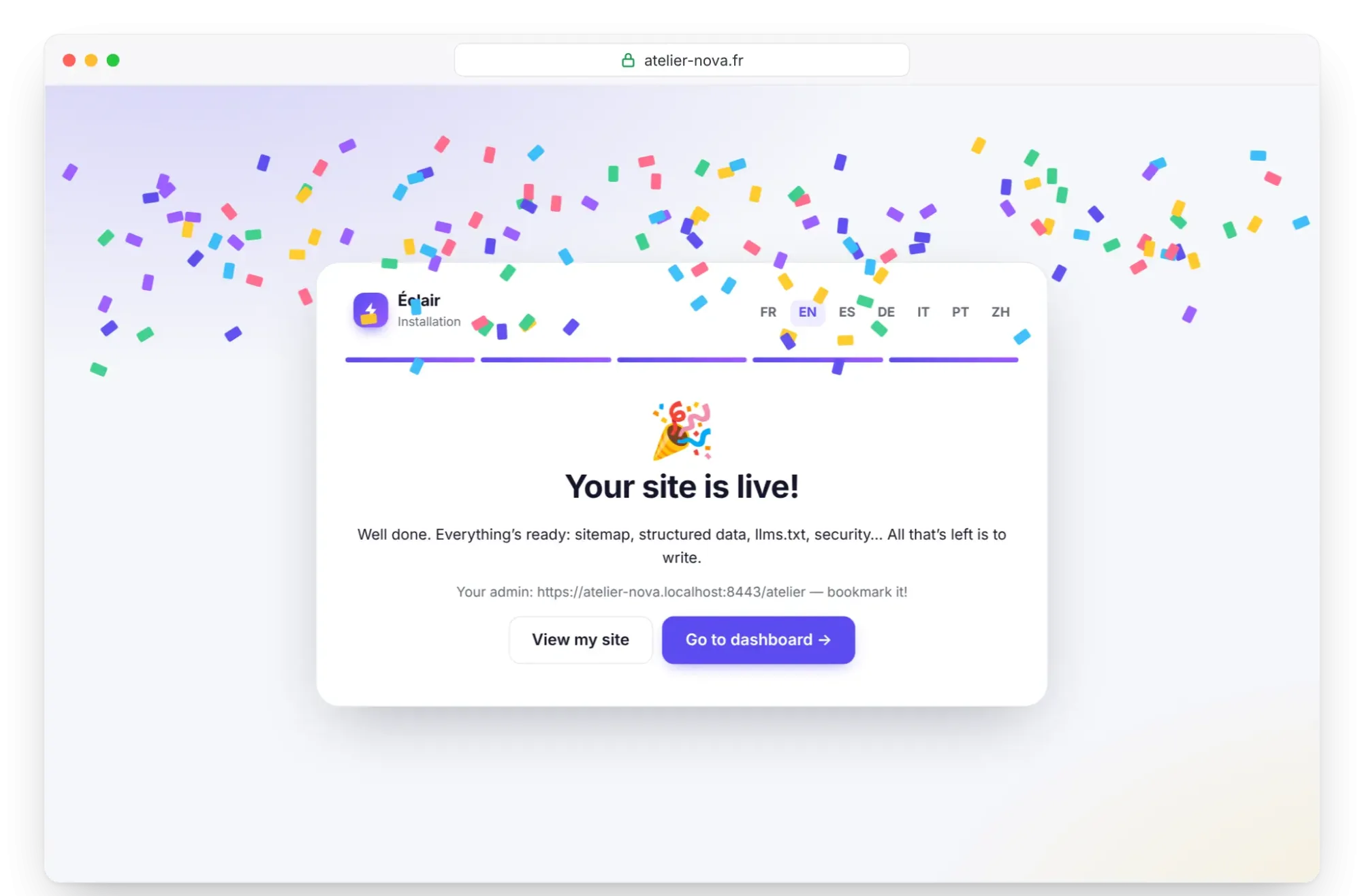
“Your site is live!” appears under a shower of confetti, with your admin URL and a tip to bookmark it. View my site opens your site in a new tab, and Go to dashboard takes you into the admin: you're already logged in.
What the wizard creates for each site type
| Type | Pages created | Main menu |
|---|---|---|
| Business website | Home (banner, features, latest posts), Services (with FAQ), About, Contact, Blog, legal pages | Services, About, Blog, Contact |
| Blog | Home with the latest posts, About, Contact, a “Guides” category, legal pages | About, Contact |
| Freelancer / portfolio | Home in your name, skills, About, Blog, Contact, legal pages | About, Blog, Contact |
| Landing page | A sales page (banner, features, FAQ, form) and the legal pages, no blog | Empty |
Except with the landing page, a sample post, “Getting started with Éclair: the 5-minute guide”, presents the available blocks: edit it or delete it. The legal notice and the privacy policy go in the footer menu, with an outline to complete.
The 2-hour security window
From the first visit, Éclair creates the data/install-window.php file. The installation must be completed within 2 hours, otherwise anyone could take over a site that was uploaded and then forgotten. After that, your address shows Installation locked.
To reopen the wizard, delete data/install-window.php via FTP or with the file manager, then reload the page. Only someone with access to the server can do this: that's the whole point.
How do you log in the first time?
Right after installation, you're already logged in. Next time, type your admin URL, for example atelier-nova.fr/atelier. The login page asks for your Email and Password, then Log in. Bookmark this address: your public site doesn't reveal it. The full tour awaits you in Get to know the Éclair admin.
Install Éclair without errors: common cases
| What you see | Likely cause | Solution |
|---|---|---|
| 404 error on every page except the home page | .htaccess not uploaded (hidden file) or URL rewriting disabled | Upload the .htaccess again; if your host requires it, uncomment its RewriteBase / line |
| “Éclair a besoin de PHP 8.1 ou plus récent.” (shown in French: Éclair needs PHP 8.1 or later) | PHP version too old | Change the PHP version in your customer area, then reload |
| A red item on a “Folder … is writable” line | Insufficient permissions on data, cache or media | Give that folder 755 permissions via FTP, then reload |
| 500 error right after uploading | A .htaccess directive refused (very rare) | Remove the block in question or contact your host |
Other cases are described on the Troubleshooting page.
Key points
- To install Éclair, upload the contents of the
eclairfolder, not the folder itself, hidden.htaccessfiles included. - The wizard has 5 screens and 4 questions, and checks your hosting before anything else.
- Choose a custom admin URL and write it down with your password.
- The installation must be completed within 2 hours of the first visit.
- A 404 error on internal pages almost always comes from a missing
.htaccess.
Going further
- Get to know the Éclair admin: the dashboard, the menu and your first habits.
- Troubleshooting: known errors and their solutions.
- Install Éclair on o2switch and the other hosting guides, screen by screen.
- Official source: the Installation section of the Éclair guide, on GitHub.
Frequently asked questions
How long does it take to install Éclair?
The wizard itself takes about 3 minutes. Add the time it takes to upload the files, which is quick since the complete CMS weighs less than 1 MB.
Can I change the site type after installation?
The type mainly serves to create the first pages and menus. After that, you freely add, delete or reorganize pages, the blog and menus.
I forgot my password right after installing. What should I do?
Via FTP, create a data/reset.php file with three lines: <?php exit; ?>, your email, then your new password. Log in within 24 hours with that email and password: the file is then deleted automatically.
Can I change the admin URL later?
Yes, in Settings › Advanced › Admin URL. Éclair may ask for your password again, then redirects you to the new address: remember to update your bookmarks.