Install Éclair on OVHcloud
Contents
- The plan and control panel at a glance
- Step 1: choose PHP 8.3
- Step 2: turn on the HTTPS certificate
- Step 3: delete the “Site en construction” page
- Step 4: upload the files by FTP
- Step 5: run the setup wizard
- Step 6: check after installation
- Pitfalls specific to OVHcloud
- Install Éclair on OVHcloud: what if something goes wrong?
- Key points
- Going further
- Frequently asked questions
To install Éclair on OVHcloud, you need an FTP client, because this web host no longer has an online file manager. The rest comes down to the PHP version and the Let's Encrypt certificate, set in the OVHcloud Control Panel, and the www folder, where a “Site en construction” (site under construction) page is waiting for you.
The plan and control panel at a glance
| Item | At OVHcloud |
|---|---|
| Control panel | OVHcloud Control Panel: Web Cloud › Hébergements (hosting plans) |
| Web server | Apache 2.4; .htaccess and URL rewriting supported |
| PHP version | One global version per hosting plan, from 7.4 to 8.5; never upgraded automatically |
| Public folder | www |
| ZIP extraction | No: no online file manager; unzip over SSH from the Pro plan up |
| Outgoing connections | Allowed from PHP and logged (“Logs OUT”) |
| Price checked on November 1, 2026 | Starter: €1.59 excl. VAT/month (€1.91 incl. VAT) for the first year, then €2.59 excl. VAT/month (OVHcloud pricing, in French) |
Starter hosts 1 site with 1 GB of space. Perso goes from €2.99 to €5.99 excl. VAT/month (15 sites, FTP only), and Pro from €1.99 to €9.99 excl. VAT/month (100 sites, SSH access). The promotional prices apply to the first 12 months. All these prices are in euros, as shown on OVHcloud's French page, and exclude VAT unless stated otherwise.
Step 1: choose PHP 8.3
In the Control Panel:
- Open Web Cloud, then Hébergements (hosting plans), and select your hosting plan.
- In the Configuration box, click “...” next to Version PHP globale (global PHP version), then Modifier la configuration (change the configuration).
- Choose Modifier la configuration courante (change the current configuration), then click Suivant (next).
- Select PHP 8.3, keep the
phpengine (PHP-FPM), then confirm.
The Informations générales (general information) tab then shows the active version. Another, equivalent method is the .ovhconfig file, present at the root of your FTP space. Edit its app.engine.version line:
app.engine=php
app.engine.version=8.3
http.firewall=none
environment=production
container.image=stable64
Keep a single .ovhconfig, the one at the root: users report conflicts with two files. And forget the old tricks: changing PHP through .htaccess no longer works.
Step 2: turn on the HTTPS certificate
Since August 6, 2025, Let's Encrypt is turned on by default for domains and subdomains added to a hosting plan. Check its status first, then, if it's missing:
- In your hosting plan, open the Certificats SSL (SSL certificates) tab.
- Under Activer le certificat SSL (activate the SSL certificate), select your domain.
- Click Activer SSL Let's Encrypt (activate Let's Encrypt SSL). Activation can take several hours.
Conditions: the domain points to the IP address of the hosting plan, it's declared in Mes sites (my sites) and it doesn't already have an active certificate. OVHcloud has no button to force HTTPS. If you run the wizard over https://, Éclair takes care of it by ticking Force HTTPS, then redirects every visit to the official address once that address is verified. For a server-side rule, once step 4 is done, add the lines from OVHcloud's guide at the top of Éclair's .htaccess:
RewriteEngine On
RewriteCond %{HTTPS} off
RewriteRule ^(.*)$ https://%{HTTP_HOST}%{REQUEST_URI} [L,R=301]
Step 3: delete the “Site en construction” page
OVHcloud puts an index.html file in www that displays its “Site en construction” page. At OVHcloud, index.php takes precedence over index.html, but don't leave this file lying around: in step 4, rename it to index.html.old in FileZilla (right-click, then Rename) or delete it.
Step 4: upload the files by FTP
- In your hosting plan, open the FTP - SSH tab: it shows the FTP server, the SSH server and the main username. The password is in the installation email; otherwise, reset it.
- In FileZilla, enter the Host, Username, Password and port 21, then click Quickconnect.
- Turn on Server › Force showing hidden files.
- On the right, open
www. On the left, open the extractedeclairfolder and select all of its contents. - Drag the selection into
www, then check that.htaccessappears there.
To encrypt the connection, use SFTP on port 22. On Starter and Perso, turn it on for your user by ticking its SFTP column; from Pro up, choose FTP et SFTP (FTP and SFTP) or FTP, SFTP et SSH (FTP, SFTP and SSH). With SSH access (Pro and above), you can also upload the archive to www and extract it on the server:
cd www
unzip eclair-cms-1.8.0.zip
mv eclair/* eclair/.htaccess .
rmdir eclair
rm eclair-cms-1.8.0.zip LISEZ-MOI.txt LICENSE.txt THIRD-PARTY-NOTICES.txt
Step 5: run the setup wizard
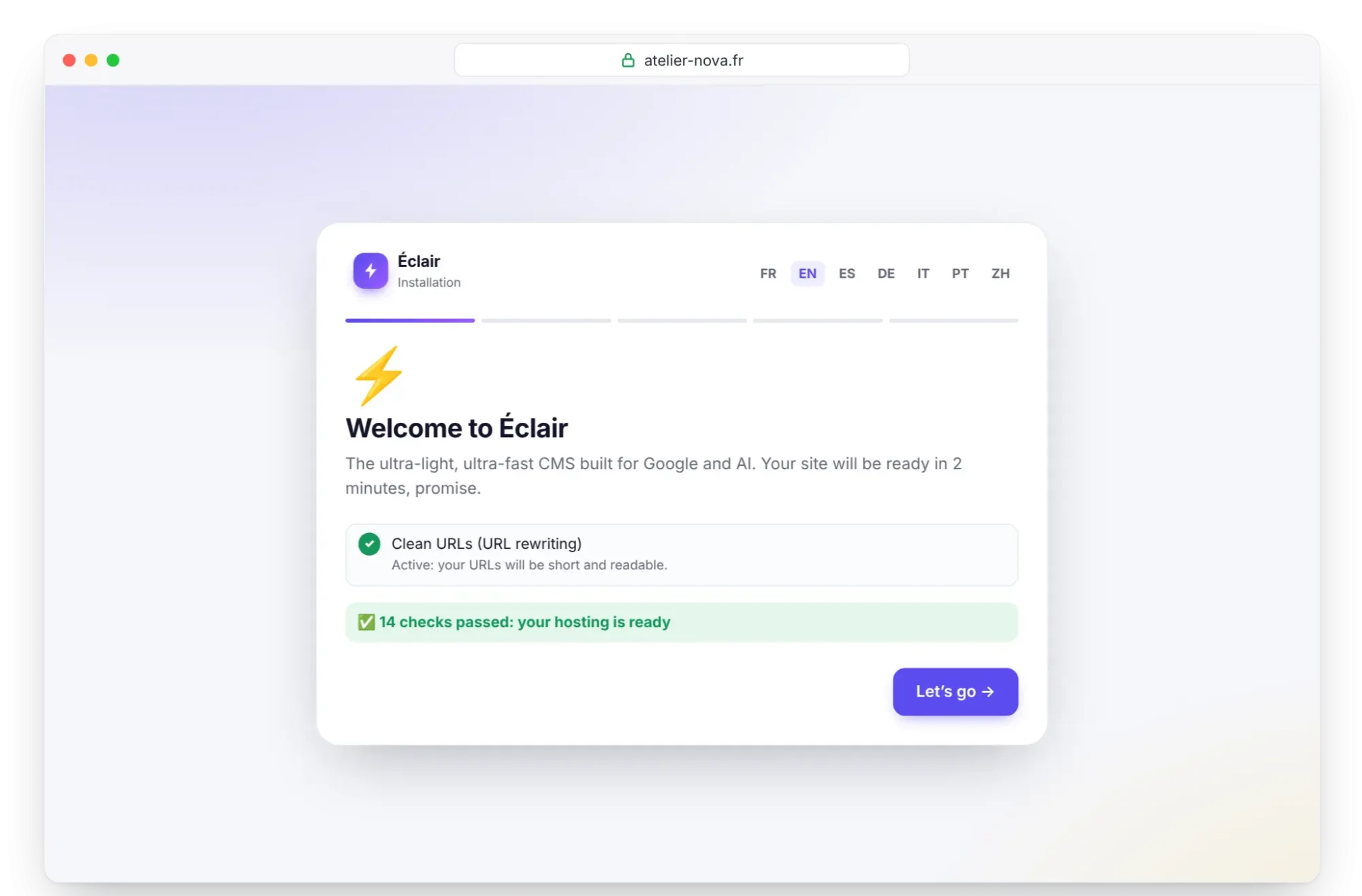
Open https://your-domain.com. The first screen of the wizard checks PHP, the extensions and write permissions; the “Clean URLs (URL rewriting)” line must show “Active”. If PHP doesn't show 8.3, go back to step 1: a second .ovhconfig may be the cause. The rest, 4 questions in 3 minutes, is described in Install Éclair step by step.
Step 6: check after installation
- In Security, check “Encrypted connection (HTTPS) enforced”, “Site address verified” and “Supported PHP version”. If the address isn't verified, click Verify the site address.
- The “Folder protection test” must mark every file Protected.
- For the AI assistant, click Test the connection in Settings › AI assistant. OVHcloud allows outgoing connections from PHP: “Connection successful” is the expected result.
Pitfalls specific to OVHcloud
- No more file manager: the online FTP Explorer tool (Net2FTP) is gone. A client such as FileZilla or Cyberduck becomes essential.
- The .ovhconfig file sets a single PHP version for the whole hosting plan, and OVHcloud never upgrades it on its own.
- The PHP-FPM engine gives 512 MB of memory and 165 seconds of execution time, against 128 MB and 120 seconds without it: keep the
phpengine. - Outgoing connections suspended in case of abnormal activity (malware, mass emailing). From an SSH session, they're always blocked.
- The application firewall (
http.firewall=security) is optional and its filters can't be adjusted: if it blocks your admin, set it back tonone. - The “Your request has been blocked” message comes from OVHcloud's protections: send support your IP address, the date and the Request ID shown.
Install Éclair on OVHcloud: what if something goes wrong?
| Problem | Cause | Solution |
|---|---|---|
| “Site en construction” page | Old index.html, or files uploaded outside www | Check that index.php is in www, then rename index.html |
| 404 error on every page except the home page | .htaccess left on your computer | Force showing hidden files in FileZilla and upload it again |
| PHP doesn't switch to 8.3 | Version changed in .htaccess, or two .ovhconfig files | Use the Control Panel and keep only the .ovhconfig at the root |
| The padlock doesn't appear | Certificate still being activated | Wait a few hours, then check the Certificats SSL tab |
| “Your request has been blocked” | OVHcloud's upstream protection | Send your IP, the date and the Request ID to support |
Other cases are described on the Troubleshooting page.
Key points
- Set PHP 8.3 in the Control Panel or in
.ovhconfig, never in.htaccess. - Upload the contents of the
eclairfolder towwwwith FileZilla, hidden files shown. - Rename or delete the
index.htmlfile of the “Site en construction” page. - Run the wizard over
https://so that Éclair forces HTTPS itself.
Going further
- Prepare your installation and Install Éclair step by step.
- Essential settings before launch and Turn on the built-in AI assistant.
- Choosing your web hosting for Éclair and the universal FTP method.
- OVHcloud's official documentation, in French: configuring PHP, Let's Encrypt and FTP connection. The libraries of each runtime environment, including
gdandzip, are listed on webhosting-infos.hosting.ovh.net.
Frequently asked questions
Which OVHcloud plan should I choose for Éclair?
Starter is enough for one site: Éclair weighs less than 1 MB, and your images will share the 1 GB available. Choose Pro if you want SSH access.
Why doesn't my .htaccess change the PHP version?
That method no longer works at OVHcloud. Use Version PHP globale (global PHP version) in the Control Panel, or the app.engine.version line of the .ovhconfig file.
Can I do without an FTP client at OVHcloud?
On Starter and Perso, no: there's no longer an online tool, and no SSH access. FileZilla or Cyberduck will do the job, whichever you prefer.
Does OVHcloud back up my site?
Yes, with automatic copies from 1, 2, 3, 7 and 14 days back, which OVHcloud describes as non-contractual. Also download Éclair's backup from the Security page.