Pages, menus and home page
Contents
Your home page, your pages and your menus form the framework of your site. In this lesson, you create a page and its subpages, set their options, choose your home page and your blog, then organize the header and footer menus with drag and drop.
What you'll be able to do
Structure your site
Create pages and subpages with automatic breadcrumbs.
Choose your home page
Show a page or the latest posts at the root of the site.
Build your menus
Add, rename and reorder the header and footer links.
Page or post: which should you choose?
| Page | Post | |
|---|---|---|
| For | Lasting content: Services, About, Classes, Contact | Dated content: tips, news, guides |
| Typical address | /classes | /blog/first-ceramics-class |
| Category and featured image | No | Yes |
| Subpages | Yes, with an address containing / | No |
| Blog and RSS feed | No | Yes |
| Automatic table of contents | No, turn it on if needed | Yes, from 3 subheadings |
For Atelier Nova, the presentation of the classes is a page: it stays true for months. The tips for beginners, on the other hand, are posts, dated and filed in a category.
Create a page
- Click Content › Page, or New page on the dashboard.
- Type the title in Page title, then add your blocks as you would for a post.
- In the Document tab, set the Web address (URL), for example
classes. If you leave it empty, it's taken from the title. - Click Publish.
Create subpages with an address containing /
You create a subpage simply through its address. For the “Beginner classes” page, Camille types classes/beginners in Web address (URL): the page then lives at atelier-nova.fr/classes/beginners.
The breadcrumbs build themselves (Atelier Nova › Classes › Beginner classes), as long as the parent page classes exists. So always create the parent page first. An address has 4 levels at most, such as classes/adults/throwing/introduction: further levels are ignored. Only pages have subpages; posts live under the blog's address.
Layout options
In the Document tab, the Layout section offers three settings:
| Option | Effect | When to use it |
|---|---|---|
| Hide title | The page title disappears, and the first banner's title becomes the H1 | A page that starts with a Banner, like the home page |
| Full width | All blocks spread across the full width, instead of the reading column | A page made of banners and features |
| Contents | Automatic (posts with 3+ subheadings), Always or Never | Always for a long page, such as a FAQ |
How do you choose your home page?
- Open Settings › General.
- In Homepage, choose a page, for example “Home” created during installation, or Latest blog posts.
- Click Save.
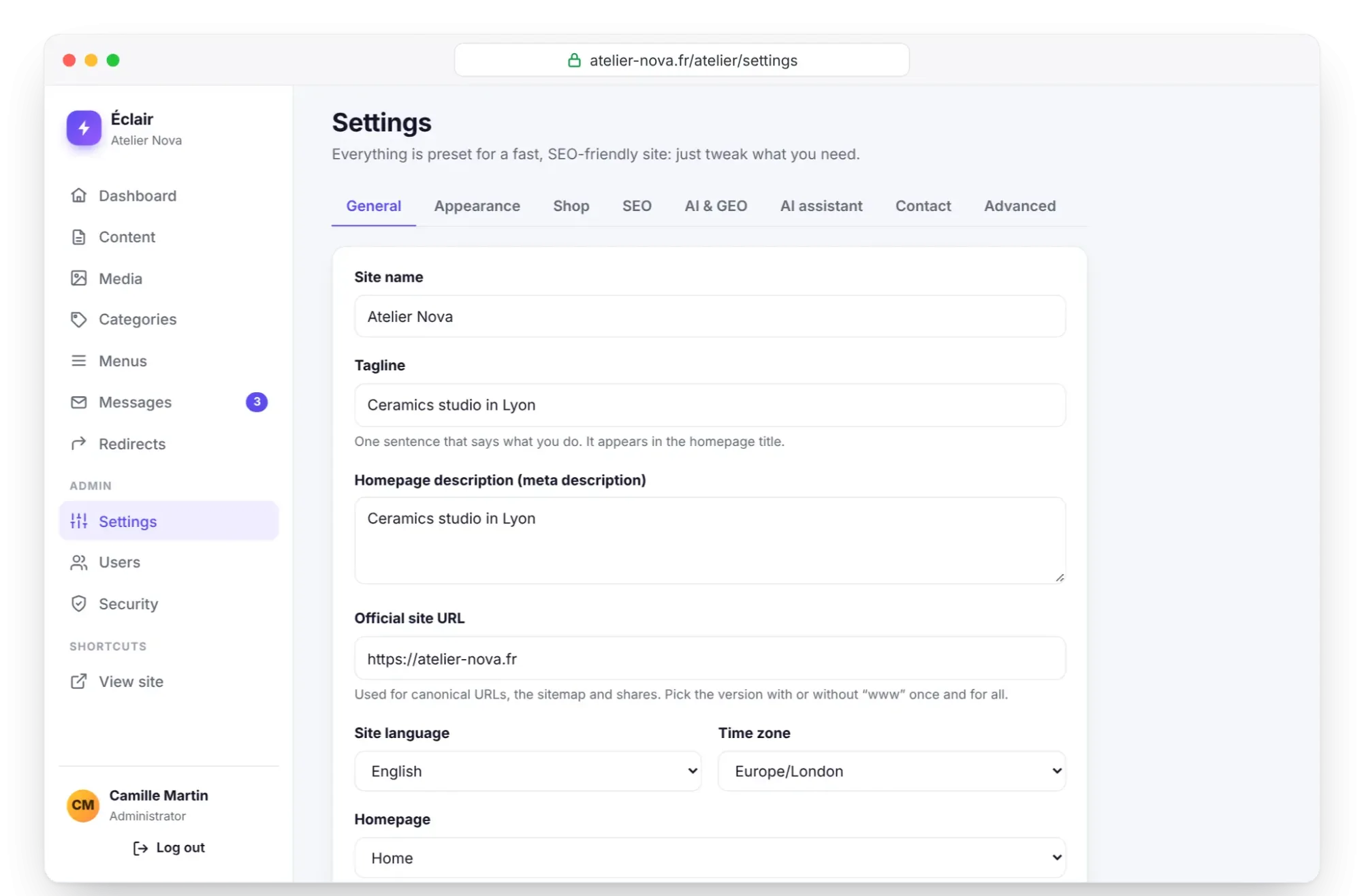
The chosen page then appears at the root of the site, atelier-nova.fr/, and is marked Home in the content list. Only pages can serve as the home page, not posts. With the Blog site type, the home page shows the latest posts from the start.
Set up the blog
Still in Settings › General:
- Blog enabled: posts, categories, RSS feeds and author pages. When it's unchecked, the Write a post button and the Categories entry disappear from the admin.
- Blog URL:
blogby default. If you change it, old URLs are redirected. - Posts per page: 9 by default, from 1 to 48.
- Blog title and Blog description: the title and introductory text of the page that lists your posts.
- Site search: adds a search icon to the menu and a results page.
Build your menus with drag and drop
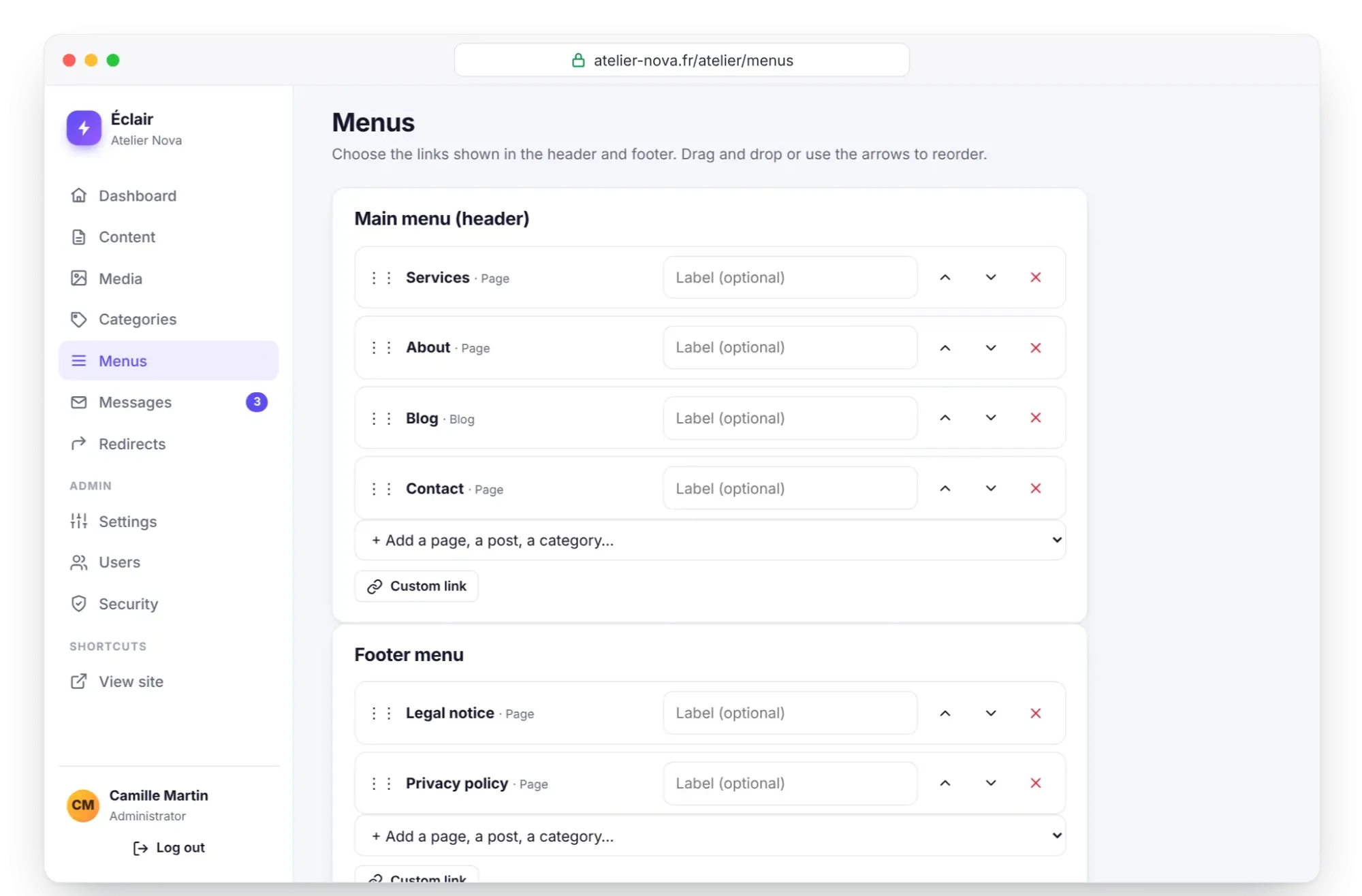
- Open Menus: two cards, Main menu (header) and Footer menu.
- Choose an item from the + Add a page, a post, a category… list: it's added at the end of the menu.
- For an external link, click Custom link: Éclair asks for the text, then the address.
- Reorder by dragging the ⋮⋮ handle, or with the Move up and Move down arrows. The Remove cross deletes the item.
- Shorten a label with Label (optional): “Classes” rather than “Ceramics classes in Lyon”.
- Click Save menus.
| Item | Example | Shown on the site if… |
|---|---|---|
| Content (page, post, product) | Classes | it's published |
| Blog | Blog | the blog is enabled |
| Shop | Shop | the shop is open |
| Category | Guides | it exists (and the shop is open, for a product category) |
| Custom link | it has a text and an address |
Each menu is a single-level list, with no drop-down submenu, of 30 items at most. Menus point to your content, not to a fixed address: if a page changes address, its links follow.
The legal pages
During installation, Éclair created Legal notice (/legal-notice) and Privacy policy (/privacy-policy), placed in the footer menu; on a French-language site, they're /mentions-legales and /politique-de-confidentialite. They're excluded from Google by the noindex option, which is normal for this type of page.
Keep the second one's address: the contact form automatically shows a link to your privacy policy when it has the address privacy-policy or privacy (the French and Spanish addresses, such as politique-de-confidentialite, work too). Their content is an outline to complete, a step detailed in Essential settings before launch.
Key points
- A page holds lasting content; a post holds the blog's dated content.
- An address such as
classes/beginnerscreates a subpage with automatic breadcrumbs, up to 4 levels. - You choose the home page in Settings › General: a page, or the latest blog posts.
- Menus are built on the Menus screen, then saved with Save menus; a draft only appears there once published.
Going further
- Blog, categories and topic clusters: organize your posts into pillar pages.
- Build a multilingual site: addresses per language and the limits of shared menus.
- Settings reference: every option in the General tab.
- External source: Google's documentation on breadcrumbs, which Éclair generates as structured data.
Frequently asked questions
Can I choose a post as the home page?
No: the Homepage setting only offers pages, or the latest blog posts. To feature a post on the home page, add a Latest posts block or a Button pointing to it.
Why doesn't my new page appear in the menu?
Éclair doesn't change your menus on its own after installation. Add the page on the Menus screen, save, and check that it's published: a draft stays invisible in the menu.
Can I create a drop-down menu?
No, each menu is a single-level list. To group pages, create a parent page, such as “Classes”, that presents its subpages and links to them.
What happens if I change a page's address?
Éclair automatically creates a 301 redirect from the old address to the new one. Menus follow too, since they point to the page itself.