Contact form and messages
Contents
Éclair's contact form lets you receive your visitors' requests with no captcha and no external service. In this lesson, you add it to a page, understand how it blocks spam, set up email notifications and manage the Messages inbox, without forgetting the GDPR.
What you'll be able to do
Receive requests
Add the form and get each message by email.
Block spam
Understand the captcha-free protections and test without locking yourself out.
Reply fast
Sort, read and answer from the Messages inbox.
Add the contact form to a page
The Contact page created during installation already contains the form, and the Landing page site type also places one at the bottom of the home page. To add one elsewhere, for example on Atelier Nova's “Classes” page:
- Open the page in the editor, go to an empty line and type /.
- Choose Contact form, described as “Built-in anti-spam form”.
- If you like, fill in Section title (optional), for example “Book a trial class”, and Button text (optional). Without text, the button reads “Send”.
- Click Publish or Update.
On your site, visitors see three fields, Name, Email and Message (5,000 characters at most), then the notice “Your data is only used to reply to you.”, followed by a link to your privacy policy. After sending, a confirmation message appears in the form, without reloading the page.
How does the form block spam without a captcha?
| Protection | What it does |
|---|---|
| Honeypot field | A field that humans can't see. A bot that fills it in thinks its message was sent, but Éclair keeps nothing. |
| Token | Added by the browser when the visitor uses the form. Without a valid token, the message is marked “Likely spam” and isn't sent by email. |
| Links | A message with more than 3 links is marked “Likely spam” and cut to 1,000 characters. |
| Per-network limit | 5 messages every 10 minutes per network (an IPv4 address, or a /64 block in IPv6). Beyond that, the network is blocked for 30 minutes. |
| Site limit | 100 messages per day for the whole site. Beyond that, the form is blocked for 6 hours. |
| Origin | Submissions coming from another site are refused. |
The result: no box to tick or images to identify for your visitors, and no third-party service tracking them.
Manage the Messages inbox
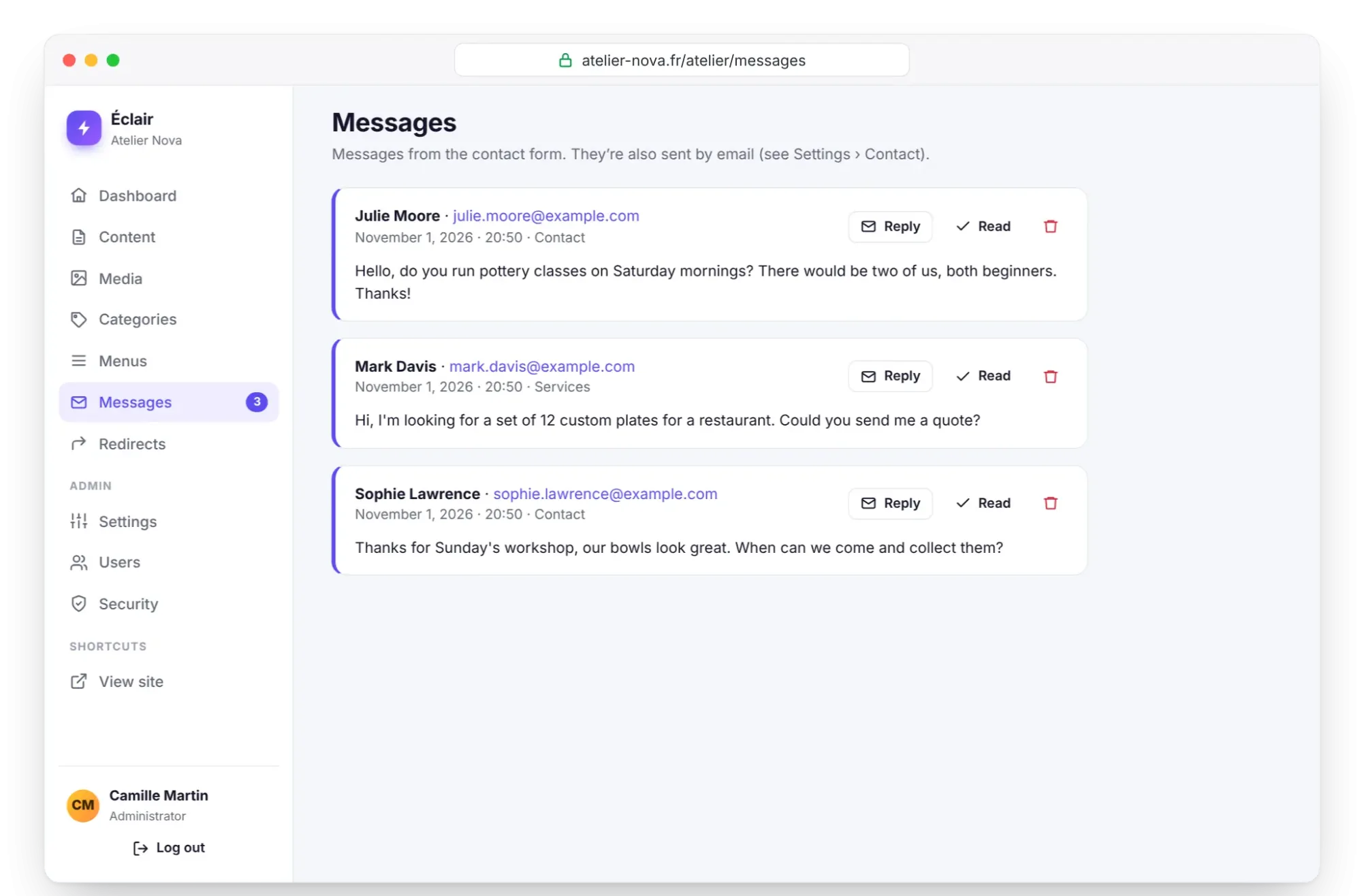
Click Messages in the menu: the number of unread messages appears next to it, and the dashboard repeats it under Unread messages. Each message shows the name, email, date and the page it was sent from.
- Reply opens your email app with the visitor's address and the subject “Re:” followed by your site's name.
- Read marks the message as handled.
- The trash icon deletes it, after confirmation.
- Suspicious messages carry the Likely spam badge and don't count as unread.
The inbox shows 20 messages per page, with Newer and Older to navigate. It's capped at 500 messages: beyond that, the oldest are deleted, spam first.
Set up email notifications
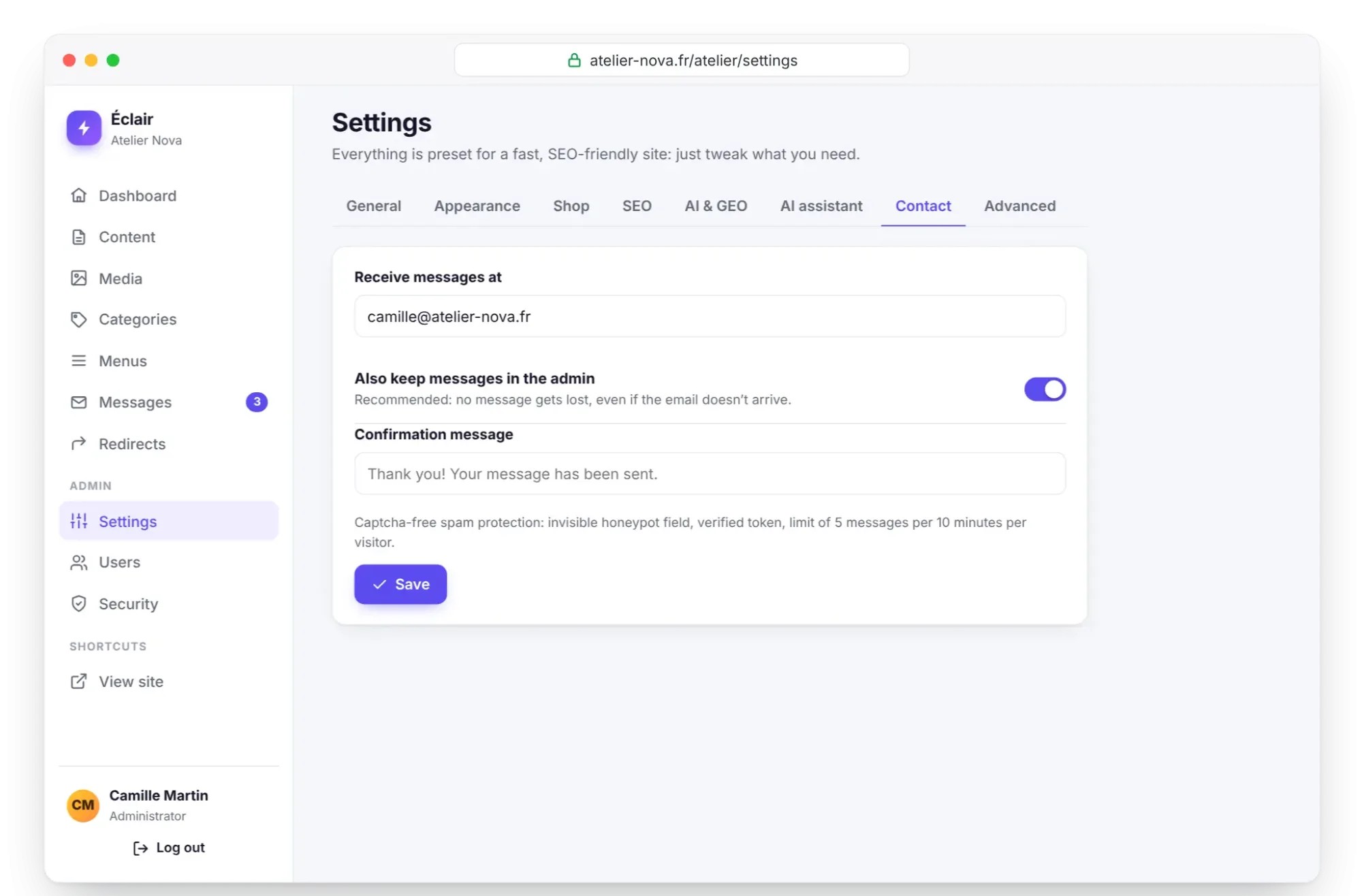
Open Settings › Contact (administrators only):
| Setting | Role | Default |
|---|---|---|
| Receive messages at | The address that receives each message | The first administrator's email |
| Also keep messages in the admin | A copy in Messages, even if the email gets lost | On, and recommended |
| Confirmation message | The text shown to the visitor after sending | “Thank you! Your message has been sent.” |
Each message reaches you with a subject such as “[Atelier Nova] New message from Julien”, sent from no-reply@atelier-nova.fr. The visitor's address is set as “Reply-To”: clicking Reply in your email app writes straight back to them.
Why aren't the emails arriving?
- Look in your email app's spam folder.
- Check the address entered in Settings › Contact.
- Check the Official site URL in Settings › General. Éclair sends its emails from the server, with the address
no-reply@followed by that domain, and some hosts require the sender to belong to the site's domain. - Open Messages: a message marked “Likely spam” is never sent by email.
As long as storage is on, nothing is lost: everything stays in Messages. If emails still don't arrive, ask your host whether sending email through PHP is allowed. More leads are on the Troubleshooting page.
Contact form and GDPR
The form already shows its information notice and the link to your Privacy policy, as long as that page keeps the address privacy-policy or privacy (or a French or Spanish equivalent, such as politique-de-confidentialite). The page created during installation contains a “Data collected through the contact form” section: data (name, email, message), purpose, retention period, data controller and people's rights, with a reminder that visitors can contact their data protection authority (the French version names the CNIL).
Replace each placeholder in square brackets, such as “[period, e.g. 3 years]”. Good to know: with each message, Éclair also stores the sender's IP address, without displaying it in the admin. Mention it in your policy, and delete the messages you no longer need, in line with the retention period you state.
Key points
- The Contact form block is added with /; the Contact page from the installation already has one.
- Honeypot field, token, 5 messages per network every 10 minutes and 100 per day: spam is blocked without a captcha.
- Messages arrive by email and in Messages, an inbox capped at 500 where spam goes first.
- No email? Check Settings › Contact and the official site URL, then look in Messages.
- Complete your privacy policy: the contact form links to it automatically.
Going further
- Essential settings before launch: legal notice, privacy and the launch checklist.
- Everyday security: the Security page, its blocks and its log.
- Troubleshooting: emails not received and other known issues.
- Official sources: the website of the CNIL, France's data protection authority, and the text of the GDPR on EUR-Lex.
Frequently asked questions
Can I add a captcha to the form?
It's not planned, and that's deliberate: the honeypot field, token and limits block bots without bothering your visitors. Suspicious messages remain readable in Messages, marked “Likely spam”.
Can I add a phone field?
No, the form has three fixed fields: name, email and message. Invite your visitors to include their number in the message if they'd like a call back.
Are messages lost if the email doesn't arrive?
No, as long as Also keep messages in the admin is on, which it is by default. Each message stays in Messages until you delete it, up to the 500 limit.
Why is a genuine message marked “Likely spam”?
It probably contained more than 3 links, or it was sent without the token added by the browser. It remains readable in Messages: reply to it as usual with the Reply button.