Essential settings before launch
Contents
- The 8 Settings tabs
- Give your site a clear identity
- How do you switch your site to HTTPS?
- Connect Google Search Console and Bing
- Complete the legal notice and privacy policy
- Turn on two-factor authentication
- Download a first backup
- Your essential settings checklist
- Key points
- Going further
- Frequently asked questions
Before announcing your site, a few essential settings make all the difference: a clear identity, an HTTPS address, Google and Bing notified, complete legal pages and a well-protected account. This lesson reviews each point, then ends with a launch checklist to tick off.
What you'll be able to do
Secure your account
Turn on two-factor authentication and store your 8 backup codes.
Get found
Connect Google Search Console and Bing by pasting a simple tag.
Launch with peace of mind
Tick off a 12-point launch checklist.
The 8 Settings tabs
Settings are reserved for administrators, and everything there is preset for a fast, SEO-friendly site. For a launch, three tabs hold the essential settings: General, SEO and Advanced.
| Tab | What it controls | Going further |
|---|---|---|
| General | Identity, address, language, time zone, home page, blog | Pages, menus and home page |
| Appearance | Theme, art direction, logo, color, CSS | Themes and appearance |
| Shop | Opening, shipping, returns, payment | Sell with the lightweight shop |
| SEO | Visibility, structured data, Search Console, Bing | SEO with Éclair |
| AI & GEO | AI bots, llms.txt, Markdown version | GEO: getting cited by AI |
| AI assistant | Provider, API key, budget, MCP connector | Turn on the built-in AI assistant |
| Contact | Receiving the form's messages | Contact form and messages |
| Advanced | Admin URL, HTTPS, cache | This lesson |
Give your site a clear identity
Open Settings › General and check each field:
- Site name: “Atelier Nova”.
- Tagline: a sentence that says what you do, such as “Ceramics studio in Lyon”. It appears in the home page title.
- Homepage description (meta description): the text Google shows below your home page title. Aim for 110 to 160 characters, with a clear promise.
- Official site URL: used for canonical URLs, the sitemap and shares. Choose the version with or without “www” once and for all.
- Site language and Time zone: the time zone is also used to publish your scheduled posts at the right time.
Click Save. If you change the official address, Éclair checks that it really leads to your site; if it doesn't, Éclair warns you and redirects nobody to it until it's verified.
How do you switch your site to HTTPS?
- Turn on the free Let's Encrypt certificate in your host's customer area, then open
https://atelier-nova.fr. - Log in to the admin over
https://. - In Settings › Advanced, check Force HTTPS, enter your password if asked, then click Save. The official address also switches to
https://. - On the dashboard, Site health should show “Site served over HTTPS”.
If you installed Éclair directly over https://, Force HTTPS is already checked. Otherwise, Éclair refuses to turn it on until you're logged in over https://: it's a safeguard. The HSTS option goes further, since browsers will never use http:// for your site again for a year. Only turn it on once HTTPS works perfectly.
Connect Google Search Console and Bing
- In Google Search Console, choose Add property, then URL prefix, and enter
https://atelier-nova.fr. - Choose the HTML tag method and copy the
<meta>tag shown. - In Éclair, open Settings › SEO, Webmaster tools section, and paste the whole tag into the Google Search Console field: Éclair extracts the code from it. Click Save.
- Go back to Search Console and run the verification.
- Do the same with the Bing Webmaster Tools field.
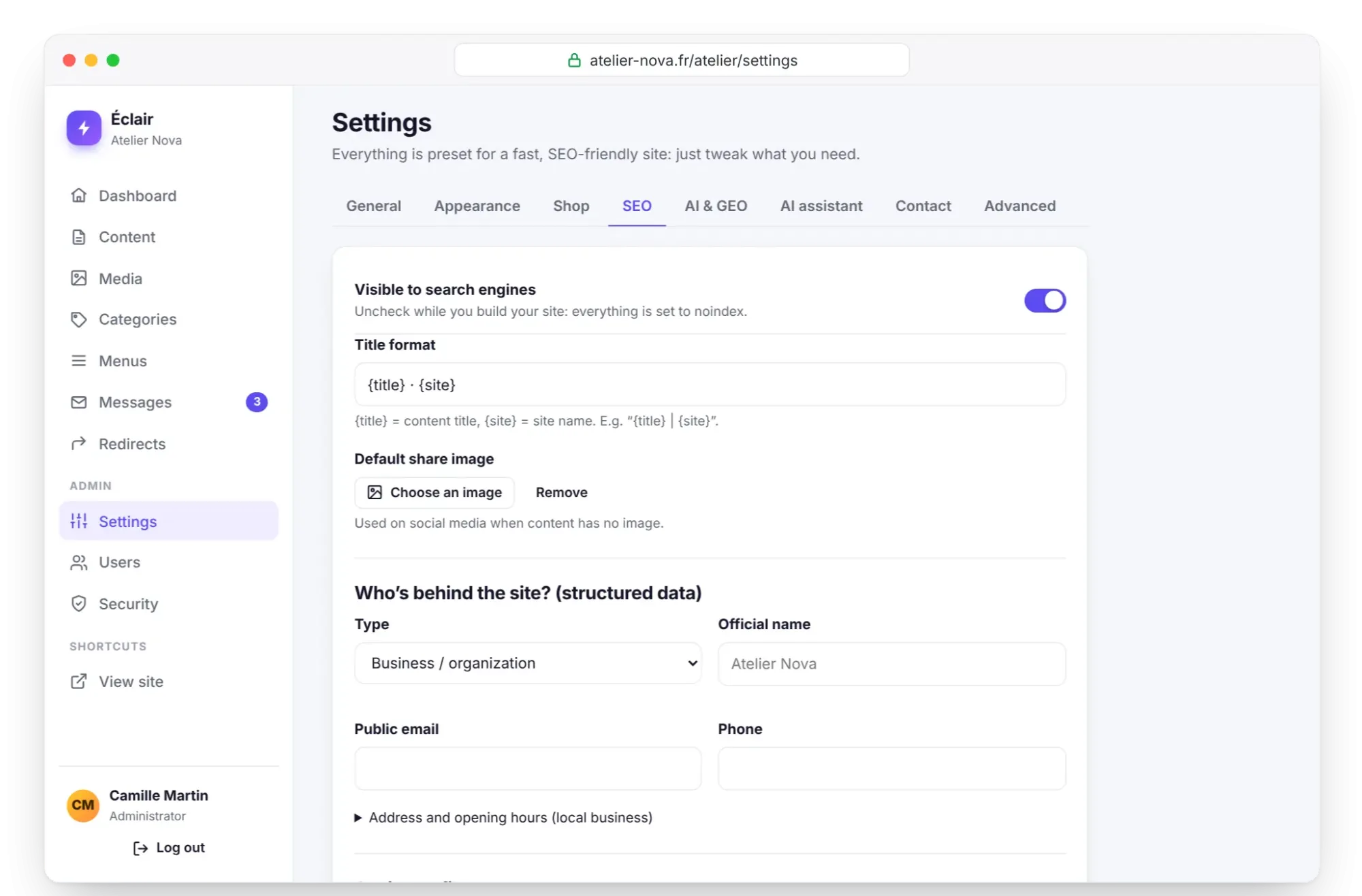
Also check that the IndexNow option is ticked: each publication is then reported immediately to Bing, Yandex and other compatible engines. Finally, in Search Console, you can submit your sitemap, generated automatically at /sitemap.xml.
Complete the legal notice and privacy policy
The installation created two pages with placeholders in square brackets to replace. Open them from Content:
| Page | To complete | Legal framework |
|---|---|---|
| Legal notice | Site publisher (name or company name, legal form, address, company number such as the French SIRET), publication manager, contact, hosting provider | LCEN in France, LSSI in Spain |
| Privacy policy | Form data, purpose, retention period, data controller, rights | GDPR |
Replace each placeholder, such as “[Provider name]”, then click Update. The privacy page states that the site uses no tracking cookies and no third-party analytics: if you ever add one, update that passage. If in doubt, have these pages reviewed, as you're legally responsible for them.
Turn on two-factor authentication
- Click your name at the bottom of the menu to open My profile, Two-factor authentication (2FA) section.
- Click Enable two-factor authentication.
- Scan the QR code with an authenticator app (Google Authenticator, Microsoft Authenticator, 1Password, Bitwarden…), or enter the key manually.
- Type the 6-digit code shown, then click Confirm and enable.
- Copy your 8 backup codes with Copy codes: they're shown only once. Store them in a password manager, or print them.
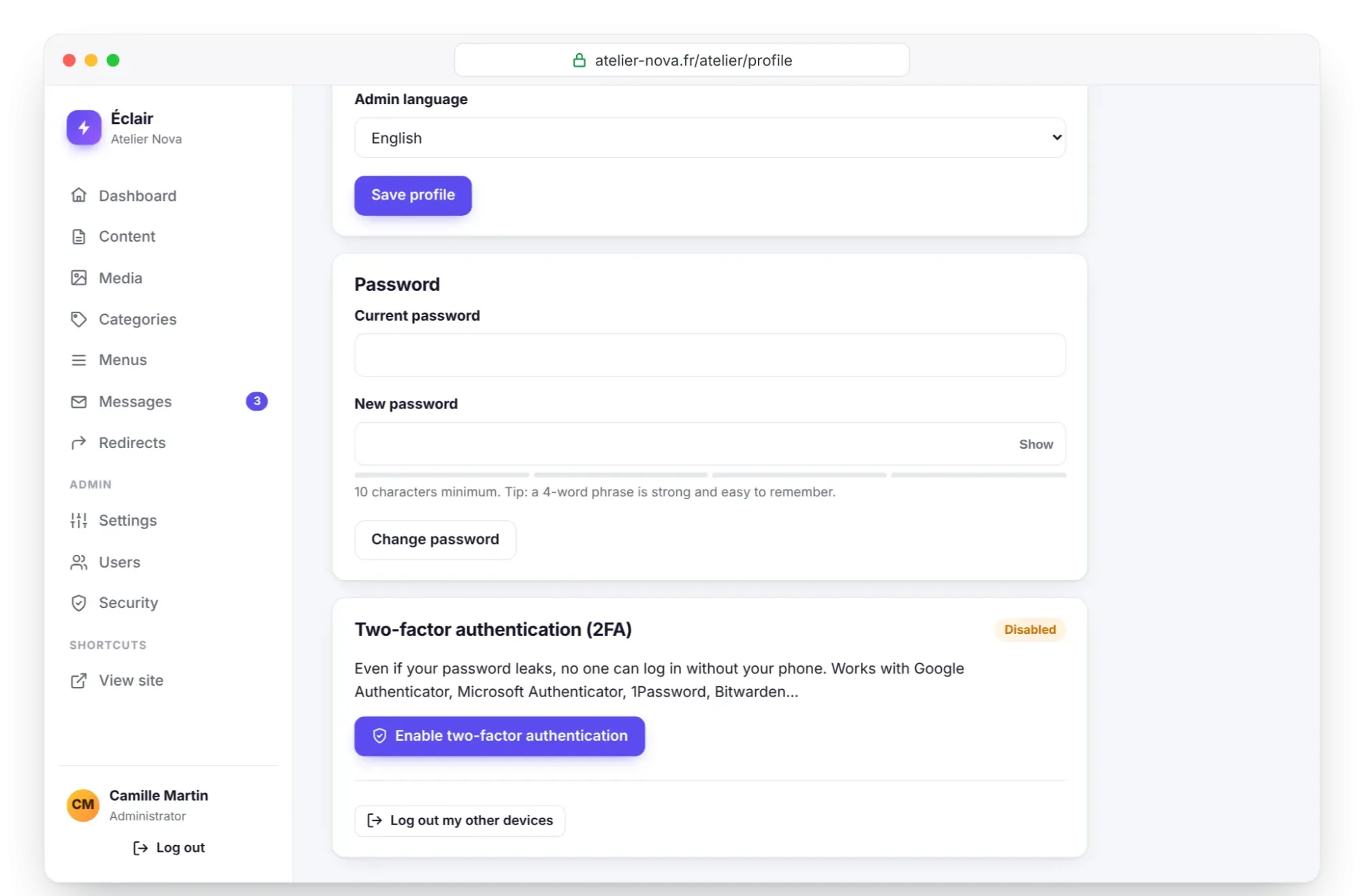
From now on, Éclair asks for your app's code after your password. Lost your phone? A backup code replaces it, and each one works only once. After 10 wrong codes, two-factor authentication for the account is locked for 15 minutes, and you're notified by email.
Download a first backup
- Open Security, Backup section.
- Click Download a backup. If you logged in more than 15 minutes ago, Éclair asks for your password again.
- Store the ZIP archive away from your hosting: computer, external drive or online storage.
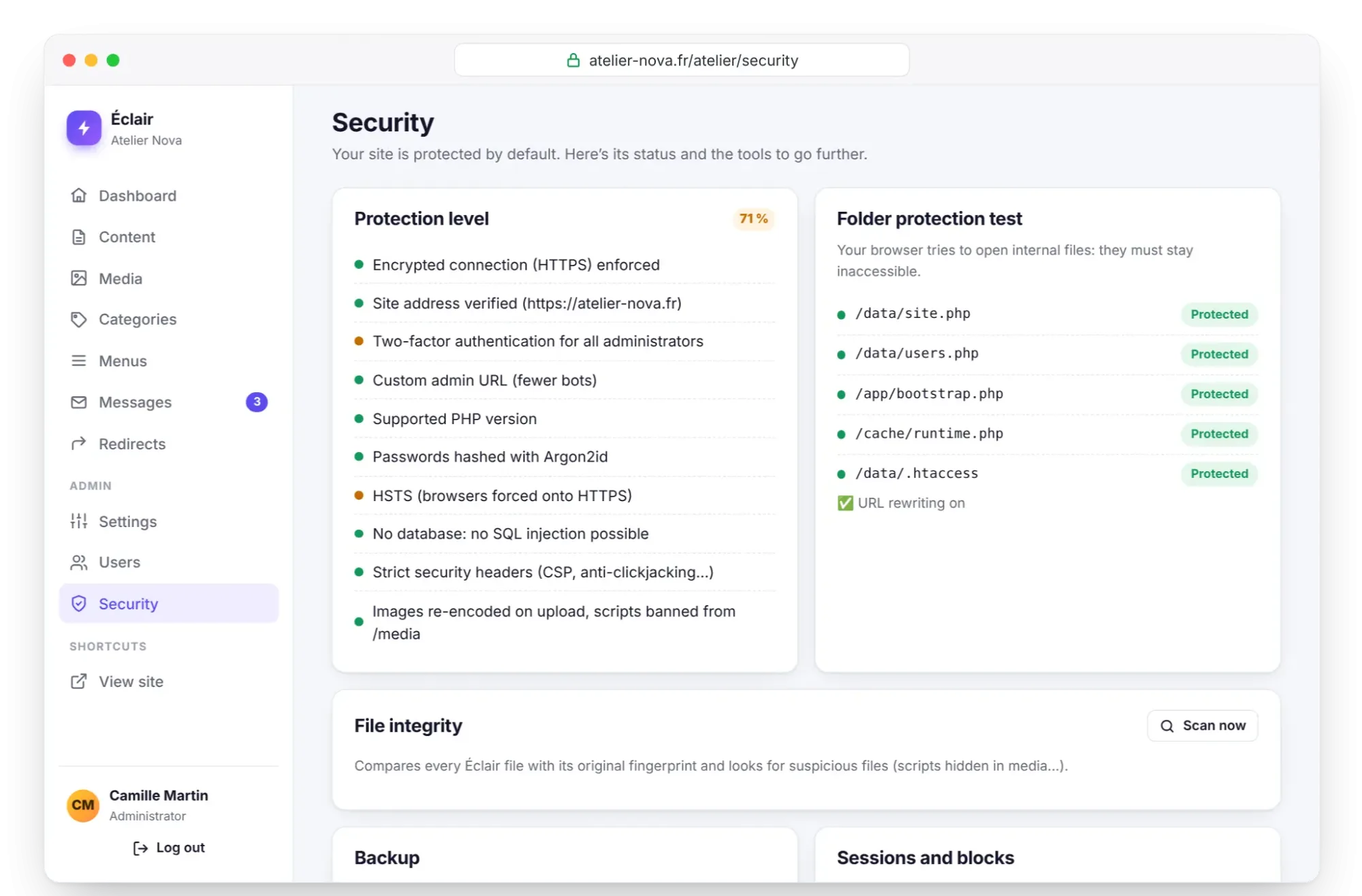
The archive contains your content, settings, accounts and images, that is, the data/ and media/ folders. The AI assistant's API keys are excluded from it. Without the zip extension, copy these two folders via FTP. Make a new backup before any major change.
Your essential settings checklist
| No. | Check | Where |
|---|---|---|
| 1 | Name, tagline and home page description filled in | Settings › General |
| 2 | Official address in https:// and Force HTTPS checked | Settings › General and Advanced |
| 3 | Language and time zone correct | Settings › General |
| 4 | Logo and site icon in place | Settings › Appearance |
| 5 | Visible to search engines checked | Settings › SEO |
| 6 | Google Search Console and Bing connected | Settings › SEO |
| 7 | Legal notice and privacy policy completed | Content |
| 8 | Form tested, message received | Contact page, then Messages |
| 9 | Custom admin URL | Settings › Advanced |
| 10 | Two-factor authentication on | My profile |
| 11 | First backup downloaded | Security › Backup |
| 12 | Getting started checklist complete | Dashboard |
Key points
- The essential settings take 30 minutes: identity, HTTPS, visibility, legal pages and security.
- Force HTTPS can only be turned on once the certificate is in place and you're logged in over
https://. - Paste the whole Google Search Console or Bing tag: Éclair extracts the code.
- Replace every placeholder in square brackets in the legal pages before launch.
- Turn on two-factor authentication, store your 8 backup codes and download a backup.
Going further
- Everyday security: sessions, the log, the integrity check and a monthly routine.
- SEO with Éclair: live analysis, redirects and the method to aim for 100.
- Settings reference: every option, tab by tab.
- Official sources: Google Search Console, Bing Webmaster Tools and the CNIL, France's data protection authority, for your obligations regarding personal data.
Frequently asked questions
Do I have to fill in every Settings tab before launching?
No. Everything is preset, and the essential settings for a launch are in General, SEO and Advanced. The shop and the AI assistant can wait.
What if I've lost my phone and my backup codes?
Another administrator can disable your two-factor authentication from Users. If you're on your own, create via FTP the data/reset.php file described in Troubleshooting: it also disables your account's two-factor authentication.
Where do I find Google's verification code?
In Search Console, choose the HTML tag method: Google shows a <meta> tag. Copy it in full and paste it into Settings › SEO; Éclair extracts the code on its own.
How often should I make a backup?
At least before every major change, and on a regular schedule suited to how often you publish. The archive contains your whole site, so keep it away from your hosting.