The Éclair settings come preset for a fast, search-friendly site: you only adjust what you need. This reference describes each field with its exact label and its effect on the site, tab by tab. Settings, Users and Security are reserved for administrators: an editor doesn't see them in the menu.
How are the Éclair settings organized?
The Settings menu groups the Éclair settings into 8 tabs. Each tab is saved with the Save button at the bottom of the page; the site cache is then cleared and the message “Settings saved. The site is already up to date ⚡” confirms it.
Tab
What it controls
Lesson
General
Name, URL, language, time zone, home page, blog, search
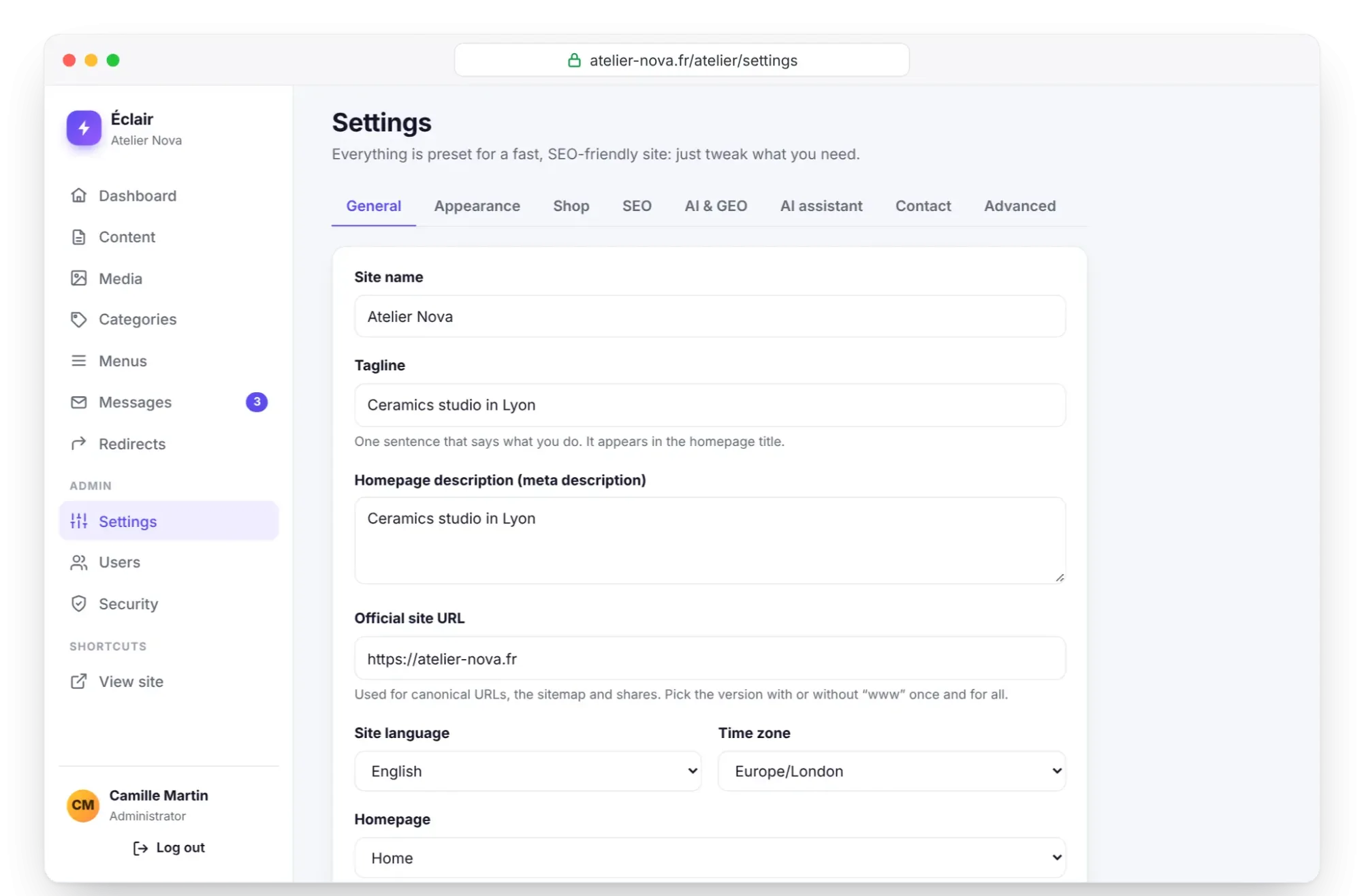
This is the first tab to check before launch: it holds the Éclair settings that affect the whole site, from its name to its official URL.
Field
Effect
Site name
Shown in the header, used in SEO titles ({site}), emails and llms.txt. 100 characters at most.
Tagline
One sentence that says what you do; it appears in the home page title and, if there's no other text, in the footer.
Homepage description (meta description)
The text under the home page title in Google, also used at the top of llms.txt and the RSS feed.
Official site URL
The base for canonical URLs, the sitemap and shares. Choose the version with or without www once and for all. Any new URL is verified by the server before it's used for redirects.
Site language
The default language for content and for the words in URLs: search, page, author, shop in English (recherche, page, auteur, boutique in French).
Time zone
The site's time, used for scheduled posts.
Homepage
One of your pages, or Latest blog posts.
Blog enabled
Posts, categories, RSS feed and author pages.
Blog URL
/blog by default; if you change it, the old URLs are redirected.
Posts per page
From 1 to 48, 9 by default.
Blog title, Blog description
The header of the page that lists the posts.
Site search
Adds a magnifying glass to the menu and a results page.
Appearance tab
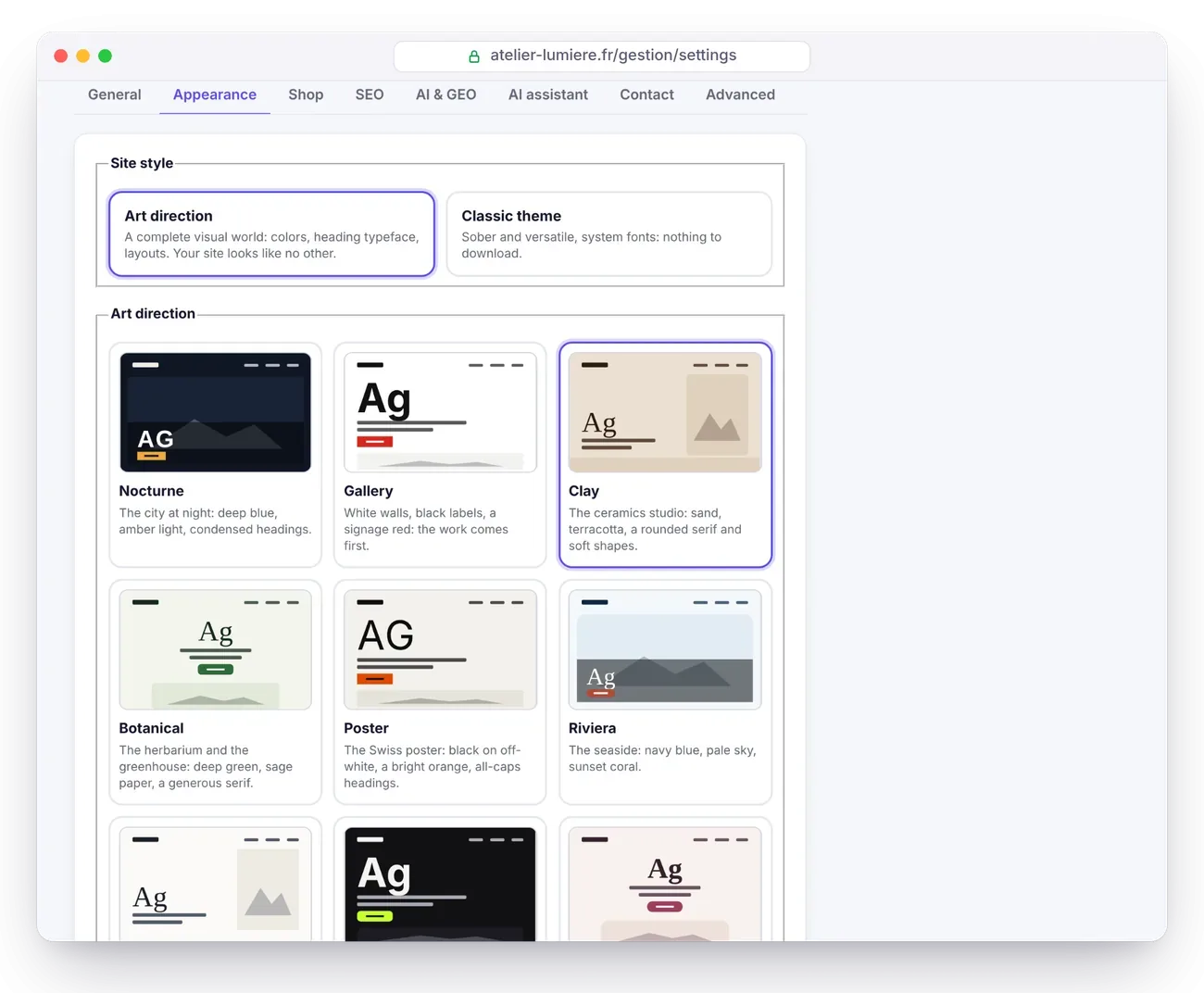
The first choice, Site style, shapes the whole tab: Art direction (a complete visual world: colors, heading font, layouts) or Classic theme (understated, system fonts, nothing to download). Switching from one to the other loses nothing: the other style's settings are kept.
Describe your business, then click Suggest 3 directions (≈ $0.03 with Claude Sonnet 5.5, taken from the assistant's budget). Visible when the AI assistant is turned on.
Adjust the direction: colors
Background, Bands and cards, Text, Secondary text, Accent. Contrast is corrected automatically: 7:1 for text, 4.5:1 for the rest.
Heading font
18 typefaces, downloaded once by your server, or a system font.
Body font
6 system fonts, nothing to download.
Heading case
Normal or Capitals.
Heading size
Balanced, Subtle or Dramatic.
Corners
Softened, Square or Round.
Spacing
Normal, Compact or Airy.
Cards
Thin border, Flat color or Drop shadow.
Home banner
Text and image side by side, Poster: very large title, Full-bleed image, Editorial: portrait image or Centered.
“Features” block
Cards, Rows or Ruled columns.
Sections
Plain background or Color bands.
Feature icons
Line icons, No icon or Emoji.
With the classic theme
Field
Choices and effect
Theme
Éclair, Editorial, Atelier, Studio, Shop or Contrast. Choosing a theme applies its recommended color and fonts.
Main color
A color picker and 8 swatches; text contrast is adjusted automatically (WCAG standards).
Heading font, Body font
8 system fonts: System (modern), Neo-grotesque, Humanist, Geometric, Rounded, Modern serif, Elegant serif, Typewriter.
Dark mode
Automatic (based on the visitor’s device) or Always light.
Settings shared by both styles
Field
Effect
Live preview
Choose the page to display, then Desktop or Mobile. Nothing is published until you save.
Header
Logo on the left, menu on the right or Centered: logo above the menu.
Post and product lists
Card grid or List: image on the left.
Logo
PNG or WebP on a transparent background, about 400 px wide.
Site icon (favicon)
A square image of at least 512 px. Without an icon, a lightning bolt in your color is generated.
Footer text
Shown under the site name at the bottom of every page; if it's empty, the tagline is shown instead.
Show “Powered by ⚡ Éclair”
A footer credit that you can turn off.
Custom CSS
Added after the theme on every page and kept during updates (it's stored in data/). 64 KB at most; the < character and @import rules are removed. See Custom CSS.
Shop tab
Field
Effect
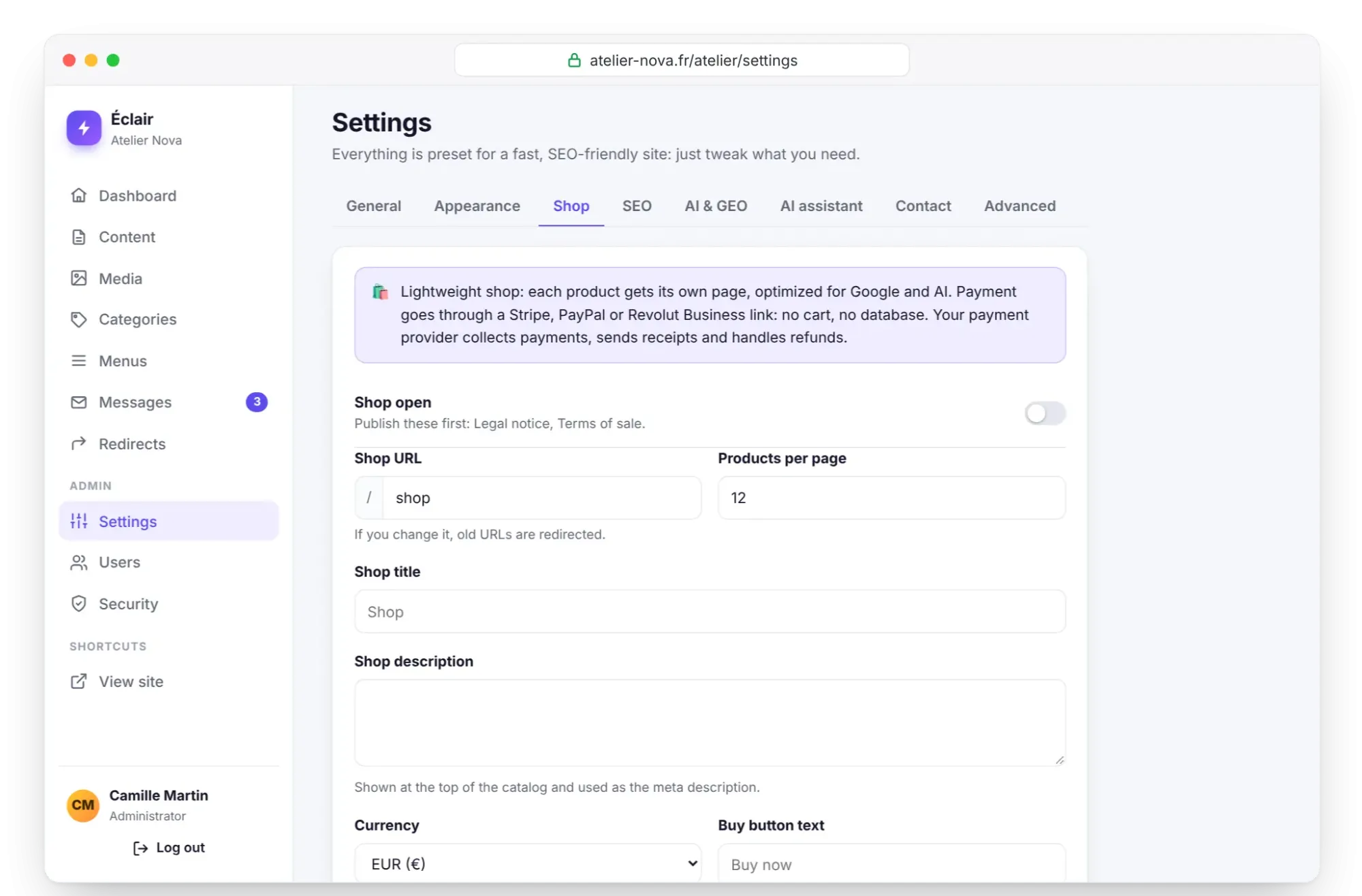
Shop open
Puts the catalog, the product pages and the Google Shopping feed online. Until the legal notice and the terms of sale are published, the help text says “Publish these first: …”.
Shop URL
/shop on an English-language site (/boutique on a French one); if you change it, the old URLs are redirected.
Products per page
From 1 to 48, 12 by default.
Shop title, Shop description
The catalog header; the description also serves as its meta description.
Currency
EUR (€), USD ($), GBP (£), CHF or CAD (CA$).
Buy button text
“Buy now” by default on an English-language site.
Shipping cost
Empty: not shown. 0: free shipping. Ignored for digital products.
Free shipping over
An optional amount.
Delivery time (days)
Minimum and maximum, 2 to 5 days by default.
Shipping countries
Two-letter codes separated by commas (FR, BE, CH…).
Return window (days)
14 by default. In the EU, distance selling requires a withdrawal period of at least 14 days, with some exceptions (digital content, personalized products…).
Free returns
Shows that returning an item costs the customer nothing.
Legal notice, Terms of sale
Required to open the shop. Have them reviewed: as the seller, you're legally responsible for them.
Shipping and returns
A link under the buy button, also used in the return policy sent to Google.
Thank-you page
The page Stripe can send customers back to after payment. The Create the thank-you page button prepares it.
URL to paste into Stripe (“After the payment”)
Shown once the thank-you page is chosen.
Product feed (Google Merchant Center)
The /products.xml URL to add in Merchant Center, shown when the shop is open.
The tab also recaps the Stripe in 4 steps procedure and how to create a PayPal or Revolut Business link.
SEO tab
Field
Effect
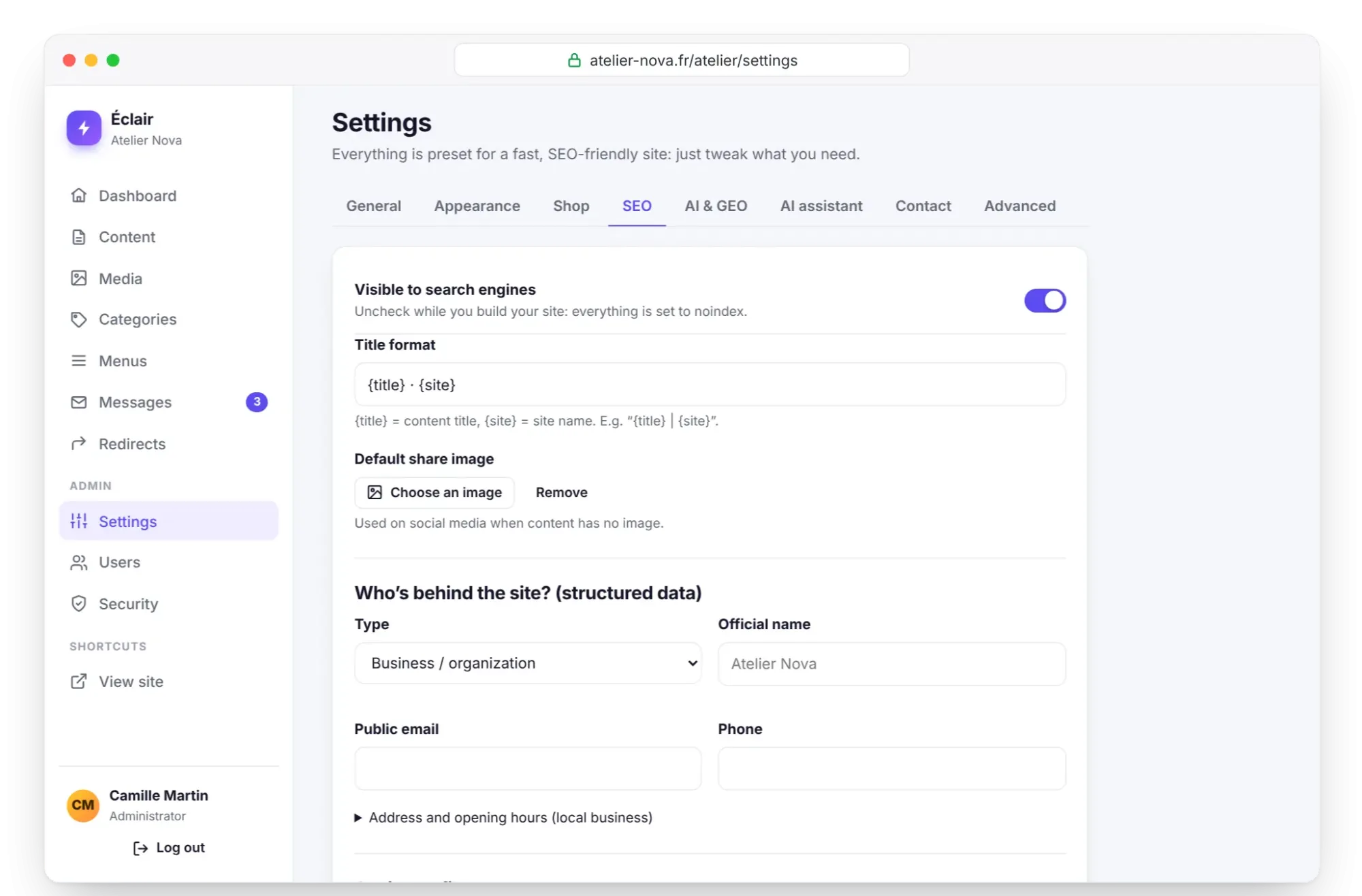
Visible to search engines
Uncheck it while you build the site: everything switches to noindex and the sitemap no longer lists any page.
Title format
{title} · {site} by default; {title} is the content's title, {site} the site name.
Default share image
Used on social media when a piece of content has no image.
Type
Business / organization, Person (freelancer, author) or Local business (physical address): the type of structured data that describes who is behind the site.
Official name, Public email, Phone
Used in the structured data; the public email also appears in llms.txt.
Address and opening hours (local business)
Street, City, Postal code, Region, Country (code, e.g. FR), Price range, Opening hours (format Mo-Fr 09:00-18:00).
Social profiles
LinkedIn, X (Twitter), Facebook, Instagram, YouTube, TikTok, GitHub and Other: they connect your site to your online identity (sameAs).
X account for share cards
In the form @youraccount.
Google Search Console, Bing Webmaster Tools
Paste the code or the complete <meta> tag: Éclair extracts the code.
IndexNow
Notifies Bing, Yandex and compatible engines of every publication; the key in use is shown.
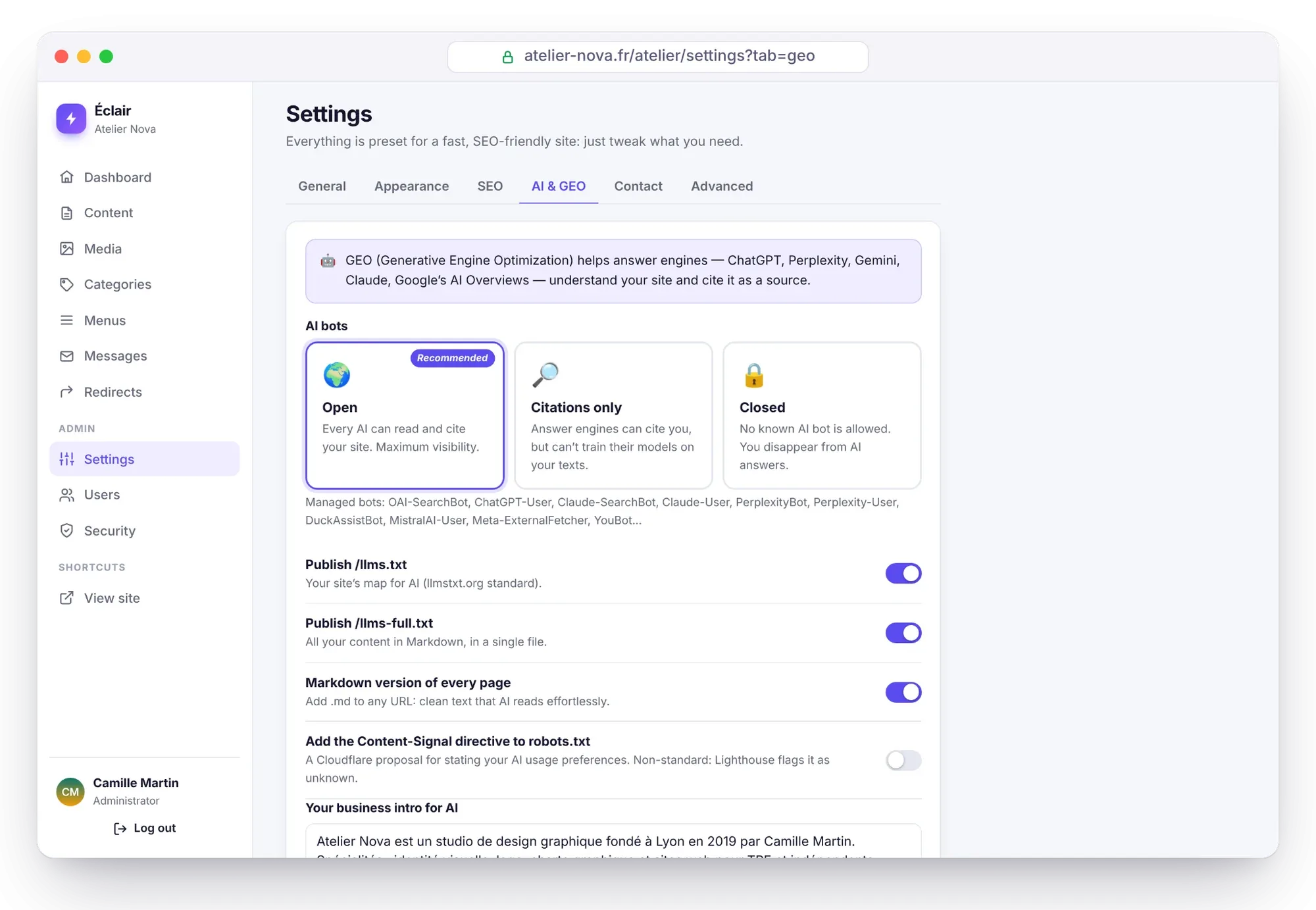
AI & GEO tab
Field
Effect
AI bots
Open (recommended), Citations only (answer engines cite you without training their models on your content) or Closed. Éclair writes the rules for 30 AI bots in robots.txt.
Publish /llms.txt
Your site map for AI, in the format proposed by llmstxt.org.
Publish /llms-full.txt
All your content in Markdown in a single file; also requires /llms.txt.
Markdown version of every page
Add .md to any URL to get clean text.
Add the Content-Signal directive to robots.txt
A Cloudflare proposal for stating your AI usage preferences. Non-standard: Lighthouse flags it as unknown.
Your business intro for AI
Inserted at the top of llms.txt: verifiable facts, figures, your strengths.
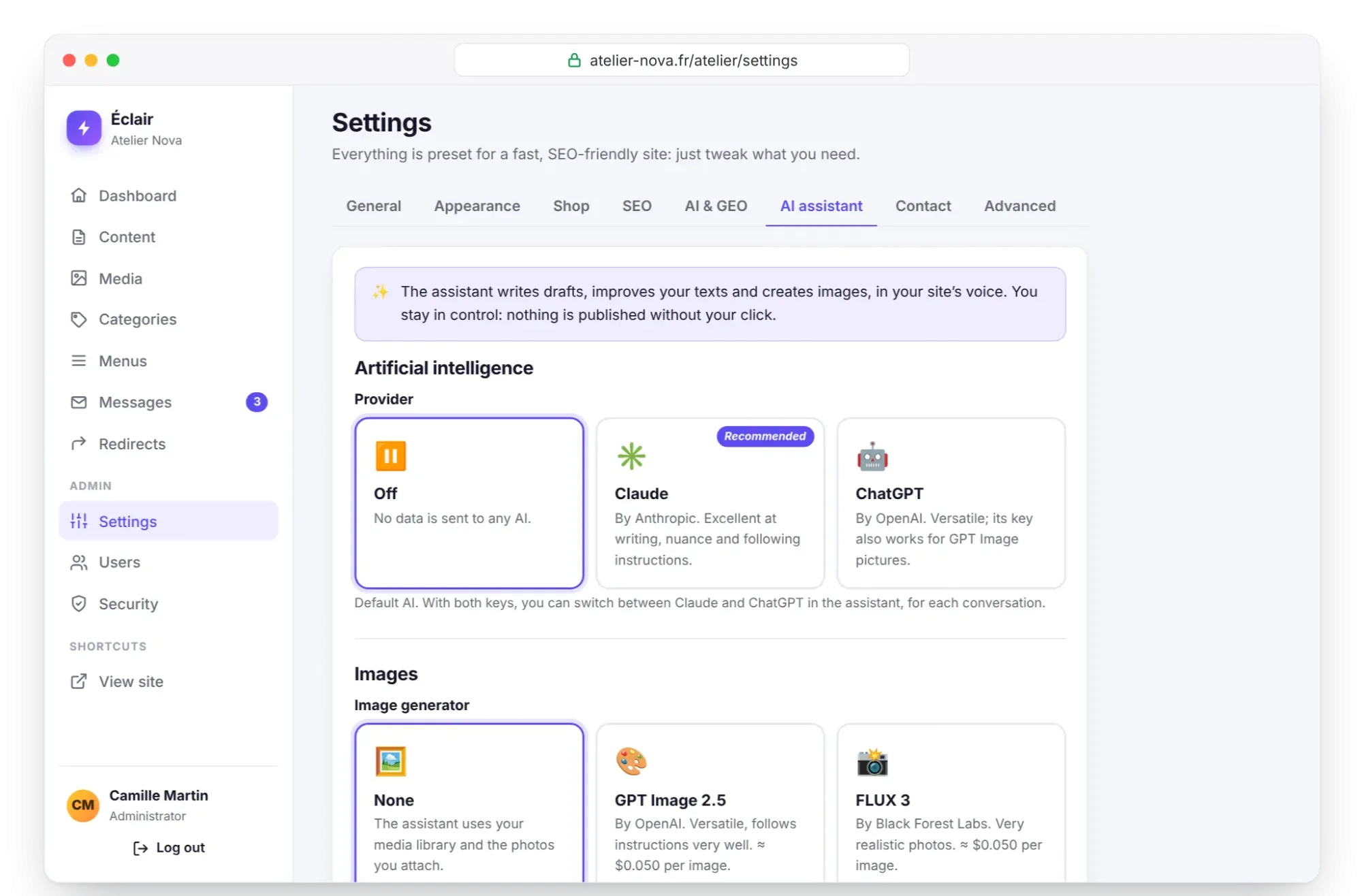
AI assistant tab
Artificial intelligence and images
Field
Effect
Provider
Off, Claude (recommended) or ChatGPT. This is the default AI; with both keys saved, you choose for each conversation.
Claude (Anthropic) API key, ChatGPT (OpenAI) API key
Encrypted on your server and never shown in full; the Delete the saved key checkbox erases it.
Model
Claude Opus 5.5, Sonnet 5.5 or Haiku 5.5; GPT-6 Astra, GPT-6.1 Sol, GPT-6.1 Terra or GPT-6 Luna, with the estimated cost per post.
Test the connection
Checks the key without generating any text, so it costs nothing.
Image generator
None, GPT Image 2.5, FLUX 3 or Ideogram 3, each with its own key; the indicative cost per image ($0.05 to $0.06) is shown under each choice.
Editorial profile, limits and privacy
Field
Effect
Draft my profile from my site
The AI fills in the profile's six fields; you review and adjust them.
Who you are and what you offer, Who you write for, Tone and style, Values, Rules to follow, Image style
What the AI needs to know to write like you, 2,000 characters at most per field.
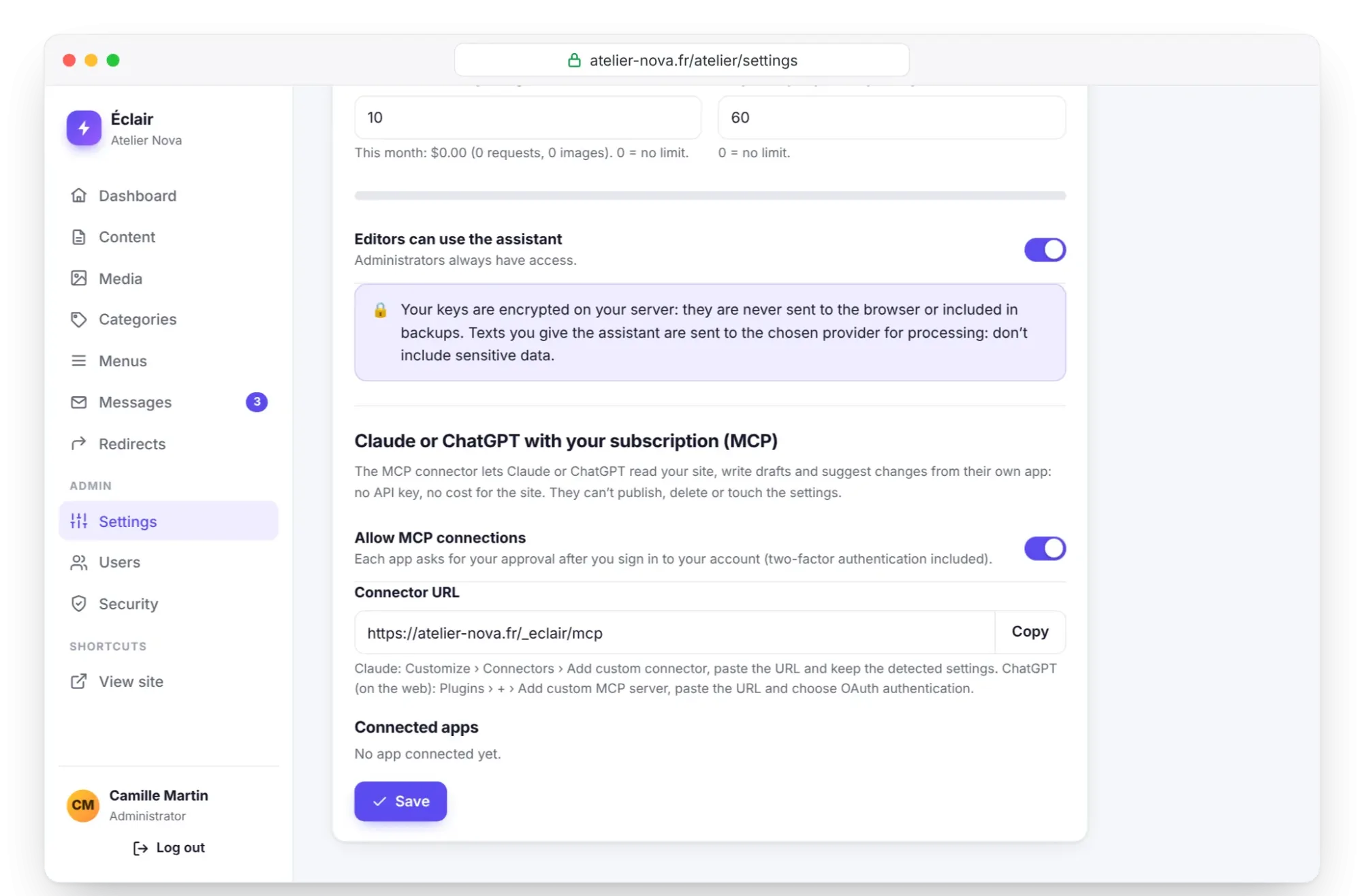
Maximum monthly budget (dollars)
10 by default, 0 = no limit. The month's spending is shown below it.
Requests per person per day
60 by default, 0 = no limit.
Editors can use the assistant
Checked by default; administrators always have access. Also applies to the MCP connector.
MCP connector
Field
Effect
Allow MCP connections
Off by default. As long as it's off, none of the connector's URLs respond.
Connector URL
https://example.com/_eclair/mcp, with a Copy button.
Connected apps
The app, the person and when it was last used; the Revoke access button cuts off an app.
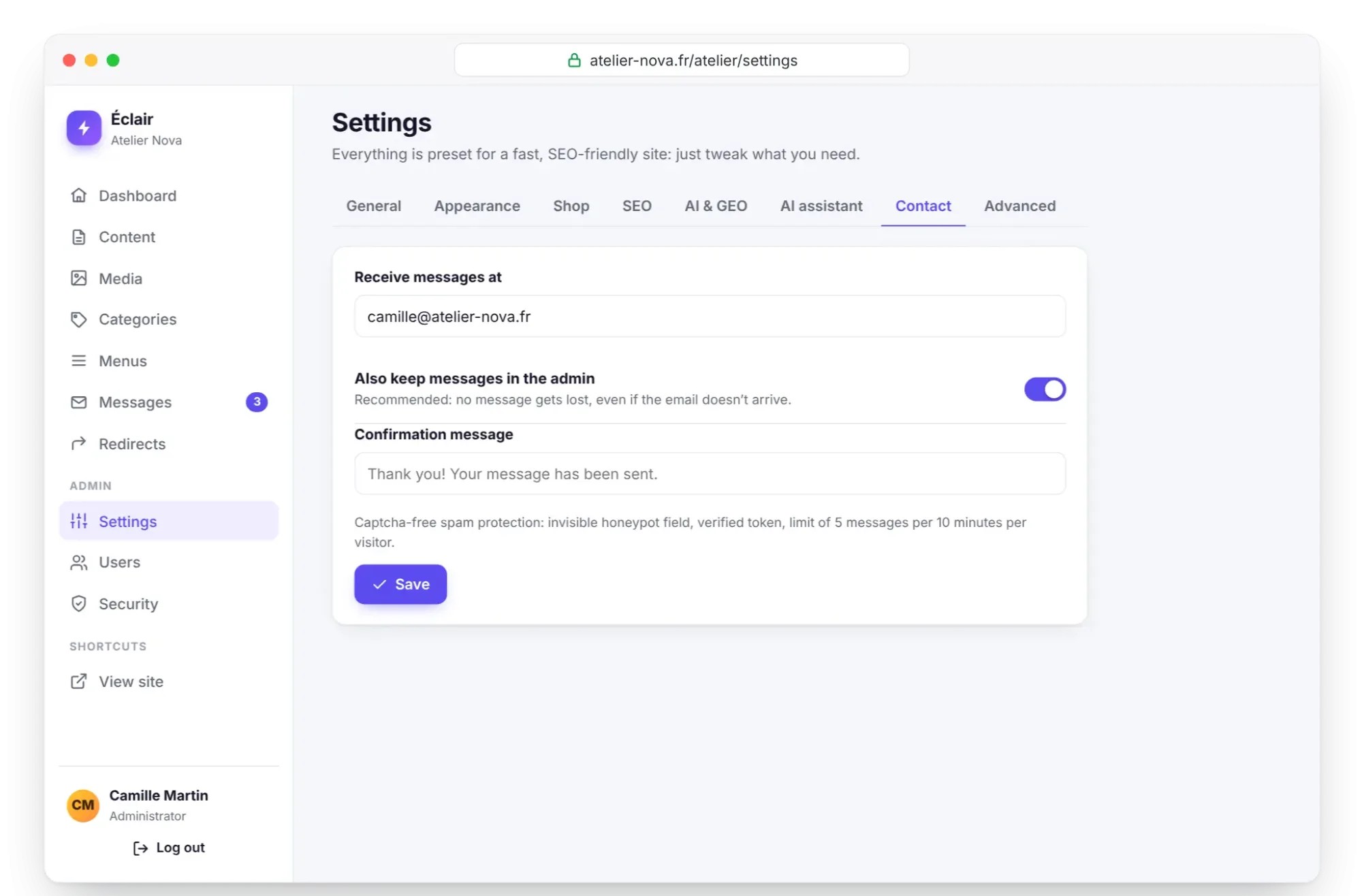
Recommended: no message is lost, even if the email never arrives. The Messages inbox keeps 500 messages at most.
Confirmation message
The text shown to visitors after they send a message; by default, “Thank you! Your message has been sent.”
Advanced tab
The tab opens with a warning: “Technical settings: only change them if you know why.” It asks for your password if you logged in more than 15 minutes ago.
Field
Effect
Admin URL
From 3 to 40 characters: lowercase letters, numbers and hyphens. A custom URL keeps bots away; make a careful note of it.
Force HTTPS
Redirects all http:// visits to https://. Refused as long as you aren't logged in over https:// yourself.
Redirect to the official URL
A single version of the site (with or without www, http or https). Active as soon as the address is verified on the Security page.
HSTS
Browsers never use http:// for your site again, for one year. Turn it on once HTTPS works perfectly.
Static page cache
Pages served in a few milliseconds; the cache clears itself on every change.
Log out after inactivity (minutes)
From 15 to 1,440, 240 by default.
Site behind a proxy / CDN
No (recommended), Cloudflare, X-Forwarded-For or X-Real-IP: tells Éclair how to find visitors' real IP address, which it needs to limit login attempts.
Below the form, the Maintenance section offers Clear cache and a Backup and security link.
My profile
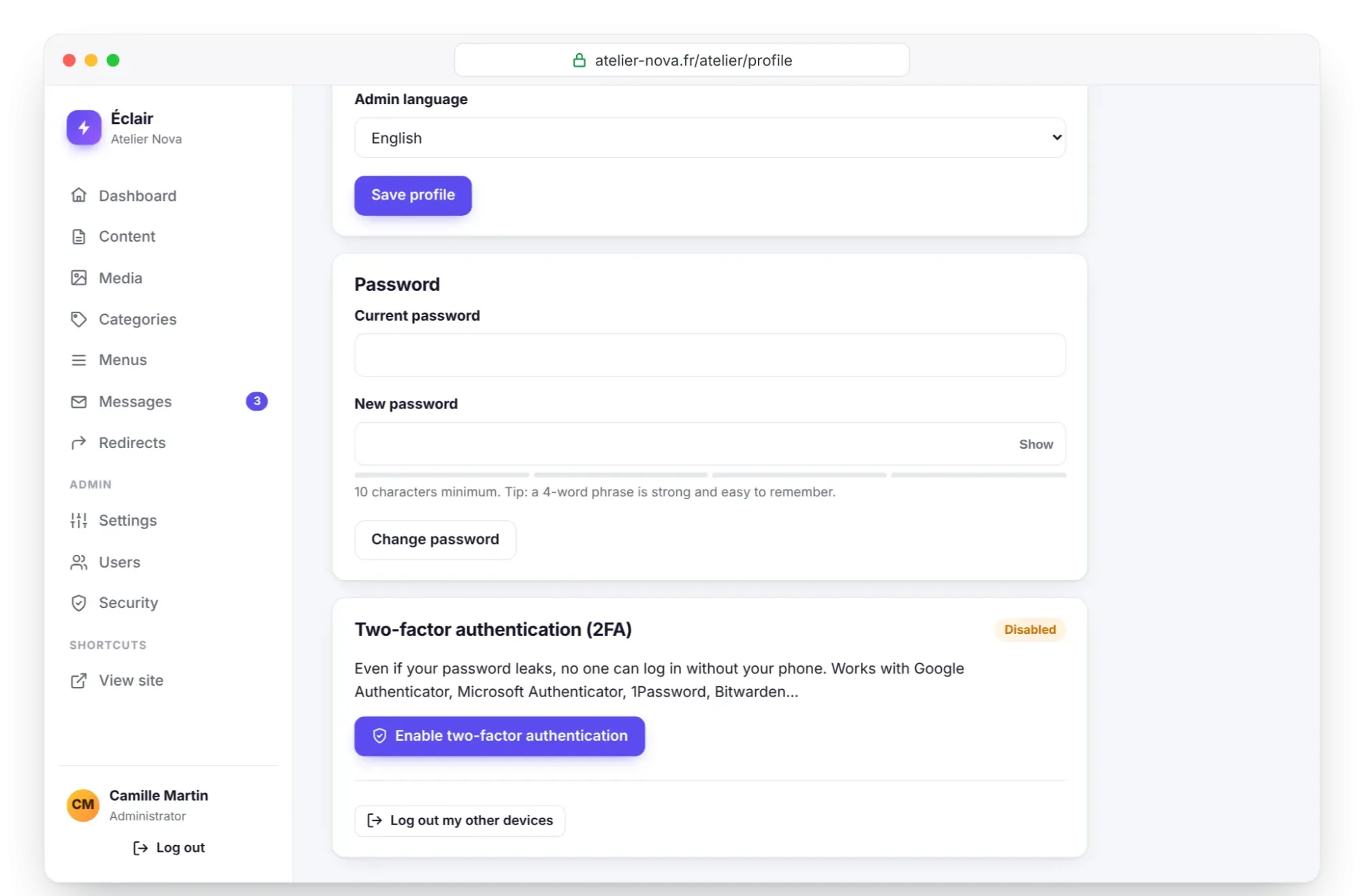
My profile gathers the Éclair settings that belong to each person, administrator or editor: author identity, language, password and two-factor authentication. You open it by clicking your name at the bottom of the menu.
Field
Effect
Display name, Login email
Changing the email requires your password.
Job title / expertise, Bio, Photo, Your online profiles (one link per line)
Shown under your posts and on your author page: they strengthen your credibility (E-E-A-T).
Admin language
Français, English, Español, Deutsch, Italiano, Português or 简体中文, chosen by each person.
Password
Current password, then New password, 10 characters minimum.
Two-factor authentication (2FA)
Enable two-factor authentication, scan the QR code (or enter the key), then confirm with the 6-digit code; 8 backup codes are shown only once. After that: New backup codes or Disable.
Log out my other devices
Closes all your other sessions.
Users
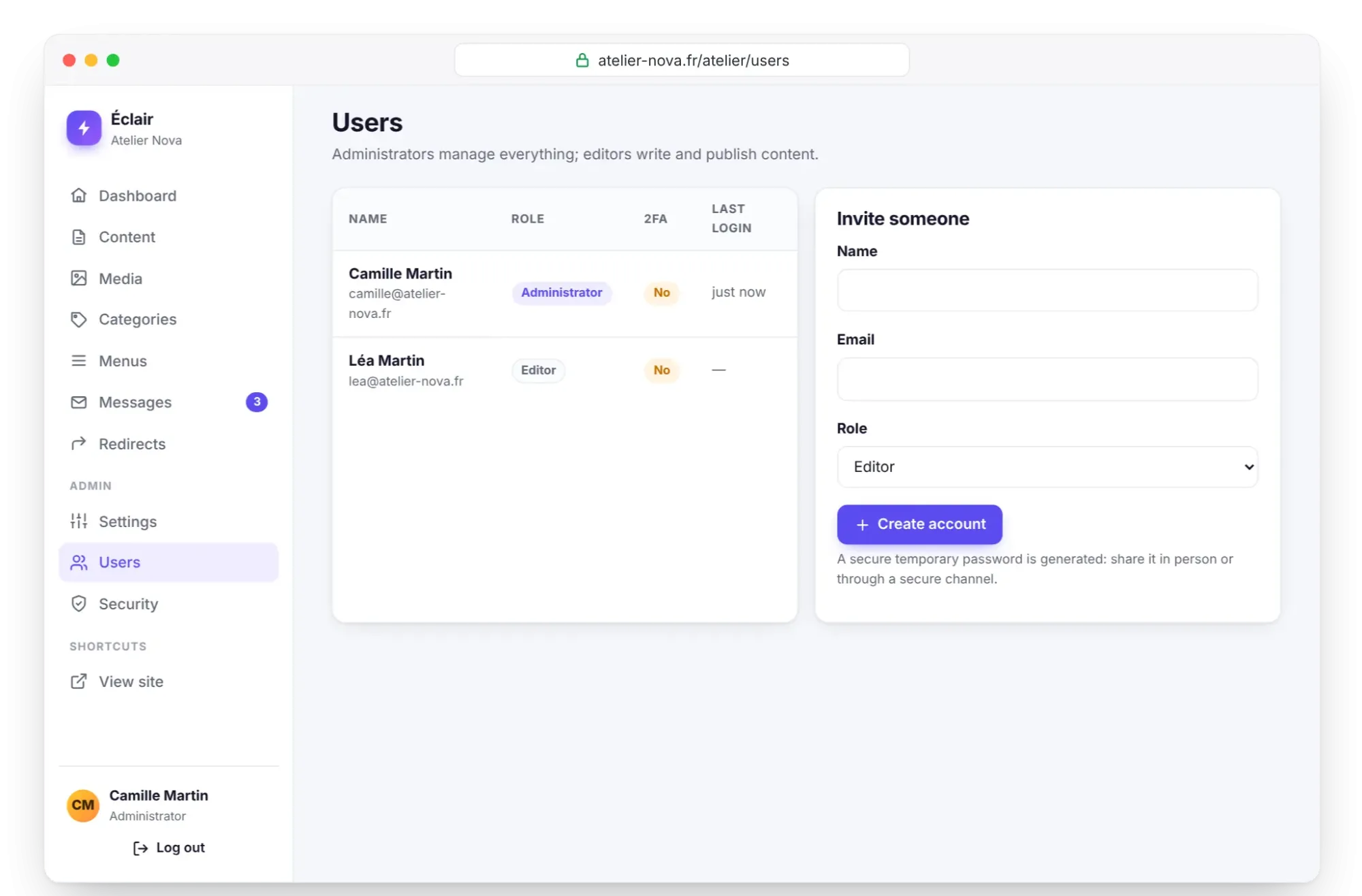
Invite someone: Name, Email and Role (Editor or Administrator), then Create account. A temporary password is generated: pass it on in person or through a secure channel. It must be replaced at first login.
Account page: Name, Email, Role, then Reset password, Disable 2FA (lost phone) and Delete account; the account's content stays online.
Roles: the administrator manages everything. The editor manages content, media, categories, menus, messages and redirects.
Security
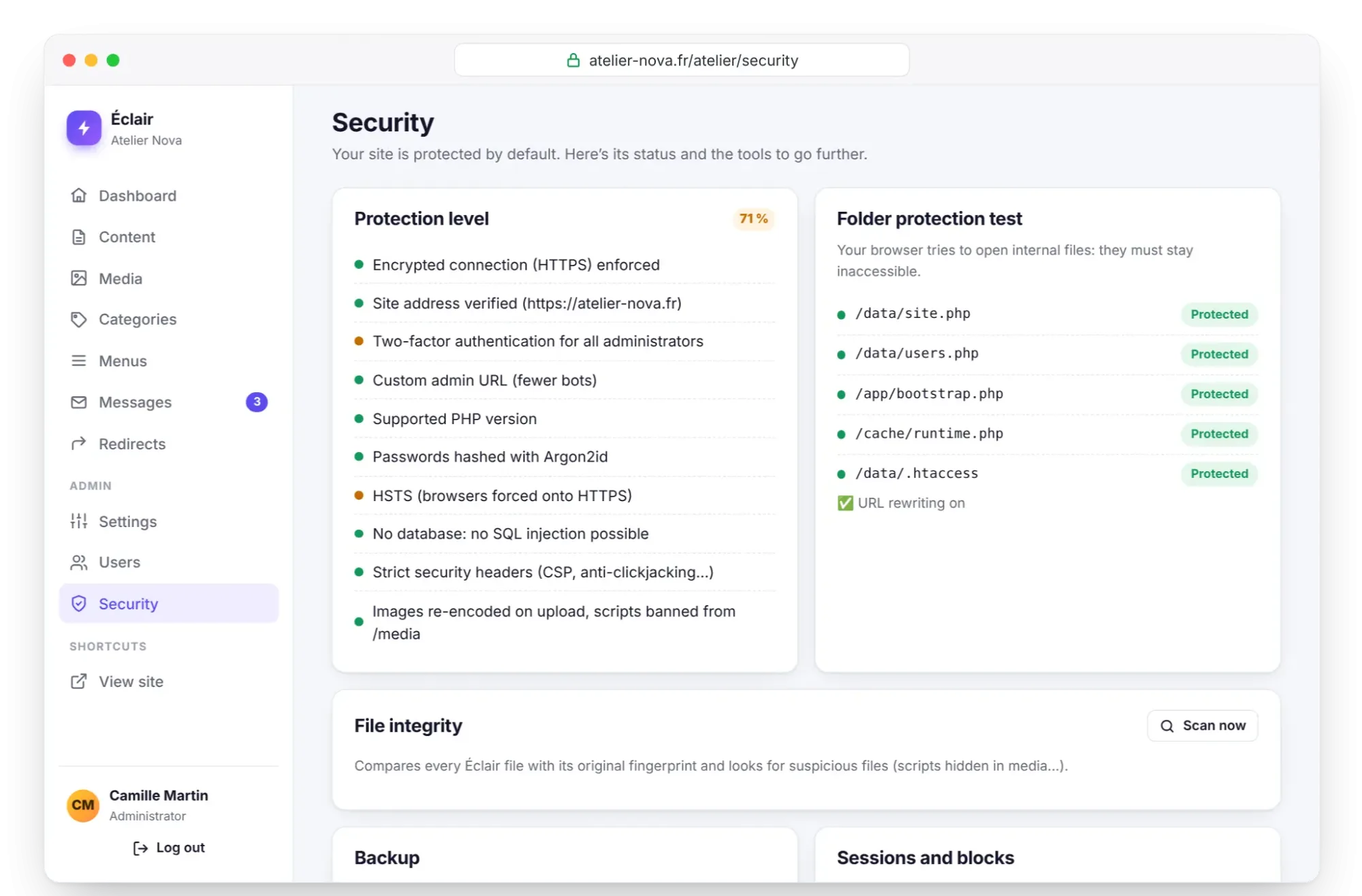
Protection level: a percentage calculated from 7 points (HTTPS enforced, site address verified, two-factor authentication for every administrator, custom admin URL, supported PHP version, Argon2id passwords, HSTS). The Verify the site address button appears as long as the address isn't verified.
Folder protection test: your browser tries to open internal files, which must stay inaccessible.
File integrity: Scan now lists modified, missing, unknown and suspicious files.
Backup: Download a backup creates a ZIP of data/ and media/; your password is asked for again if you logged in more than 15 minutes ago.
Sessions and blocks: Unblock a blocked address, Log everyone out except you.
Security log: logins, failures, 2FA codes, changed settings, backups, accounts created or deleted.
Recent technical errors: shown only after an error, with the Rebuild the index and clear the cache button.
Menus
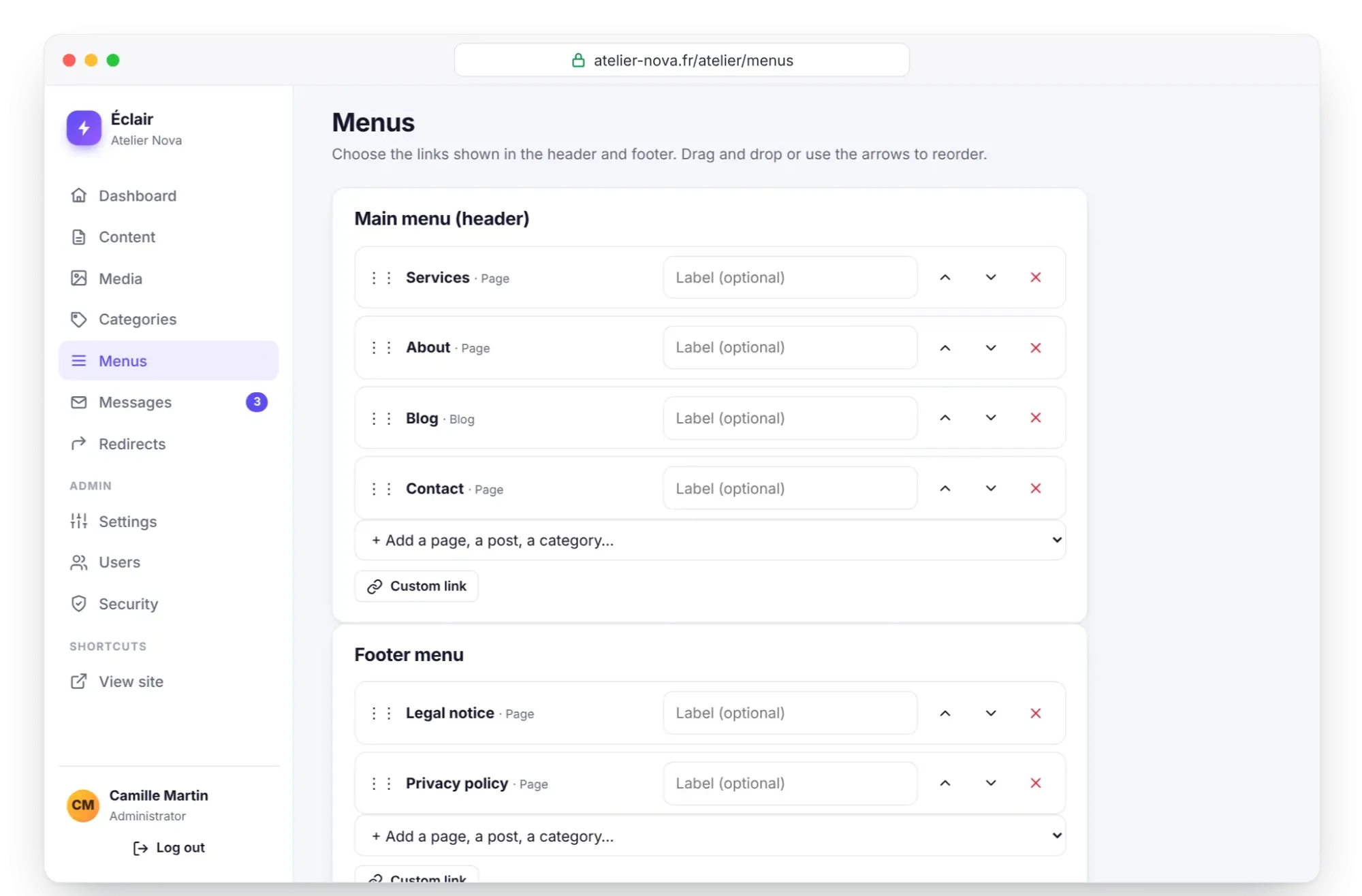
Two menus: Main menu (header) and Footer menu.
+ Add a page, a post, a category… suggests your pages, posts, products and categories, the blog and the shop; Custom link adds any URL you like.
Label (optional) replaces the displayed title. Use Move up, Move down, Remove or drag and drop, then Save menus.
Redirects
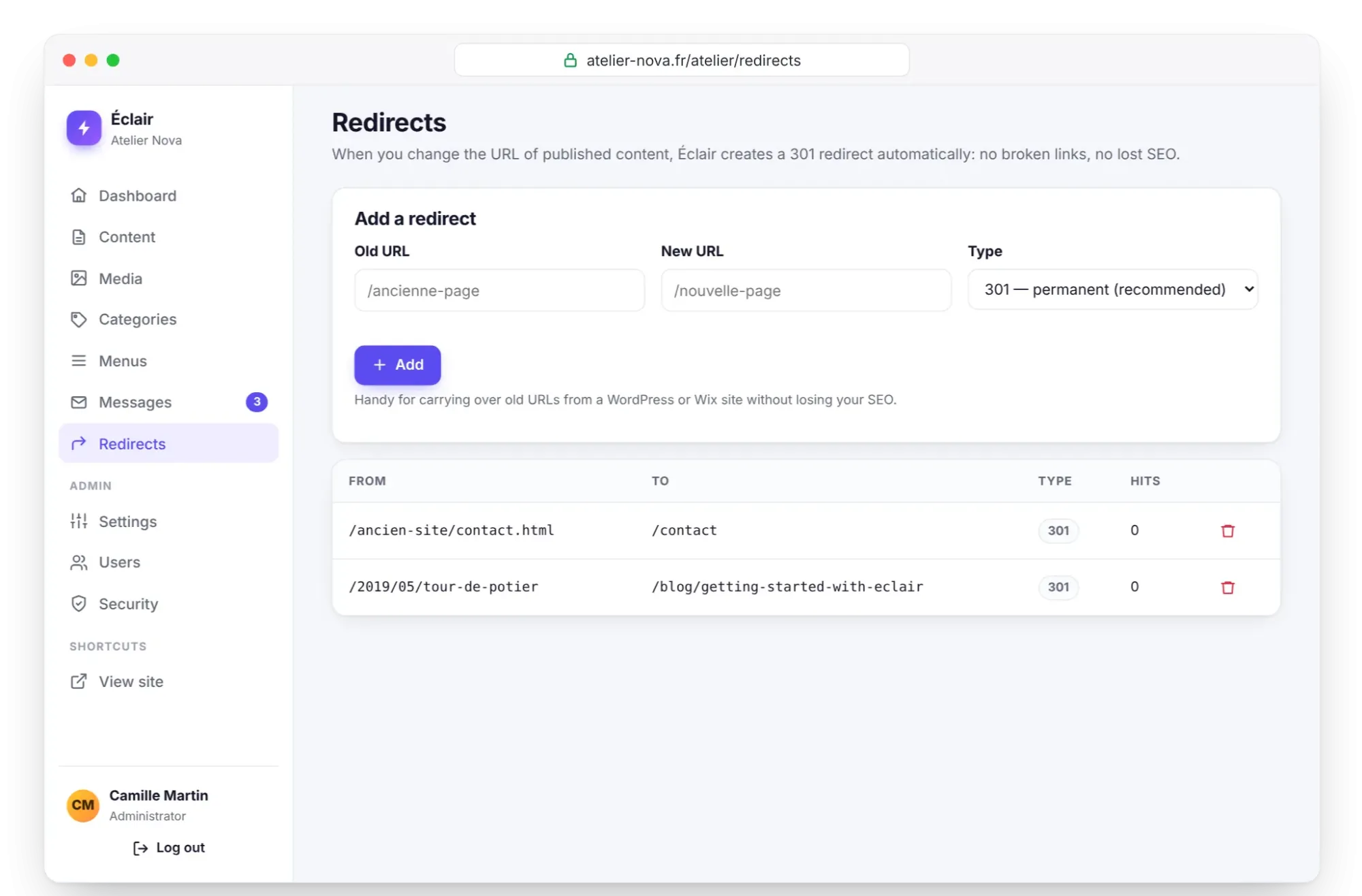
Old URL, New URL and Type: 301 (permanent, recommended) or 302 (temporary), then Add.
For each redirect, the table shows From, To, the Type (with an auto badge for the ones Éclair created) and the Hits.
Changing the URL of published content creates a 301 automatically. When you delete content, Éclair suggests a URL to redirect the old one to.
Categories
It contains: Posts (blog) or Products (shop), a choice offered when you create the category while the shop is open.
Name, Slug (URL) (automatic if empty), Description (2 to 4 sentences shown at the top of the category page) and SEO title (optional).
Each category is a pillar page, at /blog/my-category or /shop/my-category. Deleting a category leaves its posts published, without a category.
The Categories menu entry only appears if the blog is turned on.
Frequently asked questions about settings
Can an editor change the Éclair settings?
No. Settings, Users and Security are reserved for administrators; an editor takes care of content and everything around it: media, categories, menus, messages and redirects.
Why does Éclair ask for my password again?
For sensitive actions (Advanced tab, backup, account management, email change) when you logged in more than 15 minutes ago. If someone uses a session you left open, they can't go any further.
Where do I change the admin language?
In My profile › Admin language: each person chooses their own from 7 languages. The public site's language is set in Settings › General, and the language of each piece of content in the editor (multilingual site).
To go further, the official Éclair guide describes these same Éclair settings throughout its sections, and the files reference shows where each one is stored.