40 MCP use cases, with prompts
Contents
- How do you get the most out of these MCP use cases?
- Editorial strategy
- 1. Take an inventory of the site
- 2. Build a three-month editorial plan
- 3. Fill the gaps in a topic
- 4. Spot content that competes for the same search
- 5. Start from your customers' questions
- Writing
- 6. Write an article from your notes
- 7. Reuse text from an old site
- 8. Build a service page in sections
- 9. Introduce your team
- 10. Launch a series of three articles
- 11. Illustrate an article with your media library
- SEO
- 12. Rewrite the SEO title and meta description
- 13. Choose a page's focus keyphrase
- 14. Strengthen internal linking
- 15. Improve a draft using Éclair's rules
- 16. Flesh out an article that's too short
- 17. Find content without a meta description
- GEO
- 18. Write Key takeaways for a published post
- 19. Add a useful FAQ
- 20. Turn subheadings into questions
- 21. Add reliable sources
- 22. Answer right in the introduction
- Multilingual
- 23. Translate an article into French
- 24. Adapt a page for Spain
- 25. Compare two language versions
- 26. Carry a change over to a translation
- Page redesigns
- 27. Find a more direct headline
- 28. Redesign a page in sections
- 29. Shorten a page that's too long
- 30. Add a Pricing section
- 31. Add a person to the team
- Shop
- 32. Create a product page
- 33. Change a price or availability
- 34. Make a description more convincing
- 35. Answer buyers' questions
- Editorial upkeep
- 36. Refresh an old article
- 37. Fix a page's mistakes
- 38. Find the placeholders left to complete
- Agencies
- 39. Prepare the pages of a new client site
- 40. Write a content report for the client
- Key points
- Going further
- Frequently asked questions
Here are 40 MCP use cases designed around what Éclair's connector can actually do, sorted into nine families. For each one, you get a prompt ready to copy into Claude or ChatGPT, then what really happens on your site: a simple read, a draft or a suggestion to review. Only replace what's in square brackets.
What you'll be able to do
Choose the right use case
Nine families, from editorial strategy to a client report.
Copy an effective prompt
Precise requests that leave nothing to invent.
Know what changes
Read, draft or suggestion: the exact result in Éclair.
How do you get the most out of these MCP use cases?
Each use case leads to one of these three results:
| Result | Tools | What happens in Éclair |
|---|---|---|
| Read only | get_site, search_content, get_content, find_media | Nothing changes: the answer arrives in the conversation |
| Draft | create_draft, or update_content on a draft | Content that's never public, with a link to open it; the old version of an edited draft stays in the history |
| Suggestion | update_content on published or scheduled content | Nothing changes until you've opened the review link, checked the editor and saved |
Five habits make the prompts safer:
- Turn on the connector: with Claude, turn on your site in + › Connectors; with ChatGPT, type
@and choose your plugin before pasting the prompt. - Provide the facts: replace each bracket with your own information. Whatever the AI doesn't know becomes a [To complete: …] placeholder, never an invention.
- One suggestion per piece of content: for a published page, ask for all the changes at once. As soon as you save one suggestion, any others prepared for the same content become outdated.
- The right place: rewriting passages works on text (paragraphs, subheadings, quotes, lists, callouts, FAQ answers, features, team), not on the banner, buttons or tables.
- The right pace: 60 changes per hour per connection; reads don't count.
No use case publishes, deletes, touches the settings or menus, links translations or creates images: those actions stay in Éclair, in your hands (see Understanding the MCP connector).
Editorial strategy
Start by looking at your site through the AI's eyes: these first five MCP use cases don't change anything.
1. Take an inventory of the site
Start with get_site. Take an inventory of my site: pages, posts and products, grouped by topic, with their status (published, draft, scheduled). Finish with the three topics my visitors are missing most.What Éclair does: read only; get_site provides the inventory (up to 60 pages, 40 recent posts and 40 products) without changing anything.
2. Build a three-month editorial plan
Based on my site and my editorial profile, suggest a plan of 12 articles over three months: title, angle, focus keyphrase and publication month. Check with search_content that none of the topics already exists. Don't create any drafts for now.What Éclair does: searches through your content, then a plan delivered in the conversation, with nothing created.
3. Fill the gaps in a topic
Find everything on my site that covers [topic]. Summarize what's already covered, then suggest 5 complementary articles to build a topic cluster, listing for each one the existing content it should link to.What Éclair does: reads with search_content and get_content, then a list of topics for you to approve.
4. Spot content that competes for the same search
Read my published posts and spot the ones that target the same focus keyphrase or the same search intent. For each case, suggest a solution: differentiate the angle, merge them or link them together.What Éclair does: a diagnosis based on the keyphrases it reads; any merging is then done by hand.
5. Start from your customers' questions
Here are the questions my customers ask most often: [paste the list]. Group them by topic, point out the ones my site already answers and suggest an article or a FAQ for the others.What Éclair does: your list cross-checked against your existing content, with nothing written until you ask for a draft.
Writing
These use cases create complete drafts: title, Key takeaways, focus keyphrase, SEO title, meta description, FAQ and internal links.
6. Write an article from your notes
Write a draft article for [audience] based on my notes: [paste your notes]. Focus keyphrase: “[keyphrase]”. Follow my editorial profile, and add 3 internal links to existing pages and a FAQ with 4 questions.What Éclair does: a draft post, its SEO and GEO scores, and the link to open it in the editor.
7. Reuse text from an old site
Here is the text of a page from my old site: [paste the text]. Create a draft page that reuses this information without adding any, with clear subheadings, a Key takeaways summary and a meta description.What Éclair does: a draft page; the redirects from the old URL still need to be created in Éclair (see Migrate from WordPress or Wix).
8. Build a service page in sections
Create a draft page “[service name]” in sections: a banner with a button to my contact page, 3 features, a 3-step process, a FAQ with 4 questions and a contact form. Goal: get quote requests. Don't make up any prices.What Éclair does: a draft page in sections, where the banner's title becomes the only H1.
9. Introduce your team
Create a draft “About” page: our story since [year], our values and the team. Members: [First Last, job title, one-sentence bio]. Look for their portraits in the media library with find_media.What Éclair does: a page with a team block, provided you've uploaded the portraits to the media library first.
10. Launch a series of three articles
Prepare a series of 3 articles on [topic], from beginner to advanced. Create the 3 drafts one by one, each with its own focus keyphrase, then link them to each other with internal links.What Éclair does: three drafts, then three updates for the links, so six changes; publish all three together.
11. Illustrate an article with your media library
Find an image in my media library that suits the article “[title]” and set it as the featured image. If none fits, tell me instead of picking one at random.What Éclair does: a search with find_media, then the featured image changed, directly on a draft or as a suggestion on a published post.
SEO
These use cases touch up the settings and text that matter to Google (see SEO with Éclair).
12. Rewrite the SEO title and meta description
Read the page “[title]” and prepare a new SEO title of 60 characters at most and a meta description of 120 to 155 characters, with the focus keyphrase and a reason to click.What Éclair does: a suggestion covering the two SEO fields, visible in the editor's SEO tab before you save.
13. Choose a page's focus keyphrase
For the page “[title]”, suggest 3 possible focus keyphrases with their advantages. Once I've chosen, work it naturally into the title, the introduction and one subheading, in a single suggestion.What Éclair does: a read first, then, after your choice, a single suggestion that groups all the changes.
14. Strengthen internal linking
Read the article “[title]” and add 3 internal links to my existing pages, turning phrases already in the text into links. Only use URLs provided by get_site.What Éclair does: three passages rewritten with their links, as a suggestion; test each link in the preview.
15. Improve a draft using Éclair's rules
Go back over the draft “[title]” and improve it according to the writing rules from get_site: an introduction under 70 words, question-style subheadings, a FAQ and a meta description. Don't change any facts.What Éclair does: the draft is edited directly, and its previous version stays in the version history.
16. Flesh out an article that's too short
The article “[title]” is too short. Add a section of about 200 words after the subheading “[subheading]”, with a concrete example and a list, without making up any figures.What Éclair does: a suggestion that inserts the new section right after the subheading you named.
17. Find content without a meta description
Go through my published pages and posts and list the ones whose meta description or focus keyphrase is empty, from most to least important. Don't change anything.What Éclair does: one get_content per piece of content, then a table of the gaps to address.
GEO
These use cases help answer engines cite your site (see GEO: getting cited by AI).
18. Write Key takeaways for a published post
Write the Key takeaways summary for the article “[title]”: 2 or 3 sentences, 25 to 90 words, a direct answer to its main question that answer engines can quote as is.What Éclair does: a suggestion limited to the Key takeaways field, to review before saving.
19. Add a useful FAQ
Add to the page “[title]” a FAQ with 4 questions my customers really ask, with answers of 2 to 4 sentences based on the page's content.What Éclair does: the questions join the existing FAQ without duplicates, or form a new block, as a suggestion.
20. Turn subheadings into questions
In the article “[title]”, rephrase 3 subheadings as questions people actually ask online, without touching the text that follows them.What Éclair does: three subheadings rewritten, with the sections left unchanged.
21. Add reliable sources
Review the article “[title]” and add 2 official sources you're certain exist, with a link to their home page or a stable section. Replace any figure that can't be verified with [To complete: source].What Éclair does: a suggestion with external links, to open one by one before saving.
22. Answer right in the introduction
Rewrite the introduction of the article “[title]” so that it answers the question directly in under 70 words, with the focus keyphrase in the first sentence.What Éclair does: only the first paragraph is replaced; the rest of the article stays as it is.
Multilingual
The AI writes the versions, but you're the one who links them together (see Build a multilingual site).
23. Translate an article into French
Translate the article “[title]” into French the way a native writer would, and create it as a draft with the language “fr”. Adapt the SEO title, meta description and focus keyphrase to French-language searches.What Éclair does: a draft in French; then link the two versions in the editor, in the Translation of… field.
24. Adapt a page for Spain
Create a draft of the Spanish version of the page “[title]” for an audience in Spain, adapting the examples and tone rather than translating word for word. Language: es. URL: es/[url].What Éclair does: a draft page in Spanish; a page's URL can contain slashes, such as es/servicios.
25. Compare two language versions
Compare the page “[title in English]” with its French version “[title in French]”. List the information that appears in one but not in the other.What Éclair does: two reads and a table of differences, with no changes at all.
26. Carry a change over to a translation
I've changed the English page “[title]”: [describe the changes]. Carry them over to its French version “[French title]”, touching only the passages concerned.What Éclair does: a suggestion on the French version if it's published, or a direct update if it's still a draft.
Page redesigns
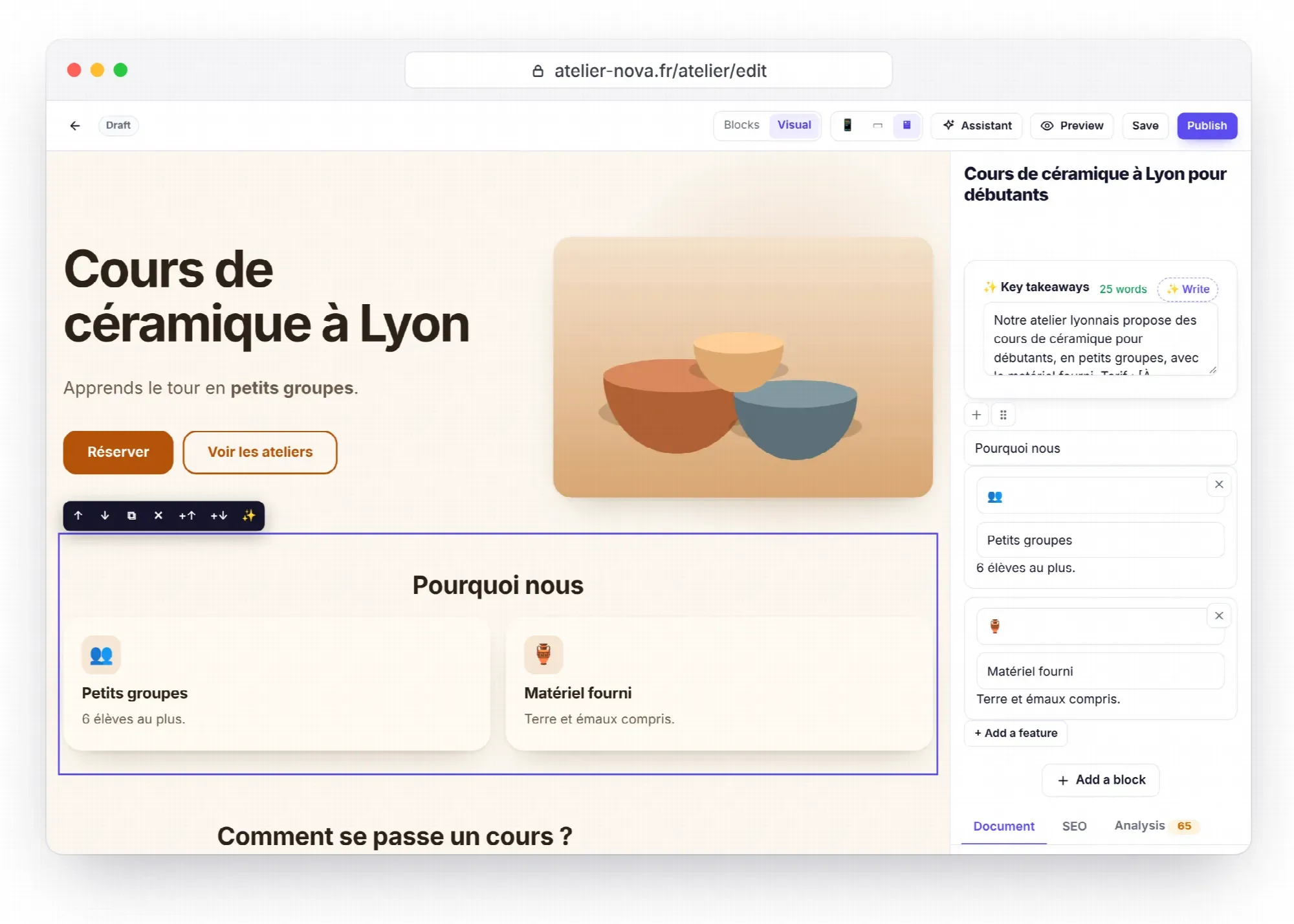
Before saving a suggestion, switch to Visual mode to see it as it will appear.
27. Find a more direct headline
Review my home page and suggest 5 more direct headlines for the banner, each under 10 words, with the introductory sentence that goes with it.What Éclair does: read only, because the editing tool doesn't touch the banner; paste the headline you choose in Visual mode.
28. Redesign a page in sections
Read the page “[title]” and create a new version as a draft, structured in sections: banner, features, proof, FAQ and contact. Keep all the facts and don't add any.What Éclair does: a new draft alongside the current page; compare the two, then keep what suits you.
29. Shorten a page that's too long
The page “[title]” is too long. Shorten its paragraphs by about 30% while keeping the useful information, in a single suggestion, and tell me what you removed.What Éclair does: up to 30 passages rewritten per call, gathered in one suggestion.
30. Add a Pricing section
Add to the page “[title]”, after the subheading “[subheading]”, a “Pricing” section that presents my packages: [packages and prices]. If a price is missing, write [To complete: price].What Éclair does: the section is inserted at the right spot, and the Analysis tab flags each missing price.
31. Add a person to the team
Add to the team page: [First Last], [job title], with this bio: [one or two sentences]. Their portrait is in the media library under the name [file name].What Éclair does: the person joins the team block, or their entry is updated if their name is already there.
Shop
These use cases assume your shop is open (see Sell with the lightweight shop). The AI never makes up a price, a discount or a payment link, and doesn't generate any product photos.
32. Create a product page
Create a draft product page “[name]”. Price: [price]. Payment link: [link]. Photos in the media library: [file names]. Write a description of 150 to 400 words for buyers, with a FAQ about shipping and returns.What Éclair does: a draft product page, with the first photo as the main one and the others in the gallery.
33. Change a price or availability
On the product page “[product name]”, change the price to [new price] and the availability to [in stock, sold out or pre-order].What Éclair does: a suggestion on the product page fields, applied only when you save.
34. Make a description more convincing
Rewrite the description of the product “[name]” to present what it does for the buyer before its specifications, without making up anything about its materials, dimensions or shipping.What Éclair does: only the text of the product page changes; the price and payment link stay untouched.
35. Answer buyers' questions
Add to the product page “[product name]” a FAQ with 4 buyer questions (size, shipping, returns, care), based on my shipping page and my terms of sale.What Éclair does: a FAQ as a suggestion, whose answers reuse what the AI read on your site.
Editorial upkeep
A few minutes a month are enough to keep a site fresh and free of gaps.
36. Refresh an old article
The article “[title]” dates from [year]. Spot the dated passages and the figures to check, update what you're certain of and replace the rest with [To complete: …] placeholders.What Éclair does: a suggestion; the publication date stays the same, and only the update date changes when you save.
37. Fix a page's mistakes
Fix the spelling, grammar and typography of the page “[title]”, without changing the style or the meaning, then list the corrections you made.What Éclair does: all the corrections grouped in one suggestion, to review in the editor.
38. Find the placeholders left to complete
Search my drafts and my published content for any remaining [To complete: …] placeholders, and list them with the content concerned and the missing information.What Éclair does: a list of placeholders for you to fill in yourself, without writing anything.
Agencies
In an agency, these MCP use cases call for one connector per client site and one Éclair account per person (see Scaling Éclair in an agency).
39. Prepare the pages of a new client site
Here is the client's brief: [paste the brief]. Create drafts of the pages [list of pages], in sections, in the tone of the editorial profile. Don't make up any facts: leave [To complete: …] placeholders.What Éclair does: one draft per page; the home page (Settings › General) and the menus are still yours to set up.
40. Write a content report for the client
Review the site's content: published content, pending drafts, pages without Key takeaways or without a FAQ, then 3 priorities for next month. Present it as a short report for the client.What Éclair does: a report written in the conversation, ready to copy into your email to the client.
Key points
- MCP use cases all lead to a read, a draft or a suggestion: never to a publication.
- Provide the facts yourself: otherwise, the AI leaves a [To complete: …] placeholder.
- For published content, group all the changes into a single suggestion.
- The banner, buttons and tables are edited in Visual mode, not through the connector.
- Linking translations, setting up menus and publishing remain tasks you do in Éclair.
Going further
- Advanced AI workflows: chain these MCP use cases into a weekly routine.
- Understanding the MCP connector: the six tools and their parameters.
- Create a page with AI and polish its text: the same ideas with the built-in assistant.
- GEO: getting cited by AI: why Key takeaways and the FAQ carry so much weight.
- Official sources: using connectors in Claude and custom MCP servers in ChatGPT.
Frequently asked questions
Do these prompts work as well with Claude as with ChatGPT?
Yes: both receive the same tools and the same writing rules through get_site. With ChatGPT, call your plugin with @ first; with ChatGPT Pro, only the read-only use cases go through.
Why doesn't my suggestion apply anymore?
The content has changed since the suggestion was prepared, for example because you saved another one. Ask the AI for the change again, grouping everything into a single request.
Can the AI create images for my posts through the connector?
No. The connector only picks from the images in your media library. To generate an image, use the built-in assistant with an image generator set up, or upload your photos in Media.
How many changes can I ask for in a row?
Up to 60 changes per hour per connection, reads not included. Beyond that, the AI gets a refusal and should let you know; pick up again a little later.