Connect ChatGPT to your site
Contents
- Plugins, apps, connectors: what's the right name?
- Which plans let you connect ChatGPT to your site?
- Step 1: turn on the connector in Éclair
- Step 2: create the plugin in ChatGPT
- Step 3: give your approval on your site's page
- Step 4: install the plugin and call it with @
- How does ChatGPT confirm write actions?
- Workspaces: what the administrator has to turn on
- On the desktop app and mobile
- Revoke ChatGPT's access
- Troubleshooting: when ChatGPT won't connect
- Key points
- Going further
- Frequently asked questions
To connect ChatGPT to your Éclair site, you now go through Plugins: you create a plugin from your MCP connector URL, give your approval on your site, install the plugin, then call it with “@” in a conversation. This lesson follows ChatGPT's interface as checked on November 1, 2026, including compatible plans and workspaces.
What you'll be able to do
Create the plugin
Add your site as a custom MCP server, with OAuth.
Use it day to day
Install the plugin, call it with @ and approve write actions.
Manage a workspace
The permissions the administrator has to turn on.
Plugins, apps, connectors: what's the right name?
Since July 9, 2026, the plugin directory has replaced the app directory, and existing connections keep working. The feature is now called Plugins, at chatgpt.com/plugins. A plugin can contain skills and MCP servers; “apps” are the connections to services inside a plugin.
The old path, with a Developer mode to turn on in the settings, is described by OpenAI as legacy. In Plugins, you no longer need to turn it on: you acknowledge a risk warning for each server you add. Once the plugin is installed, the Chat and Work tabs can use its tools.
Which plans let you connect ChatGPT to your site?
According to OpenAI's help center (article “Connecting custom MCP servers in ChatGPT”, checked on November 1, 2026), custom MCP servers with full MCP support are reserved for Business, Enterprise and Edu plans, on ChatGPT web:
| Plan | Read the site | Drafts and suggestions |
|---|---|---|
| Business | Yes | Yes |
| Enterprise, Edu | Yes | Yes |
| Pro | Yes | No: read-only |
| Plus, Go, Free | Not stated by OpenAI | Not stated by OpenAI |
Two mentions in the documentation can be misleading. The “Create & share Plugins” row on the pricing page, available on Go, Plus and Pro, covers plugins in general, not custom MCP servers. The “MCP” in the Codex and Work table refers to the local configuration of Codex and the desktop app. Finally, in deep research, custom apps can only read.
Step 1: turn on the connector in Éclair
- Open Settings › AI assistant and scroll down to Claude or ChatGPT with your subscription (MCP).
- Turn on Allow MCP connections, then click Save.
- In Connector URL, click Copy. The URL ends with
/_eclair/mcp.
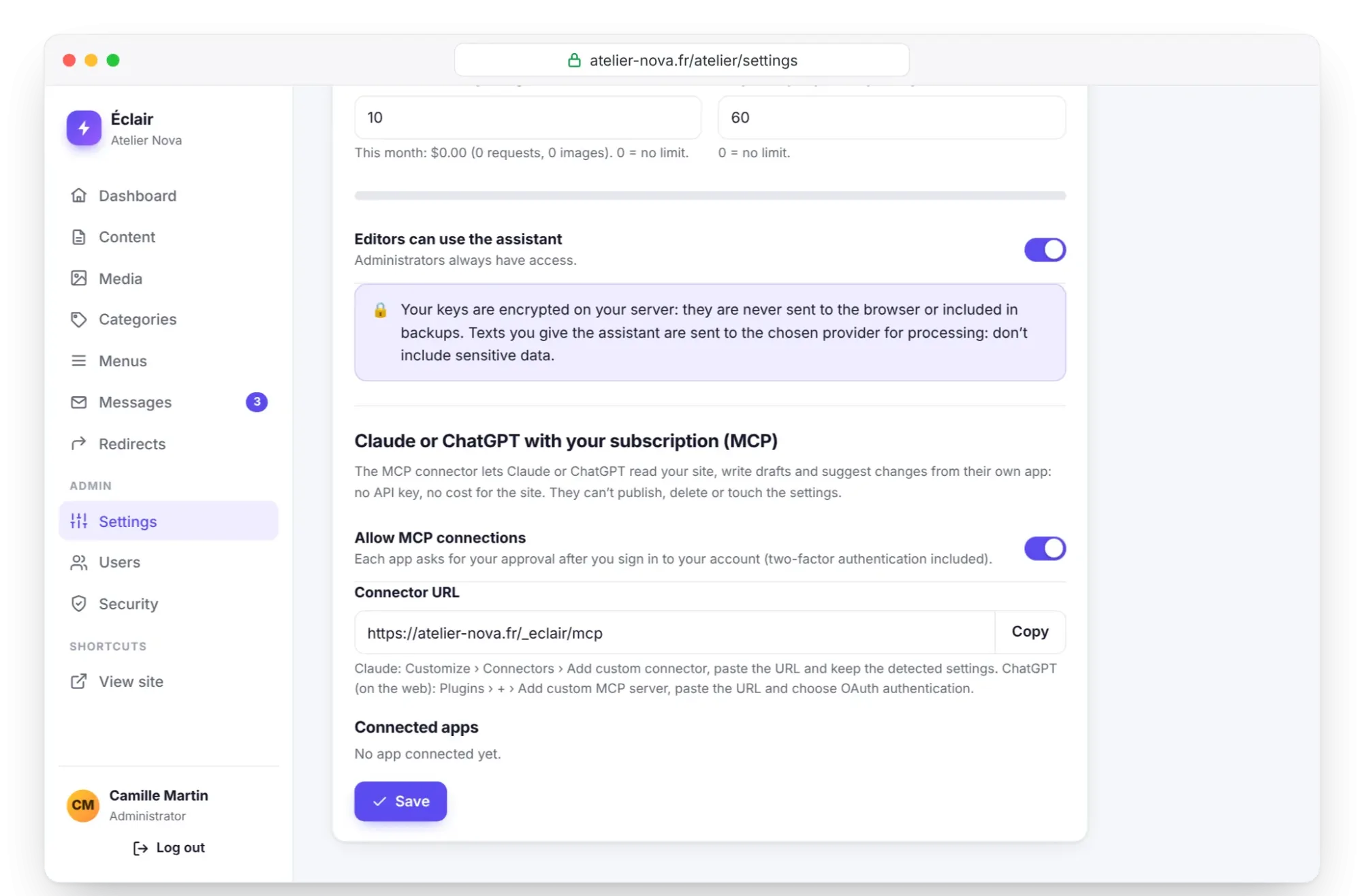
No API key is needed to connect ChatGPT: your subscription does the work.
Step 2: create the plugin in ChatGPT
On chatgpt.com, in a browser. The labels below come from OpenAI's documentation, checked on November 1, 2026; the app may display a slight variant.
- Open Plugins (chatgpt.com/plugins).
- Click the + button, then Add custom MCP server.
- Enter a name, for example “My site”, and a description if you like.
- Under Connection, paste the connector URL into Server URL. Leave Tunnel aside: your site is already public.
- For authentication, choose OAuth. Not No authentication, nor OAuth or no authentication: Éclair requires your approval.
- Read the risk warning, then click I understand and want to continue.
- Click Create as a plugin, then check the detected tools:
get_site,search_content,get_content,find_media,create_draftandupdate_content.
Step 3: give your approval on your site's page
When ChatGPT starts the connection, a page on your site opens: Connect ChatGPT to your site. Log in if needed, two-factor authentication included. Read the list of what is allowed and what is forbidden, check the line “You'll go back to chatgpt.com”, confirm your password if Éclair asks for it, then click Allow.
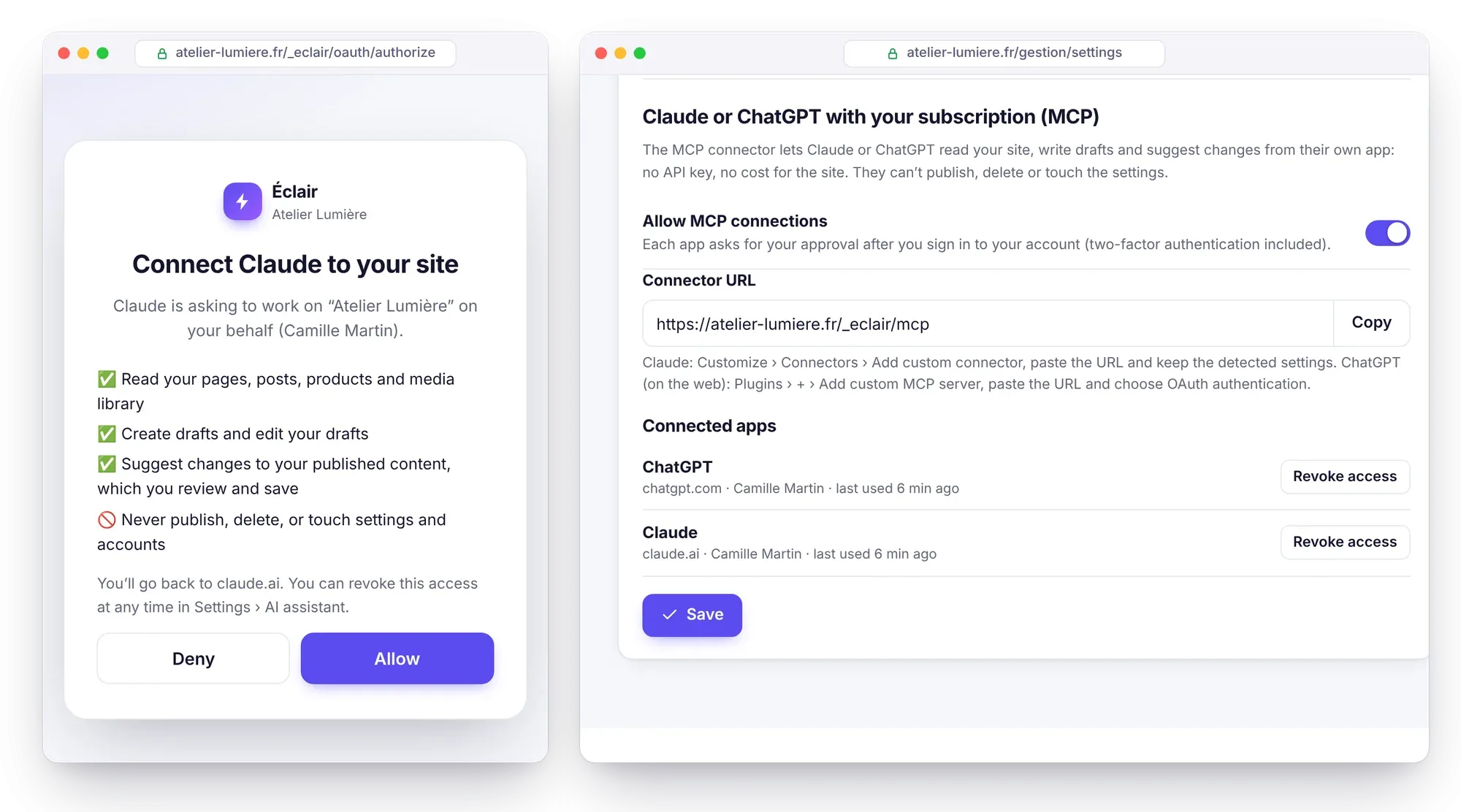
Éclair recognizes ChatGPT's two return URLs: https://chatgpt.com/connector_platform_oauth_redirect and https://chatgpt.com/connector/oauth/…. If the page shows “Unknown app”, click Deny and start again from chatgpt.com. Once you've given your approval, ChatGPT appears in Éclair's Connected apps list.
Step 4: install the plugin and call it with @
A newly created plugin can't be used yet: OpenAI asks you to install it before using it in a conversation.
- Open chatgpt.com/plugins?view=personal: the Personal tab lists the plugins you've created (Created by me).
- Open your plugin, then click the + button to install it.
- In a conversation, type
@in the prompt box and choose your plugin.
Then paste one of these prompts, for example:
Start with get_site, then summarize in 5 lines what my site contains and the tone of my editorial profile.Write a draft article about [topic] for [audience], then give me the link to open it in Éclair.The link you get back opens the draft in Éclair's editor: you review, complete and publish. More ideas are waiting in the 40 MCP use cases.
How does ChatGPT confirm write actions?
According to OpenAI's documentation, write actions require confirmation by default. ChatGPT relies on the readOnlyHint annotation: Éclair sets it on its four read tools, which run without asking, while create_draft and update_content wait for your approval.
- Check before accepting: expand the tool call to see the data sent and received, for example the passages an
update_contentcall is about to rewrite. - Your choice remembered: accepting or denying can be remembered for a tool, within the current conversation; a new conversation asks again.
- Permission levels: OpenAI's help center lists “Always ask”, “Any changes”, “Important actions” (the default: reads freely, asks before important actions) and “Never ask”, flagged as high risk. Keep the default setting.
- Approval buttons: “Deny” or “Decline”, “Allow” or “Allow once”, and “Always allow”, offered only to eligible personal accounts, not to members of a managed workspace.
Workspaces: what the administrator has to turn on
In a Business, Enterprise or Edu workspace, the administrator keeps control over four things:
- Creating: the role permission “Create plugins with MCPs”, described as “Use developer mode to create custom app connections”, is off by default. In “Permissions & roles”, it sits alongside “Use plugins” (on by default), “Upload plugins”, “Upload plugins with custom MCP servers”, “Share plugins” and “Publish plugins to workspace”.
- Publishing: on Business, only admins and owners create and publish a custom MCP plugin for the workspace. On Enterprise and Edu, admins grant creation rights by role, and only admins and owners publish.
- Allowing write actions: new actions are disabled by default. In the admin console, under “Plugins”, in the “Tools” (or “Actions”) setting, the administrator allows reading and writing one action at a time: remember
create_draftandupdate_content. - Updating: after the first approval, ChatGPT freezes the tool list. After an Éclair update, or if you open your shop later (the
producttype is then added tocreate_draft), open the connection in Plugins and choose Refresh; the administrator may need to approve it again.
On Éclair's side, each approval is tied to the account of the person who gave it: each member logs in with their own Éclair account, and their drafts carry their name.
On the desktop app and mobile
Adding a server only works on the web. OpenAI says plugins then work in Chat and Work, on the web, the desktop app and mobile, except those marked “Desktop only”. For a custom MCP server created on the web, the answer in OpenAI's help center about mobile could not be verified: test it in your app.
The desktop app, shared with Codex, also has its own local configuration (Settings, MCP servers, Add server). This path uses a local return URL: Éclair accepts it, but shows the app by its address, as an unknown app.
Revoke ChatGPT's access
- In Éclair: Settings › AI assistant, Connected apps list, Revoke access button on ChatGPT's line. It takes effect immediately.
- To cut everything off: turn off Allow MCP connections and save.
- In ChatGPT: the app's details page lets you turn each tool on or off, for example to keep read access only.
Troubleshooting: when ChatGPT won't connect
| Symptom | Likely cause | Solution |
|---|---|---|
| Can't add a custom MCP server | “Create plugins with MCPs” permission missing, or incompatible plan | Ask the administrator for it, or check your plan |
| Reading works, but no drafts | Pro plan, or write actions not allowed in the workspace | A Business, Enterprise or Edu plan, with write tools allowed |
| Authorization fails | Site without HTTPS, URL without /_eclair/mcp, Authorization header stripped by the host | Paste the URL copied from Éclair and keep Éclair's .htaccess up to date |
| 403 or 429 error from a firewall (Cloudflare…) | Bot protection | Let /_eclair/ and /.well-known/ through |
| Failure with Éclair in a subfolder | Authorization looked up at the root of the domain | Install Éclair at the root of a domain or subdomain |
invalid_client | ChatGPT reuses an identifier your site no longer recognizes, for example after a reinstall | Create a new plugin |
| A tool is missing after an update | Frozen tool list | Refresh in Plugins |
| “Too many changes in the last hour” | More than 60 changes in one hour on this connection | Wait, then pick up where you left off |
Would you rather filter by IP address? OpenAI publishes ChatGPT's outbound ranges in openai.com/chatgpt-connectors.json: 288 ranges on November 1, 2026. They change, so fetch the file regularly, or exempt the /_eclair/ and /.well-known/ paths instead. The command-line checks and the .htaccess lines are detailed in Connect Claude to your site.
Key points
- To connect ChatGPT, create a plugin with Add custom MCP server, the
/_eclair/mcpURL and OAuth authentication. - After approving on your site, install the plugin, then call it with
@. - Business, Enterprise and Edu can read and write; Pro can only read (OpenAI's help center, checked on November 1, 2026).
- Write actions require your confirmation by default: keep that setting.
- In a workspace, the administrator must turn on “Create plugins with MCPs” and allow the write tools.
Going further
- Connect Claude to your site: the step-by-step guide on the Anthropic side, and the technical checks.
- 40 MCP use cases, with prompts: ready-to-copy requests for ChatGPT.
- Understanding the MCP connector: the 6 tools and their limits.
- Troubleshooting: Éclair's other errors.
- Official sources: add a custom MCP server and OpenAI help on custom MCP servers.
Frequently asked questions
Can I connect ChatGPT Plus to my site?
OpenAI's help center doesn't mention Plus, Go or Free for custom MCP servers (checked on November 1, 2026). The documented plans are Business, Enterprise and Edu for reading and writing, and Pro for read-only access.
Why doesn't my plugin appear when I type @?
You need to install it after creating it: open it in chatgpt.com/plugins, Personal tab, and click the + button. It then appears when you type @ in the prompt box.
Can ChatGPT publish or delete a page?
No. Éclair's connector only offers reading, drafts and suggested changes. Publishing remains a click in Éclair.
Do I need to turn on developer mode?
Not in Plugins: you acknowledge a warning for each server. In a workspace, however, you need the “Create plugins with MCPs” permission, which is off by default.