Install Éclair on LWS
Contents
- The plan and control panel at a glance
- Step 1: choose PHP 8.3
- Step 2: turn on the HTTPS certificate
- Step 3: delete the welcome page
- Step 4: upload Éclair's files
- Step 5: run the setup wizard
- Step 6: check after installation
- Pitfalls specific to LWS
- Install Éclair on LWS: what if something goes wrong?
- Key points
- Going further
- Frequently asked questions
You install Éclair on LWS from the LWS Panel in half an hour, including the time your changes take to apply. The file manager extracts the archive and the Let's Encrypt certificate is usually already active. Above all, remember two quirks: the public folder is called htdocs, and the ModSecurity firewall, on by default, can block some admin actions.
The plan and control panel at a glance
| Item | At LWS |
|---|---|
| Control panel | LWS Panel (panel.lws.fr), Manage button next to your plan |
| Web server | Apache, with Nginx for static files and Varnish; URL rewriting through .htaccess |
| PHP version | 5.6 to 8.5, set per domain |
| Public folder | htdocs |
| ZIP extraction | Yes, with the file manager's Extract button |
| Outgoing connections | Not documented: test them |
| Price checked on November 1, 2026 | LWS Perso: €1.49 excl. VAT/month (€1.79 incl. VAT) the first year, then €3.99 excl. VAT/month (LWS pricing, in French) |
These are euro prices for the French market, from lws.fr. The pricing page states that the discount applies to the first year only. LWS Starter costs €3.49 excl. VAT/month (€4.19 incl. VAT), instead of €5.99. The commitment period couldn't be verified.
Step 1: choose PHP 8.3
- In your customer area, click Manage next to your plan.
- In the Database & PHP section, open PHP Configuration.
- In the PHP installation and selection tab, tick PHP 8.3 among the versions to install, choose it as the default version (main domain only, or all sites), then click Save.
- To set another domain or a subdomain, use the PHP configuration by site tab.
The change isn't instant: a support reply in 2022 mentioned 15 to 20 minutes. The General PHP configuration tab sets memory_limit, max_execution_time, OPcache and the time zone.
Step 2: turn on the HTTPS certificate
The Let's Encrypt certificate is usually activated automatically. To check it or restart it:
- Under Manage, in the Security section, open SSL.
- On the SSL Service line, choose Activate, then click Validate.
- To force HTTPS on the server side, open the Auto HTTPS redirection tab, turn it on, then click Validate. Allow about an hour.
LWS advises against this redirect for WordPress and PrestaShop. For Éclair, it remains optional: if you run the wizard over https://, Éclair checks Force HTTPS on its own, then redirects every visit to the official address once that address is verified.
Step 3: delete the welcome page
After purchase, LWS shows a welcome page until your site is published, without naming the file involved. Open htdocs in the file manager: if an index.html is there, delete or rename it so that it doesn't take precedence over Éclair.
Step 4: upload Éclair's files
- Under Manage, in the Files section, open File Manager, then the
htdocsfolder. - Upload
eclair-cms-1.8.0.zip. - Select the archive, click Extract, then choose
htdocsas the destination. - Open the
eclairfolder you get, select all of its contents,.htaccessincluded, and move them tohtdocs. - Delete the empty
eclairfolder, the archive and the three.txtfiles that come with it.
With FileZilla, the username and host are listed under Files, then FTP Account(s). The password isn't displayed: click Change to set one. Shared plans have no SSH access, so connect over FTP, turn on Server › Force showing hidden files, then upload the contents of the eclair folder to htdocs.

Step 5: run the setup wizard
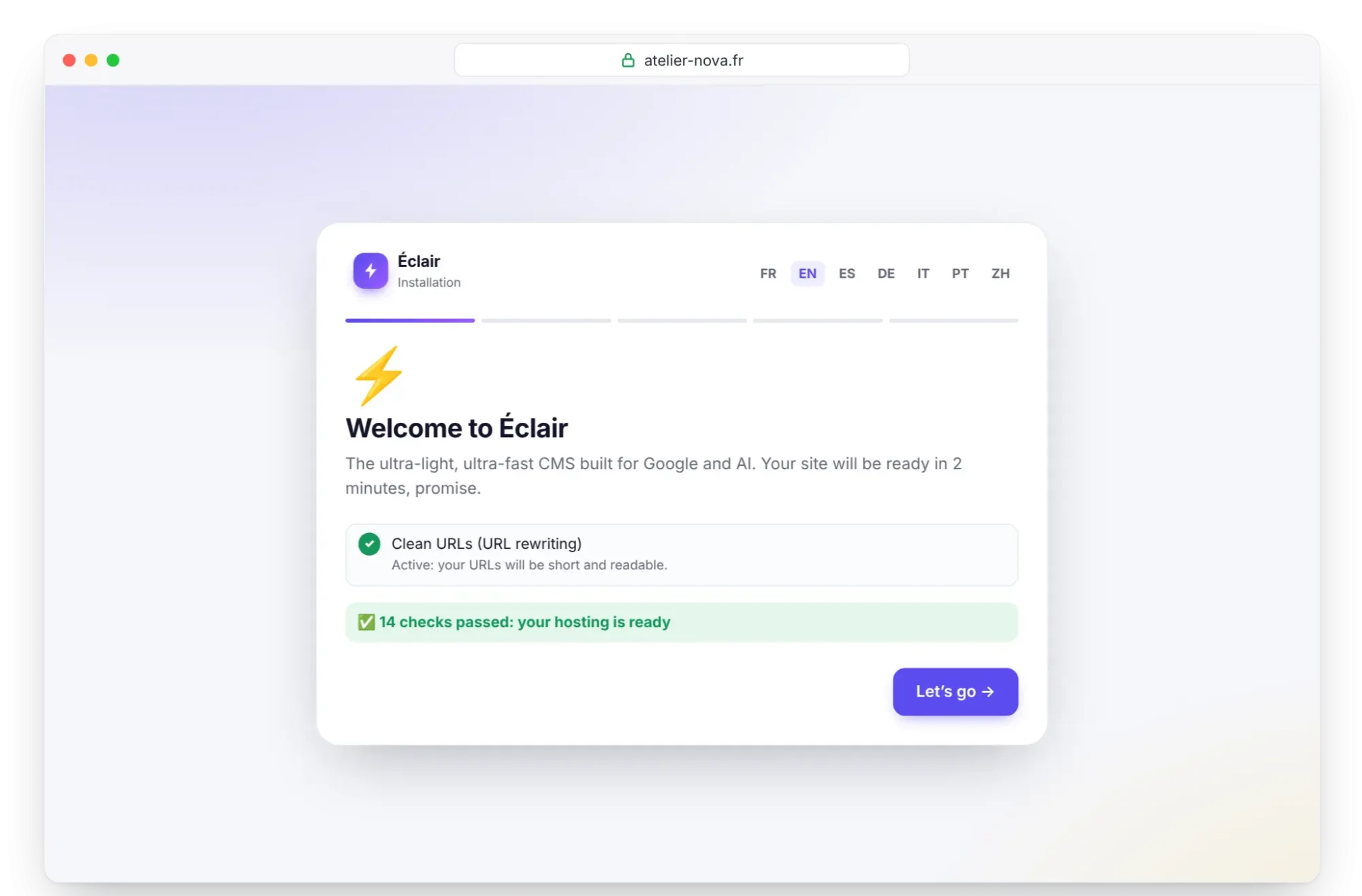
Open https://your-domain.com. The wizard's first screen checks PHP, the extensions, write permissions and HTTPS. Look at the “Clean URLs (URL rewriting)” line: “Active” proves the .htaccess arrived; “Inactive” usually means it stayed in the eclair folder or on your computer. Then click Let's go and follow Install Éclair step by step, within 2 hours.
Step 6: check after installation
- On the Security page, check “Encrypted connection (HTTPS) enforced” and “Site address verified”. If needed, click Verify the site address.
- The “Folder protection test” must show Protected for each file.
- Save a test page in the editor: a 403 error would come from ModSecurity.
- If you use the AI assistant, click Test the connection in Settings › AI assistant: LWS doesn't document its outgoing rules.
Pitfalls specific to LWS
- The folder is called
htdocs: LWS warns that creating apublic_htmlfolder can make your site malfunction. - ModSecurity on by default: if it conflicts with your application, LWS says you can turn it off on its ModSecurity page by unticking Activate, then clicking Validate.
- No SSH access on shared plans, only a “Web terminal and WP CLI”: extraction happens in the file manager.
- Delays before changes apply: 15 to 20 minutes for PHP, about an hour for the HTTPS redirect.
- LWS Perso's limits: 384 MB of memory and 90 seconds of execution time for PHP, the tightest among the web hosts reviewed, plus 3 sites and 1 FTP account. If a long request to the AI assistant stops halfway, think of these 90 seconds.
- Several domains: the Multi-Domains tool, in the Domain management section, creates a folder named exactly after each domain you add. Once you use this tool, you create subdomains there too.
Install Éclair on LWS: what if something goes wrong?
| Problem | Cause | Solution |
|---|---|---|
| LWS's welcome page appears | Old index.html in htdocs | Delete it, then reload |
| “Clean URLs” inactive | .htaccess not moved | Upload it again over FTP, with hidden files shown |
| 403 error when saving content | ModSecurity | Turn it off to test, then report the rule to support |
| PHP still on the old version | Delay before the change applies | Wait 20 minutes, then reload the wizard |
| “Can't reach Claude (Anthropic)…” | Outgoing connection blocked | Contact support, or use the MCP connector |
Éclair's other messages are explained on the Troubleshooting page.
Key points
- LWS's public folder is
htdocs, neverpublic_html. - You choose PHP 8.3 in PHP Configuration, and it applies within 15 to 20 minutes.
- Extract the archive with Extract, then move the contents of the
eclairfolder up. - ModSecurity is the first suspect for a 403 error.
Going further
- Prepare your installation and Install Éclair step by step.
- Essential settings before launch and Turn on the built-in AI assistant.
- Choosing your hosting: LWS compared with the other web hosts reviewed.
- LWS's official help, in French: configure PHP, HTTPS redirect and web application firewall.
Frequently asked questions
Which LWS plan should I choose for Éclair?
LWS Perso is enough for one site: €1.49 excl. VAT/month the first year, then €3.99 excl. VAT/month, as of November 1, 2026. It hosts 3 sites.
How do I reach LWS support?
In French, by phone on 01 77 62 30 03 (+33 1 77 62 30 03 from abroad), Monday to Friday from 9 a.m. to 7 p.m. French time, and by email, ticket or chat every day. The data centers are in France.
Does LWS back up my site?
Yes, every day: the last 7 daily backups are kept, then weekly ones. Restoring them yourself is free over a one-month window, for hosting plans of up to 20 GB.
Can I install Éclair in a subdomain at LWS?
Yes: create it in Multi-Domains if you already use that tool, then upload Éclair to the folder linked to it. For the MCP connector, a subdomain works as well as a domain.