Install Éclair on SiteGround
Contents
- The plan and control panel at a glance
- Step 1: choose PHP 8.3
- Step 2: turn on the HTTPS certificate
- Step 3: delete default.htm
- Step 4: upload Éclair's files
- Step 5: run the setup wizard
- Step 6: check after installation
- Pitfalls specific to SiteGround
- Install Éclair on SiteGround: what if something goes wrong?
- Key points
- Going further
- Frequently asked questions
It takes about twenty minutes to install Éclair on SiteGround, in Site Tools, the web host's in-house control panel. Everything is there: PHP selection, a free certificate, a switch to force HTTPS and a file manager that shows hidden files. Just one subtlety: the archive extracts into a subfolder, whose contents you need to move up. This guide shows you each screen.
The plan and control panel at a glance
| Item | At SiteGround |
|---|---|
| Control panel | Site Tools: Websites › Site Tools from the Client Area |
| Web server | Apache behind Nginx; .htaccess supported |
| PHP version | “Managed PHP” by default (PHP 8.2 in September 2025); 8.3 available |
| Public folder | public_html |
| ZIP extraction | Yes, into a new folder named after the archive |
| Outgoing connections | Port 443 open on all shared servers |
| Price checked on November 1, 2026 | StartUp: €2.99 excl. VAT/month, 12 months prepaid, then €15.99 excl. VAT/month (SiteGround pricing) |
These are euro prices from SiteGround's European site, excluding VAT. StartUp hosts 1 site with 10 GB. GrowBig goes from €5.49 to €27.99 excl. VAT/month, and GoGeek from €8.49 to €39.99 excl. VAT/month. An equivalent page exists in Spanish.
Step 1: choose PHP 8.3
- In the Client Area, open Websites, then Site Tools for your site.
- Go to Devs › PHP Manager.
- Click the pencil icon, “Change PHP version”.
- Choose “Change PHP Version Manually”, select 8.3, then click Confirm.
By default, the “Managed PHP” option lets SiteGround choose the version and update it on its own. It suits Éclair as long as it stays on 8.1 or later, but choosing manually guarantees you 8.3. SiteGround's servers run PHP 8.5 according to an October 2026 article, with no confirmation that it's offered in PHP Manager.
Step 2: turn on the HTTPS certificate
- In Site Tools, open Security › SSL Manager.
- Click Install New SSL, select your domain, choose Let's Encrypt, then Get. Renewal is automatic.
- Open Security › HTTPS Enforce and switch your domain's toggle to On.
Éclair does the same on its side: when you run its wizard over https://, it checks Force HTTPS, and once the site address is verified, every visit is redirected to the official address. Both redirects point the same way.
Step 3: delete default.htm
According to its help, last updated in 2021, SiteGround places a default page, default.htm, in public_html. Open Site › File Manager, go into public_html and, if this file is there, delete it: otherwise it could appear instead of Éclair.
Step 4: upload Éclair's files
The File Manager shows hidden files by default and sets no size limit on uploads.
- In
public_html, click File Upload and uploadeclair-cms-1.8.0.zip. - Select the archive, then click Extract: a folder with its name,
eclair-cms-1.8.0, appears next to it. - Open
eclair-cms-1.8.0, then theeclairfolder inside it. - Select all of its contents,
.htaccessincluded, and move them topublic_html. - Delete the
eclair-cms-1.8.0folder and the archive.
Prefer an FTP client? FTP accounts are managed in Site › FTP Accounts. For SFTP, included in all plans, create a key in Devs › SSH Keys Manager; the port is 18765. In FileZilla, turn on Server › Force showing hidden files before uploading the contents of the eclair folder.

Step 5: run the setup wizard
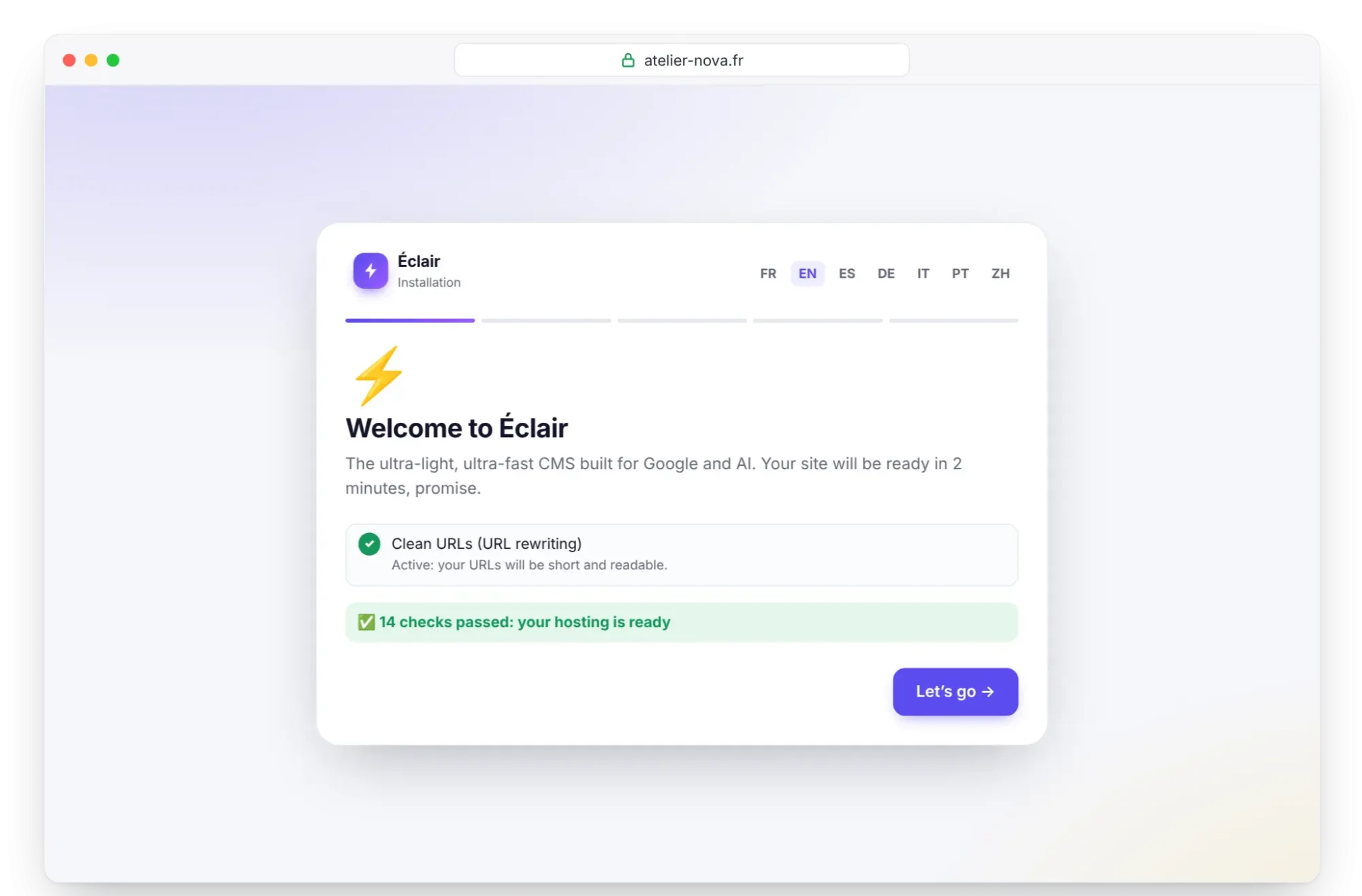
Open https://your-domain.com. If SiteGround's default page appears, default.htm is still there. Otherwise, Éclair's wizard checks the server: PHP 8.3, extensions, write permissions, HTTPS and “Clean URLs (URL rewriting)”, which must say “Active”. Click Let's go, then answer the 4 questions in Install Éclair step by step, within 2 hours.
Step 6: check after installation
- On the Security page, check “Encrypted connection (HTTPS) enforced” and “Site address verified”; if not, click Verify the site address.
- The “Folder protection test” must mark each file Protected.
- For the AI assistant, paste your key in Settings › AI assistant, then click Test the connection. Since port 443 is open, “Connection successful” should appear.
Pitfalls specific to SiteGround
- Extraction into a subfolder: without step 4, your site would live at
/eclair-cms-1.8.0/eclair/. - The default.htm file: delete it before the wizard's first run.
- A single site on StartUp: for a second Éclair site, you need GrowBig or higher.
- Managed PHP: SiteGround changes the PHP version on its own; choose 8.3 manually to stay in control.
- 200,000 inodes on StartUp, according to a 2021 fair-use page, and 768 MB of memory per process.
- No documented firewall switch: protection relies on an in-house Nginx security module, intrusion detection systems and virtual patches. If a 403 error persists, write to support.
- Support in five languages (English, Spanish, Italian, German and French) by chat and ticket, sometimes machine-aided outside English; by phone, English only.
Install Éclair on SiteGround: what if something goes wrong?
| Problem | Cause | Solution |
|---|---|---|
| SiteGround's default page appears | default.htm still present | Delete it in the File Manager |
The site responds at /eclair-cms-1.8.0/eclair/ | Contents left in the extraction folder | Move the contents of eclair to public_html |
| 404 error on every page except the home page | .htaccess left in the extraction folder | Move it to public_html as well |
| The wizard doesn't show PHP 8.3 | “Managed PHP” still active | PHP Manager, choose 8.3 manually, then Confirm |
| Repeated 403 error in the admin | SiteGround security filter | Contact support with the URL concerned |
The Troubleshooting page details Éclair's other messages.
Key points
- Choose PHP 8.3 manually in Devs › PHP Manager.
- Install Let's Encrypt, turn on HTTPS Enforce, then delete
default.htm. - After Extract, move the contents of
eclair-cms-1.8.0/eclairup intopublic_html. - StartUp accepts only one site: go for GrowBig for several Éclair sites.
Going further
- Prepare your installation and Install Éclair step by step.
- Turn on the built-in AI assistant and Essential settings before launch.
- Choosing your hosting to compare, and the universal FTP method.
- SiteGround's official help: File Manager, enforce HTTPS and open ports.
Frequently asked questions
Which SiteGround plan should I choose for Éclair?
StartUp is enough for one site: €2.99 excl. VAT/month for 12 months prepaid, then €15.99 excl. VAT/month, as of November 1, 2026. For several sites, take GrowBig.
Where is my data hosted?
In the data center you choose. In Europe, SiteGround offers Paris, Madrid, Frankfurt, Eemshaven and London; backups are stored elsewhere, for example in Madrid for Paris.
Does Éclair's AI assistant work at SiteGround?
Yes: port 443 is among the outgoing ports open on all shared servers, which is enough to reach Claude, ChatGPT and IndexNow.
Which languages does SiteGround support speak?
English, Spanish, Italian, German and French by chat and ticket, sometimes with machine translation. Phone support is in English only.