Install Éclair on Raiola Networks
Contents
- The plan and control panel at a glance
- Step 1: choose PHP 8.3
- Step 2: check the HTTPS certificate
- Step 3: empty the public folder
- Step 4: upload Éclair's files
- Step 5: run the setup wizard
- Step 6: check after installation
- Pitfalls specific to Raiola Networks
- Install Éclair on Raiola Networks: what if something goes wrong?
- Key points
- Going further
- Frequently asked questions
You install Éclair on Raiola Networks, a Spanish web host with data centers in Madrid, in a standard cPanel, in about twenty minutes. The Let's Encrypt certificate installs itself and the LiteSpeed server reads Éclair's .htaccess. Raiola doesn't publish a guide for every menu, so this page follows cPanel's standard paths and points out what remains to be checked.
The plan and control panel at a glance
| Item | At Raiola Networks |
|---|---|
| Control panel | cPanel on CloudLinux, opened from the customer area |
| Web server | LiteSpeed on all plans; it reads Apache .htaccess files |
| PHP version | 5.6 to 8.5 according to the plan table, including 8.3 |
| Public folder | public_html |
| ZIP extraction | Yes, with Extract in cPanel's File Manager |
| Outgoing connections | Not documented: test them |
| Price checked on November 1, 2026 | Hosting SSD Inicio: €8.95 excl. VAT/month, or €79.95 excl. VAT/year with annual billing (Raiola Networks pricing, in Spanish) |
These euro prices come from Raiola Networks' Spanish pricing page, which states “Todos los precios se muestran sin IVA”: all prices are shown excluding VAT. No promotion was active when they were checked, and the renewal price isn't stated. The Base plan costs €9.95 excl. VAT/month or €98.95 excl. VAT/year.
Step 1: choose PHP 8.3
Under CloudLinux, you set the PHP version in cPanel's selector. Raiola doesn't document this menu, so here is the standard path.
- In cPanel, in the Software section, open Select PHP Version.
- Choose 8.3 in the drop-down list, then confirm with Set as current.
- If the setup wizard later reports a missing extension, such as
gdorcurl, come back here and tick it in the list of modules.
If this menu doesn't appear, look for MultiPHP Manager, cPanel's other tool, described in the universal method.
Step 2: check the HTTPS certificate
Raiola automatically installs a Let's Encrypt certificate on every domain and subdomain added to the hosting. To check it, open Security › SSL/TLS Status in cPanel, then https://your-domain.com in your browser: the padlock should appear.
To force HTTPS, cPanel provides the Force HTTPS Redirect toggle in Domains › Domains, but whether Raiola offers it isn't confirmed. Don't spend long looking for it: if you run the wizard over https://, Éclair checks Force HTTPS on its own, then redirects every visit to the official address once that address is verified.
Step 3: empty the public folder
Raiola doesn't document a default page. Open public_html anyway: if an index.html or an old site's files are there, move them to a backup folder so that they don't take precedence over Éclair.
Step 4: upload Éclair's files
- Open Files › File Manager.
- Click Settings, tick “Show Hidden Files (dotfiles)”, then click Save.
- Go into
public_html, click Upload and uploadeclair-cms-1.8.0.zip. - Go back to
public_html, select the archive and click Extract in the toolbar. - Open the
eclairfolder that appears, select all of its contents,.htaccessincluded, and move them topublic_html. - Delete the empty
eclairfolder, the archive and the three.txtfiles that come with it.
Shared plans have no SSH access. FTP accounts, on the other hand, are unlimited: create one in cPanel, connect FileZilla, turn on Server › Force showing hidden files and upload the contents of the eclair folder to public_html.

Step 5: run the setup wizard
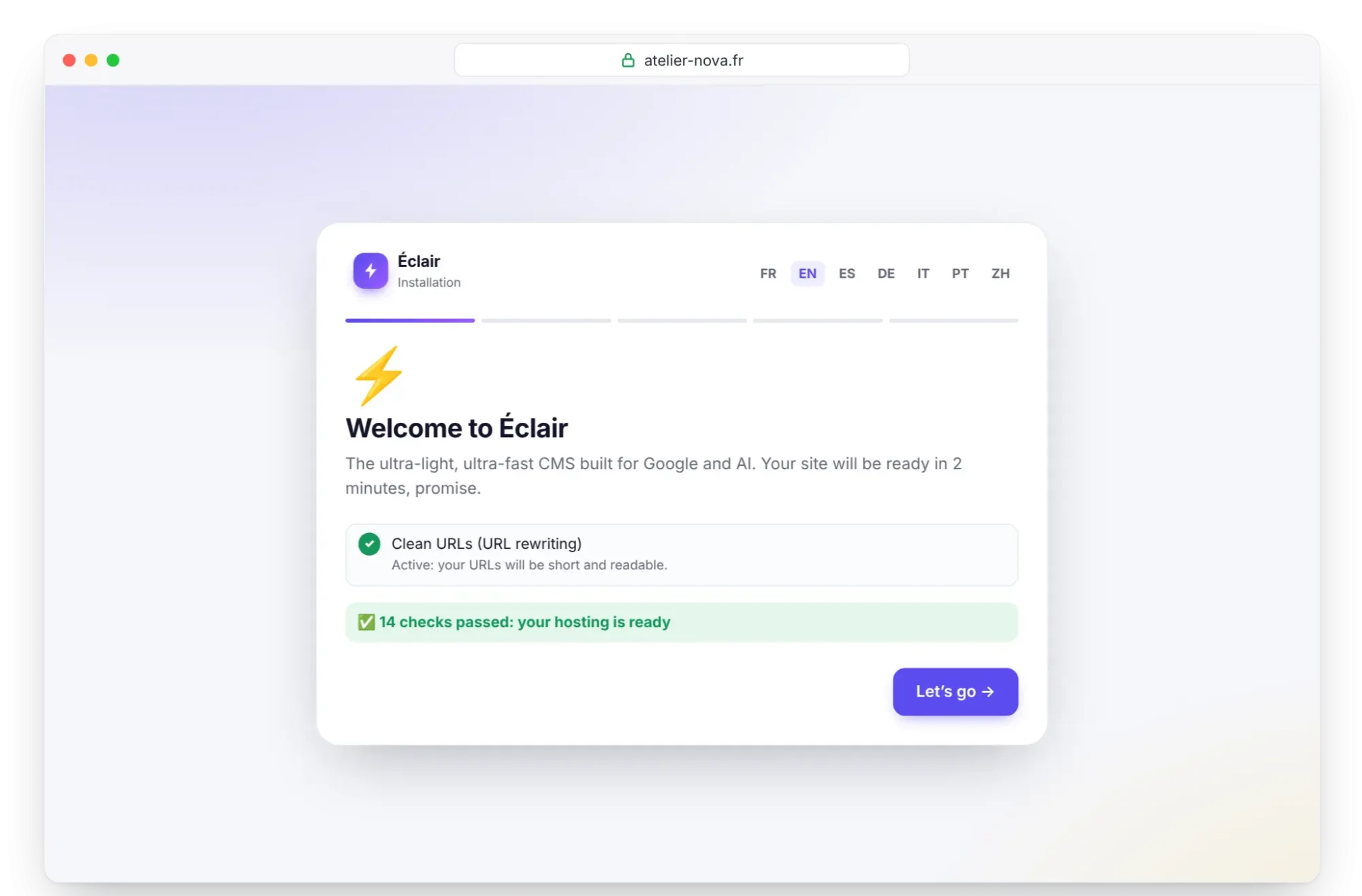
Open https://your-domain.com. The wizard's first screen checks PHP, the extensions, write permissions and HTTPS; the “Clean URLs (URL rewriting)” line must say “Active”. The wizard is available in English and Spanish, among other languages, chosen at the top of the screen. Click Let's go, then follow Install Éclair step by step, within 2 hours.
Step 6: check after installation
- On the Security page, check “Encrypted connection (HTTPS) enforced” and “Site address verified”; if needed, click Verify the site address.
- The “Folder protection test” must show Protected for each file.
- Save some test content: a 403 error would point to a firewall false positive.
- If you use the AI assistant, click Test the connection in Settings › AI assistant, because Raiola doesn't document its outgoing rules.
Pitfalls specific to Raiola Networks
- An undocumented PHP menu: the path in step 1 is CloudLinux's, not a Raiola guide.
- No SSH on shared plans: extraction happens in the File Manager.
- Imunify360, which combines antivirus, anti-malware, WAF and firewall: its customer-side settings aren't documented. If you get a 403 error when saving in the admin, ask support to look into this false positive.
- Two domains at most on Inicio, with 10 GB of SSD space and 1,228 MB of memory.
- Support in Spanish, 24 hours a day, by phone and ticket, for Spain and Latin America.
- An unpublished renewal price: ask for it before you commit for a year.
Install Éclair on Raiola Networks: what if something goes wrong?
| Problem | Cause | Solution |
|---|---|---|
| Orange item on the PHP version | Default version too old | Select PHP Version, 8.3, then Set as current |
| 404 error on every page except the home page | .htaccess not moved | Show hidden files, then move it to public_html |
| 403 error when saving | Imunify360 rule | Contact support with the URL and the time |
| “Can't reach Claude (Anthropic)…” | Outgoing connection blocked | Ask support to open it, or use the MCP connector |
| Red item on an extension | Module disabled | Tick it in Select PHP Version, then reload |
The Troubleshooting page describes Éclair's other messages.
Key points
- Choose PHP 8.3 in cPanel's selector and tick the extensions you need.
- The Let's Encrypt certificate is automatic: run the wizard over
https://. - Extract the archive in
public_html, then move the contents of theeclairfolder up. - Test outgoing connections and report any 403 error to support.
Going further
- Prepare your installation, Install Éclair step by step and Essential settings before launch.
- cPanel, Plesk, DirectAdmin: the universal method for cPanel's menus.
- Choosing your hosting and Turn on the built-in AI assistant.
- Sources: the Raiola Networks plans page, in Spanish, and the CloudLinux PHP Selector documentation.
Frequently asked questions
Which Raiola Networks plan should I choose for Éclair?
Hosting SSD Inicio is enough: €8.95 excl. VAT/month, or €79.95 excl. VAT/year with annual billing, for 2 domains and 10 GB, as of November 1, 2026.
Does Raiola Networks offer PHP 8.3?
Yes. The plan table lists versions 5.6 to 8.5, including 8.3, the version recommended for Éclair.
Where is my data hosted?
In two data centers located in Madrid, with hardware assembled by Raiola Networks.
Does Raiola Networks back up my site?
Yes, with JetBackup: daily incremental backups that you restore yourself. Also download Éclair's own backup from the Security page.