---
title: "Essential settings before launch"
description: "HTTPS, Search Console, legal notice, two-factor authentication and backup: Éclair's essential settings to check before you launch your website."
url: "https://eclair.academy/en/paths/beginner/essential-settings"
lang: "en"
author: "Thierry Gustin"
published: "2026-11-02"
updated: "2026-11-02"
---
# Essential settings before launch
> **Key takeaways** — Before launching an Éclair site, review the essential settings. Fill in the name, tagline, https address, language and time zone in Settings › General, connect Google Search Console and Bing in Settings › SEO, complete the legal pages, turn on two-factor authentication and download a first backup.
Before announcing your site, a few essential settings make all the difference: a clear identity, an HTTPS address, Google and Bing notified, complete legal pages and a well-protected account. This lesson reviews each point, then ends with a launch checklist to tick off.
> **Before you start** — Time: 30 minutes. Prerequisites: the previous lessons in the path, especially [Pages, menus and home page](https://eclair.academy/en/paths/beginner/pages-menus-home). Keep your phone at hand for two-factor authentication, and a Google account for Search Console.
## What you'll be able to do
### 🛡 Secure your account
Turn on two-factor authentication and store your 8 backup codes.
### 📈 Get found
Connect Google Search Console and Bing by pasting a simple tag.
### ✅ Launch with peace of mind
Tick off a 12-point launch checklist.
## The 8 Settings tabs
Settings are reserved for administrators, and everything there is preset for a fast, SEO-friendly site. For a launch, three tabs hold the essential settings: **General**, **SEO** and **Advanced**.
| Tab | What it controls | Going further |
| --- | --- | --- |
| General | Identity, address, language, time zone, home page, blog | [Pages, menus and home page](https://eclair.academy/en/paths/beginner/pages-menus-home) |
| Appearance | Theme, art direction, logo, color, CSS | [Themes and appearance](https://eclair.academy/en/paths/intermediate/themes-appearance) |
| Shop | Opening, shipping, returns, payment | [Sell with the lightweight shop](https://eclair.academy/en/paths/intermediate/shop) |
| SEO | Visibility, structured data, Search Console, Bing | [SEO with Éclair](https://eclair.academy/en/paths/intermediate/seo) |
| AI & GEO | AI bots, `llms.txt`, Markdown version | [GEO: getting cited by AI](https://eclair.academy/en/paths/intermediate/geo-ai-search) |
| AI assistant | Provider, API key, budget, MCP connector | [Turn on the built-in AI assistant](https://eclair.academy/en/paths/ai-mcp/ai-assistant) |
| Contact | Receiving the form's messages | [Contact form and messages](https://eclair.academy/en/paths/beginner/contact-form) |
| Advanced | Admin URL, HTTPS, cache | This lesson |
## Give your site a clear identity
Open **Settings › General** and check each field:
- **Site name**: “Atelier Nova”.
- **Tagline**: a sentence that says what you do, such as “Ceramics studio in Lyon”. It appears in the home page title.
- **Homepage description (meta description)**: the text Google shows below your home page title. Aim for 110 to 160 characters, with a clear promise.
- **Official site URL**: used for canonical URLs, the sitemap and shares. Choose the version with or without “www” once and for all.
- **Site language** and **Time zone**: the time zone is also used to publish your scheduled posts at the right time.
Click **Save**. If you change the official address, Éclair checks that it really leads to your site; if it doesn't, Éclair warns you and redirects nobody to it until it's verified.
## How do you switch your site to HTTPS?
1. Turn on the free Let's Encrypt certificate in your host's customer area, then open `https://atelier-nova.fr`.
2. Log in to the admin over `https://`.
3. In **Settings › Advanced**, check **Force HTTPS**, enter your password if asked, then click **Save**. The official address also switches to `https://`.
4. On the dashboard, **Site health** should show “Site served over HTTPS”.
If you installed Éclair directly over `https://`, **Force HTTPS** is already checked. Otherwise, Éclair refuses to turn it on until you're logged in over `https://`: it's a safeguard. The **HSTS** option goes further, since browsers will never use `http://` for your site again for a year. Only turn it on once HTTPS works perfectly.
## Connect Google Search Console and Bing
1. In Google Search Console, choose **Add property**, then **URL prefix**, and enter `https://atelier-nova.fr`.
2. Choose the **HTML tag** method and copy the `` tag shown.
3. In Éclair, open **Settings › SEO**, **Webmaster tools** section, and paste the whole tag into the **Google Search Console** field: Éclair extracts the code from it. Click **Save**.
4. Go back to Search Console and run the verification.
5. Do the same with the **Bing Webmaster Tools** field.
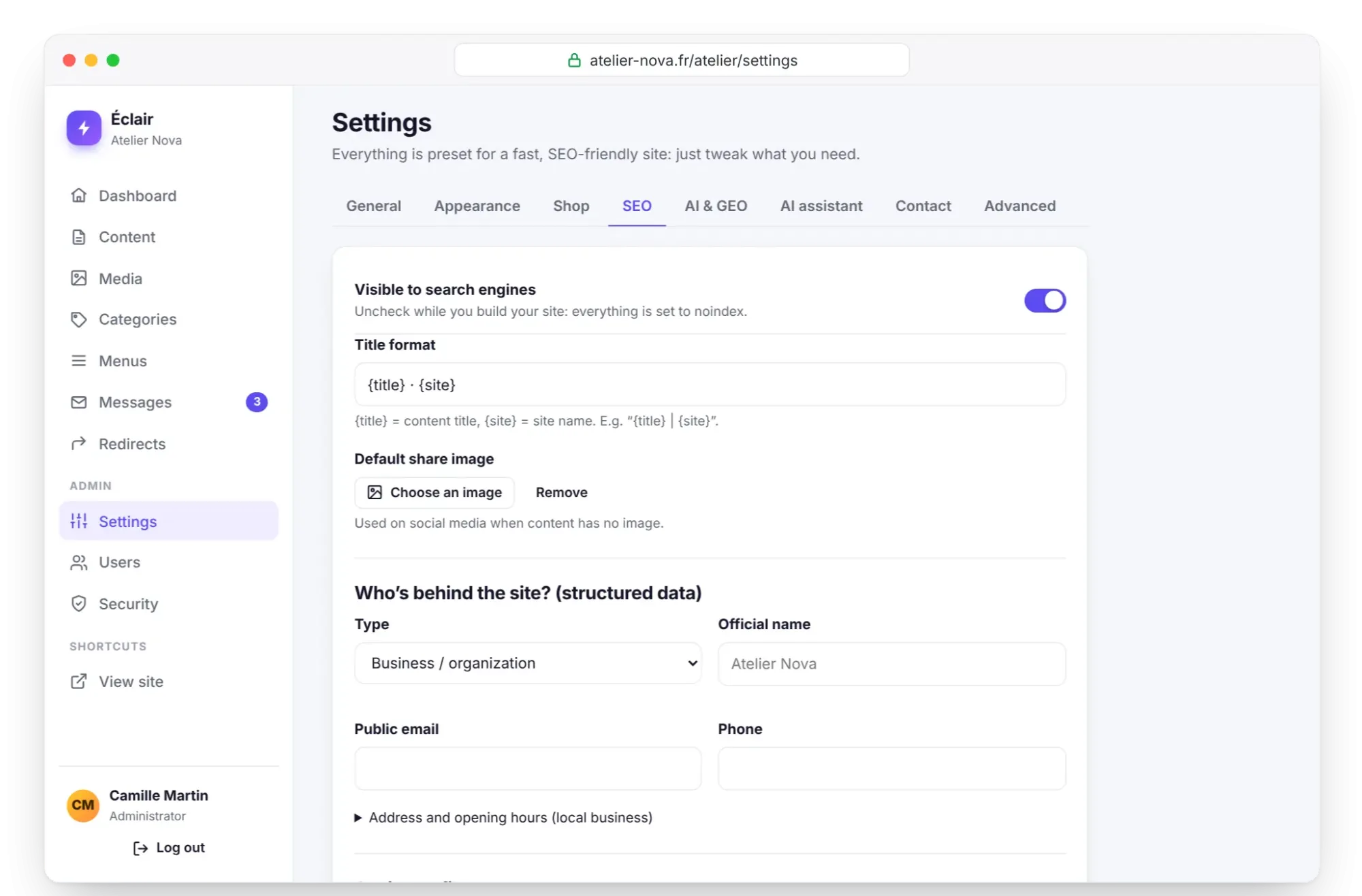
*Settings › SEO: paste the tag, Éclair extracts the code*
Also check that the **IndexNow** option is ticked: each publication is then reported immediately to Bing, Yandex and other compatible engines. Finally, in Search Console, you can submit your sitemap, generated automatically at `/sitemap.xml`.
> **The construction mode trap** — If you unchecked indexing during installation, check **Visible to search engines** at the top of the **SEO** tab. Otherwise, your whole site stays in noindex, and Google won't show it.
## Complete the legal notice and privacy policy
The installation created two pages with placeholders in square brackets to replace. Open them from **Content**:
| Page | To complete | Legal framework |
| --- | --- | --- |
| Legal notice | Site publisher (name or company name, legal form, address, company number such as the French SIRET), publication manager, contact, hosting provider | LCEN in France, LSSI in Spain |
| Privacy policy | Form data, purpose, retention period, data controller, rights | GDPR |
Replace each placeholder, such as “[Provider name]”, then click **Update**. The privacy page states that the site uses no tracking cookies and no third-party analytics: if you ever add one, update that passage. If in doubt, have these pages reviewed, as you're legally responsible for them.
## Turn on two-factor authentication
1. Click your name at the bottom of the menu to open **My profile**, **Two-factor authentication (2FA)** section.
2. Click **Enable two-factor authentication**.
3. Scan the QR code with an authenticator app (Google Authenticator, Microsoft Authenticator, 1Password, Bitwarden…), or enter the key manually.
4. Type the 6-digit code shown, then click **Confirm and enable**.
5. Copy your **8 backup codes** with **Copy codes**: they're shown only once. Store them in a password manager, or print them.
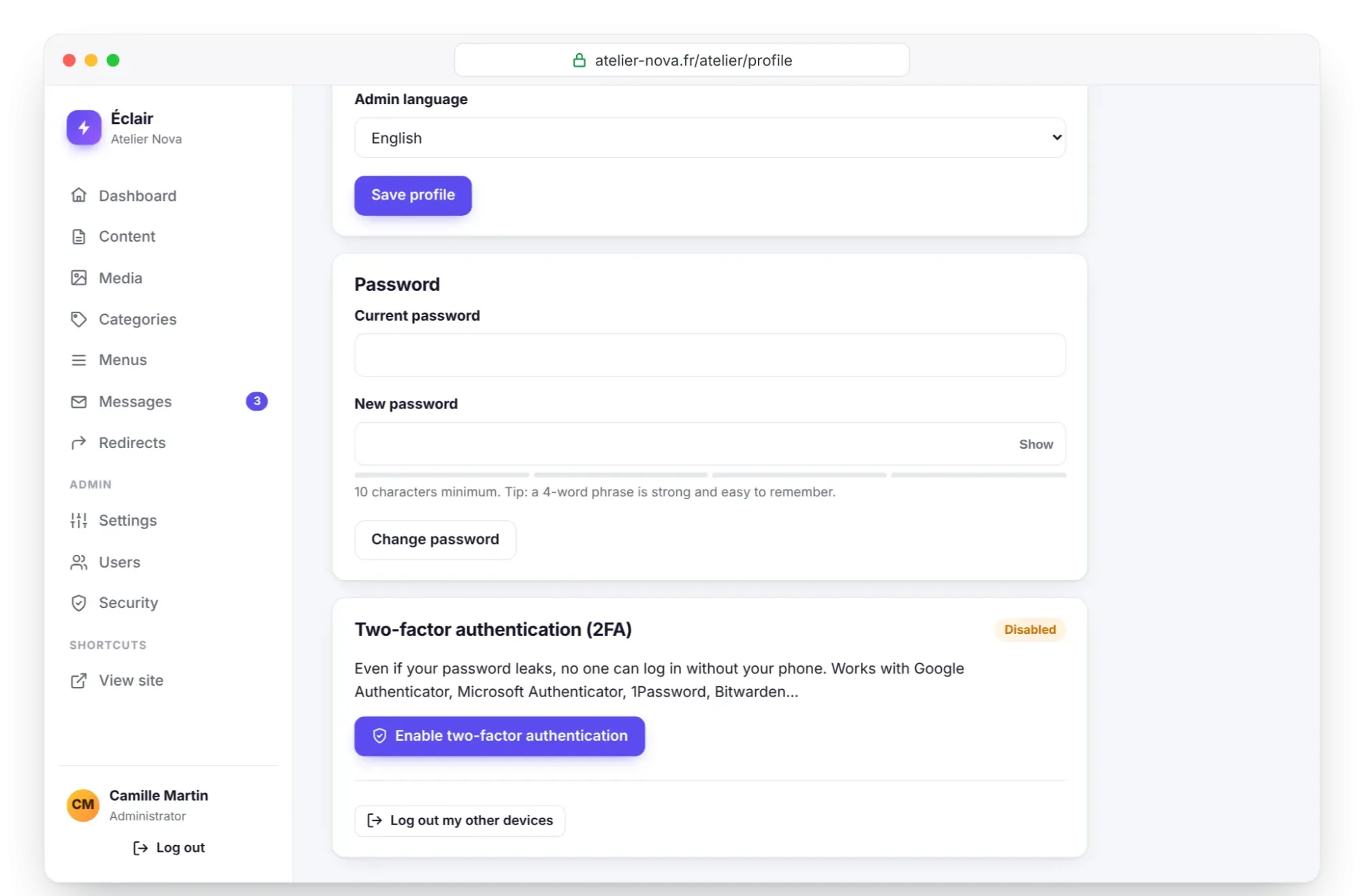
*My profile: two-factor authentication in three moves*
From now on, Éclair asks for your app's code after your password. Lost your phone? A backup code replaces it, and each one works only once. After 10 wrong codes, two-factor authentication for the account is locked for 15 minutes, and you're notified by email.
## Download a first backup
1. Open **Security**, **Backup** section.
2. Click **Download a backup**. If you logged in more than 15 minutes ago, Éclair asks for your password again.
3. Store the ZIP archive away from your hosting: computer, external drive or online storage.
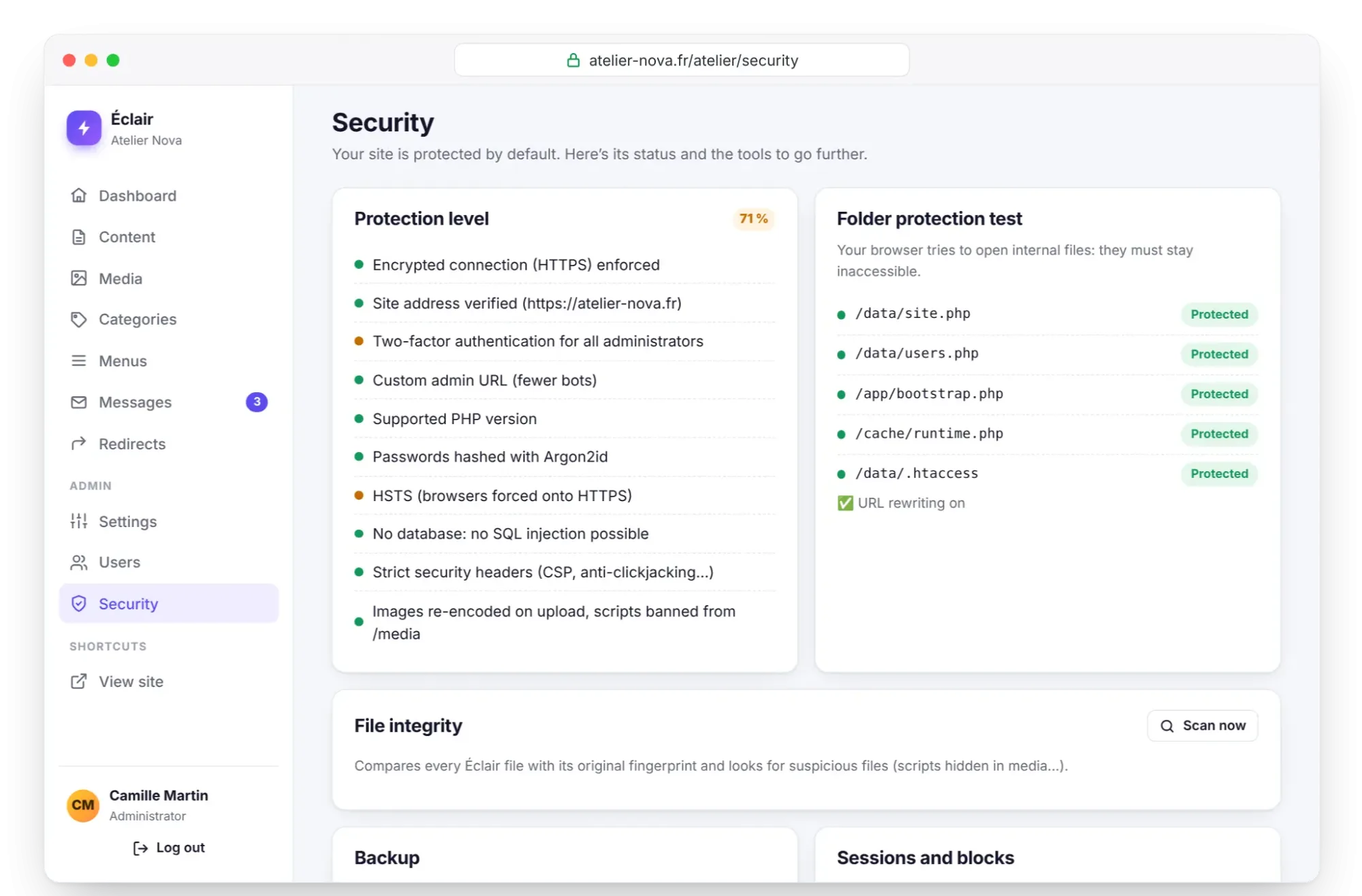
*Security: one-click backup*
The archive contains your content, settings, accounts and images, that is, the `data/` and `media/` folders. The AI assistant's API keys are excluded from it. Without the zip extension, copy these two folders via FTP. Make a new backup before any major change.
## Your essential settings checklist
| No. | Check | Where |
| --- | --- | --- |
| 1 | Name, tagline and home page description filled in | **Settings › General** |
| 2 | Official address in `https://` and **Force HTTPS** checked | **Settings › General** and **Advanced** |
| 3 | Language and time zone correct | **Settings › General** |
| 4 | Logo and site icon in place | **Settings › Appearance** |
| 5 | **Visible to search engines** checked | **Settings › SEO** |
| 6 | Google Search Console and Bing connected | **Settings › SEO** |
| 7 | Legal notice and privacy policy completed | **Content** |
| 8 | Form tested, message received | Contact page, then **Messages** |
| 9 | Custom admin URL | **Settings › Advanced** |
| 10 | Two-factor authentication on | **My profile** |
| 11 | First backup downloaded | **Security › Backup** |
| 12 | Getting started checklist complete | **Dashboard** |
## Key points
- The essential settings take 30 minutes: identity, HTTPS, visibility, legal pages and security.
- **Force HTTPS** can only be turned on once the certificate is in place and you're logged in over `https://`.
- Paste the whole Google Search Console or Bing tag: Éclair extracts the code.
- Replace every placeholder in square brackets in the legal pages before launch.
- Turn on two-factor authentication, store your 8 backup codes and download a backup.
## Going further
- [Everyday security](https://eclair.academy/en/paths/intermediate/everyday-security): sessions, the log, the integrity check and a monthly routine.
- [SEO with Éclair](https://eclair.academy/en/paths/intermediate/seo): live analysis, redirects and the method to aim for 100.
- [Settings reference](https://eclair.academy/en/docs/settings): every option, tab by tab.
- Official sources: [Google Search Console](https://search.google.com/search-console), [Bing Webmaster Tools](https://www.bing.com/webmasters) and the [CNIL](https://www.cnil.fr/), France's data protection authority, for your obligations regarding personal data.
## Frequently asked questions
### Do I have to fill in every Settings tab before launching?
No. Everything is preset, and the essential settings for a launch are in **General**, **SEO** and **Advanced**. The shop and the AI assistant can wait.
### What if I've lost my phone and my backup codes?
Another administrator can disable your two-factor authentication from **Users**. If you're on your own, create via FTP the `data/reset.php` file described in [Troubleshooting](https://eclair.academy/en/docs/troubleshooting): it also disables your account's two-factor authentication.
### Where do I find Google's verification code?
In Search Console, choose the **HTML tag** method: Google shows a `` tag. Copy it in full and paste it into **Settings › SEO**; Éclair extracts the code on its own.
### How often should I make a backup?
At least before every major change, and on a regular schedule suited to how often you publish. The archive contains your whole site, so keep it away from your hosting.